EducationSoftwareStrategy.com
StrategyCommunity

Knowledge Base

Product

Community

Knowledge Base

TopicsBrowse ArticlesDeveloper Zone

Product

Download SoftwareProduct DocumentationSecurity Hub

Education

Tutorial VideosSolution GalleryEducation courses

Community

GuidelinesGrandmastersEvents
x_social-icon_white.svglinkedin_social-icon_white.svg
Strategy logoCommunity

© Strategy Inc. All Rights Reserved.

LegalTerms of UsePrivacy Policy
  1. Home
  2. Topics

KB11043: Attributes with null ID values are not included in the result set for MicroStrategy reports or dashboards.


Community Admin

• Strategy


SYMPTOM:
When executing and displaying a report in Strategy Developer or Web, the report results do not include attributes with null ID values.
 
CAUSE:
Null values for attribute IDs are not supported in Strategy nor can outer joins be performed on attribute IDs. This lack of support stems from how the SQL language handles nulls and cannot be changed. Therefore, attributes with null values for the ID will not be behave properly in the Strategy product.
 
ACTION:
Users must ensure that the column selected for the attribute ID does not include null values. It is advised to either provide values for the null attribute IDs in the data warehouse or edit the attribute in the Attribute Editor to select a different column to act as the attribute ID.
 
To select a different column for the attribute ID, perform the following steps:
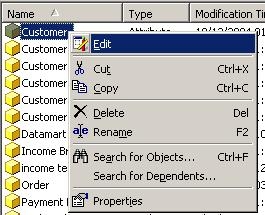
 

  • Right-click on the attribute and select Edit:
ka04W00000148OSQAY_0EM440000002FoE.jpeg
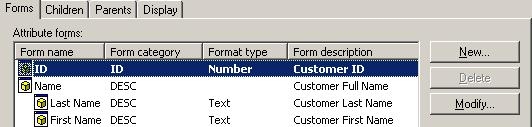
  • Select the ID attribute form and click Modify:
ka04W00000148OSQAY_0EM440000002Fo8.jpeg
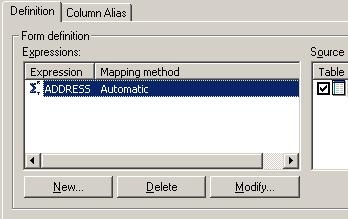
  • Select Modify to edit the Attribute Form Expression, as shown below:
ka04W00000148OSQAY_0EM440000002FoA.jpeg
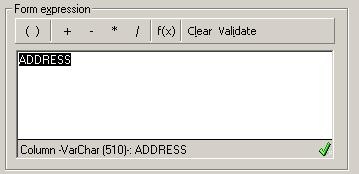
  • Remove the current column from the Attribute Form Expression window:
ka04W00000148OSQAY_0EM440000002Fo2.jpeg
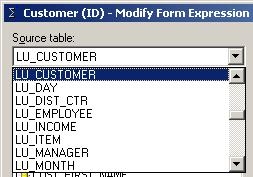
  • Select the correct table from the Source Table pull-down list:
ka04W00000148OSQAY_0EM440000002FoL.jpeg
  • Drag and drop into the Attribute Form Expression window the desired column, as shown below:
ka04W00000148OSQAY_0EM440000002Fo1.jpeg
  • Click OK on the open Attribute Editor windows.
  • Save and Close.
  • Update Schema.

Comment

0 comments

Details

Knowledge Article

Published:

May 18, 2017

Last Updated:

November 22, 2022