EducationSoftwareStrategy.com
StrategyCommunity

Knowledge Base

Product

Community

Knowledge Base

TopicsBrowse ArticlesDeveloper Zone

Product

Download SoftwareProduct DocumentationSecurity Hub

Education

Tutorial VideosSolution GalleryEducation courses

Community

GuidelinesGrandmastersEvents
x_social-icon_white.svglinkedin_social-icon_white.svg
Strategy logoCommunity

© Strategy Inc. All Rights Reserved.

LegalTerms of UsePrivacy Policy
  1. Home
  2. Topics

KB11289: How to create a MicroStrategy Narrowcast Server service that delivers an Excel attachment containing reports through email


Community Admin

• Strategy


The following procedure describes how to create a service in MicroStrategy Narrowcast Server that delivers an excel attachment containing reports through email.

The following procedure describes how to create a service in Strategy Narrowcast Server that delivers an excel attachment containing reports through email.
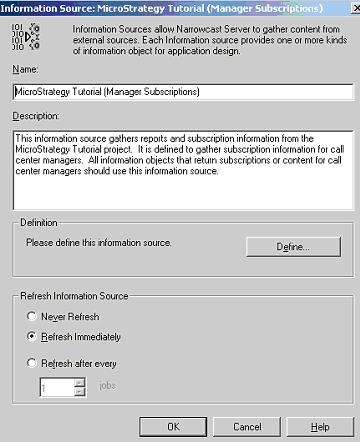
 

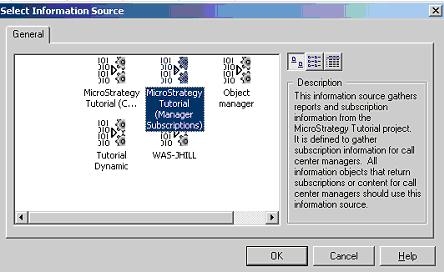
  • Create an Information Source that points to a Strategy Intelligence Server:
ka04W000001MKrFQAW_0EM440000002BlN.jpeg
  • Create a new Service, using the Service Wizard.
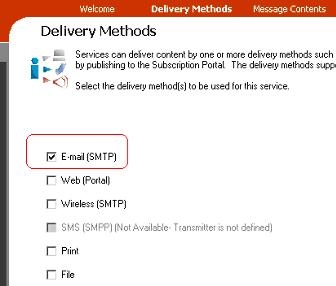
  • In the Delivery Methods Window, check the 'Email' option, as shown below:
ka04W000001MKrFQAW_0EM440000002BlQ.jpeg
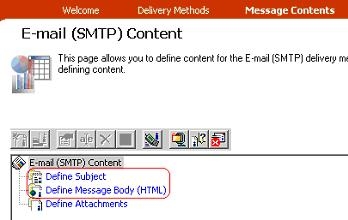
  • In the 'Message Contains' window, double-click on the Subject and Message Body if, if desired:
ka04W000001MKrFQAW_0EM440000002BlO.jpeg
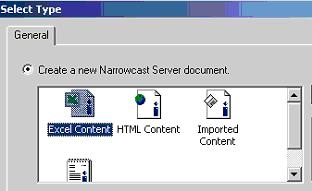
  • Double-click on 'Define Attachments' in order to create an Excel attachment. When the 'Select Type' window opens, select 'Excel content,' as shown below:
ka04W000001MKrFQAW_0EM440000002BlP.jpeg
  • Once the Excel editor opens, click on the 'Browse' button to choose a template.
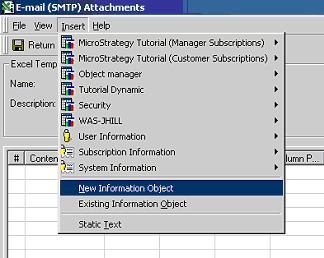
  • Once the template is selected, click on the 'Insert' menu and select 'New Information Object:'
ka04W000001MKrFQAW_0EM440000002Bll.jpeg
  • Select the Information Source created in Step 1:
ka04W000001MKrFQAW_0EM440000002Blk.jpeg
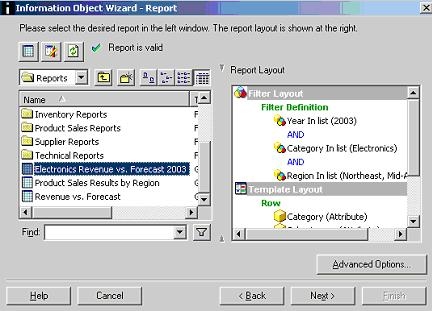
  • Once the Information Object Wizard opens, point to the desired report. Click 'Next' and 'Finish:'
ka04W000001MKrFQAW_0EM440000002BlM.jpeg
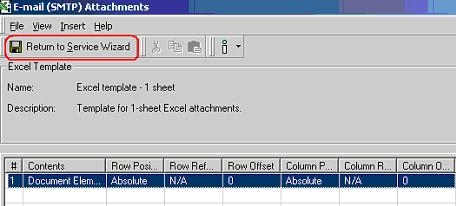
  • Once the Excel Document is created, click on 'Return to Service Wizard,' as below:
ka04W000001MKrFQAW_0EM440000002BlR.jpeg
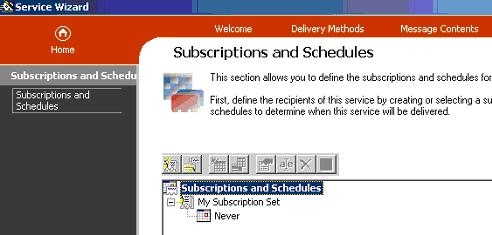
  • Choose one or more subscribers and a schedule for the service. Continue through the rest of the Wizard.
ka04W000001MKrFQAW_0EM440000002BlZ.jpeg

Once the Service runs, users will receive an Excel attachment containing the desired report:
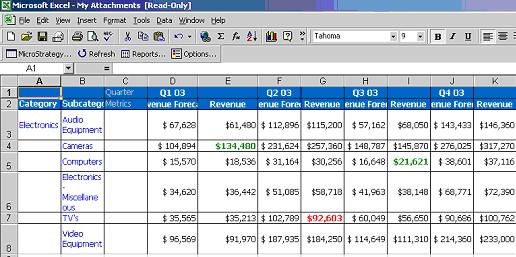
ka04W000001MKrFQAW_0EM440000002BlJ.jpeg


Comment

0 comments

Details

Knowledge Article

Published:

April 4, 2017

Last Updated:

April 4, 2017