EducationSoftwareStrategy.com
StrategyCommunity

Knowledge Base

Product

Community

Knowledge Base

TopicsBrowse ArticlesDeveloper Zone

Product

Download SoftwareProduct DocumentationSecurity Hub

Education

Tutorial VideosSolution GalleryEducation courses

Community

GuidelinesGrandmastersEvents
x_social-icon_white.svglinkedin_social-icon_white.svg
Strategy logoCommunity

© Strategy Inc. All Rights Reserved.

LegalTerms of UsePrivacy Policy
  1. Home
  2. Topics

KB11291: How is the “Diagnostics” option enabled in MicroStrategy Developer


Stefan Zepeda

Salesforce Solutions Architect • Strategy


This Technical Note explain how the “Diagnostics” option enabled in MicroStrategy Developer

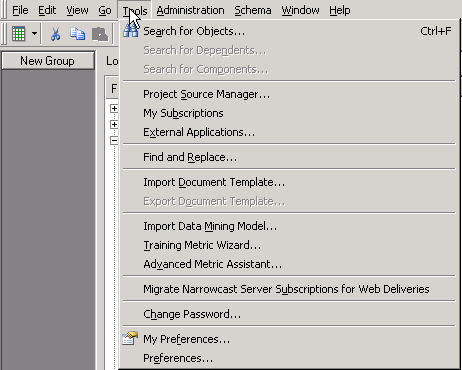
After logging into Strategy Desktop, users will notice when they click on Tools that the Diagnostics option does not appear by default:
ka02R000000kcfvQAA_0EM440000002Hxa.png

 
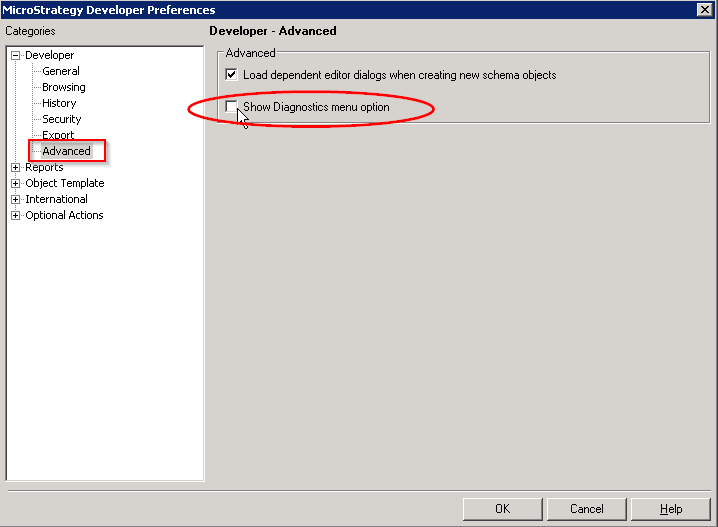
To enable this option in Strategy Developer, go to Tools > Developer Preferences. Once the screen appears, browse to Advanced and then select the option "Show Diagnostics Menu Option," as shown below:
ka02R000000kcfvQAA_0EM440000002HxV.png


Note: Enabling the Diagnostics option is a Strategy Desktop preference which will apply to all users using Desktop on the local machine.
 
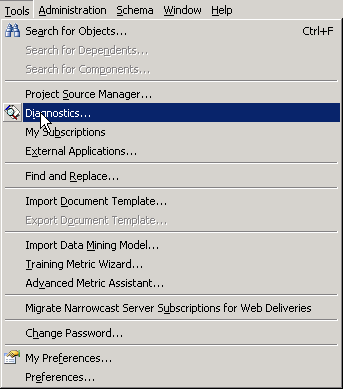
Finally, select the 'Save and close' option. Now, when clicking on the toolbar, the "Diagnostics" option will be available:
ka02R000000kcfvQAA_0EM440000002HxQ.png


Comment

0 comments

Details

Knowledge Article

Published:

April 4, 2017

Last Updated:

April 4, 2017