EducationSoftwareStrategy.com
StrategyCommunity

Knowledge Base

Product

Community

Knowledge Base

TopicsBrowse ArticlesDeveloper Zone

Product

Download SoftwareProduct DocumentationSecurity Hub

Education

Tutorial VideosSolution GalleryEducation courses

Community

GuidelinesGrandmastersEvents
x_social-icon_white.svglinkedin_social-icon_white.svg
Strategy logoCommunity

© Strategy Inc. All Rights Reserved.

LegalTerms of UsePrivacy Policy
  1. Home
  2. Topics

KB11303: How can administrators delete specific history list messages from one project in MicroStrategy Developer 10.xr?


Stefan Zepeda

Salesforce Solutions Architect • Strategy


How can administrators delete specific history list messages from one project in MicroStrategy Developer 10.xr?

Because history list messages are stored in a binary file referenced by a user's GUID, issues can arise if there are outstanding history list messages for multiple projects and one of the projects has been deleted or un-registered.
For more details on these specific problems, refer to the following Strategy Knowledge Base document:
 

  • KB5303-7XX-0003 -Users cannot seem to add any more entries to their History List even though the number of History List messages setting has not been reached in Strategy Intelligence Server

In order to avoid problems of this nature, a recommended administrative step, before deleting or un-registering a project, is to delete the History List messages within that specific project.
 
The following steps demonstrate how to create a schedule and administrative task to delete the history list message before the project is deleted.
 
Creating a new schedule

  1. Under Administration > Schedule Manager, right-click in the right-hand window and select New > Schedule.
  2. In the Schedule Wizard, name the new schedule (e.g., "Delete History List messages"), and select Next.
  3. Select the Schedule type: Event-Triggered. Select next.
  4. Define the start date as Today, and the end date as "No end date."
  5. In Events Selection, click on the "Events" button on the right-hand side. The Event Viewer window will appear.
  6. In the Event viewer window, select File > New.
  7. Name the new Event (e.g., "My Delete History List Event"). Select File > Exit.
  8. In the "Schedule Wizard - Event Select" window, select the newly created Event from the list of Events that will trigger this schedule.
  9. Select Next.
  10. Select Finish.

The new Schedule will be listed under Administrator > Schedule Manager.
 
Scheduling Administration Tasks
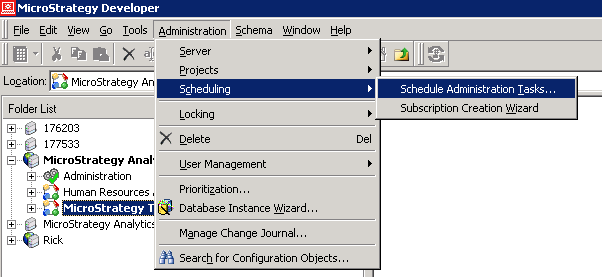
  • In Strategy Developer, select Administration > Scheduling > Schedule Administration Tasks..., as shown below:
ka02R000000kcRnQAI_0EM440000002Jqf.png
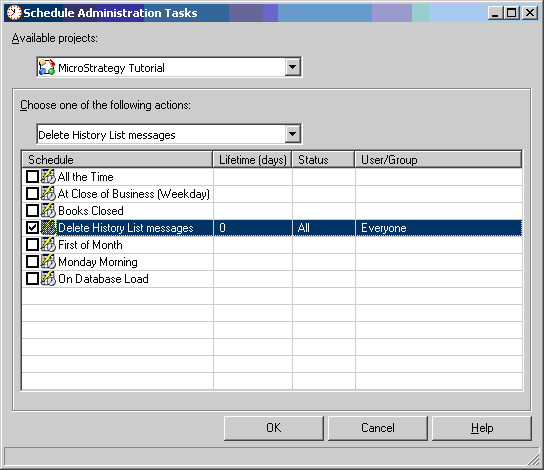
  • In Available Projects, select the project from which the history list message will be deleted.
  • Under Choose One of the following Actions, select Delete History List messages.
  • Select the Newly created Schedule from the list of Schedules.
  • Leave the default setting for Lifetime (Days) at 0. A value of 0 (the default) means that all messages will be deleted regardless of their creation time. If 10 is entered, the system will delete all the messages that are more than 10 days old and keep those that are less than 10 days old.
  • Under status, select All.
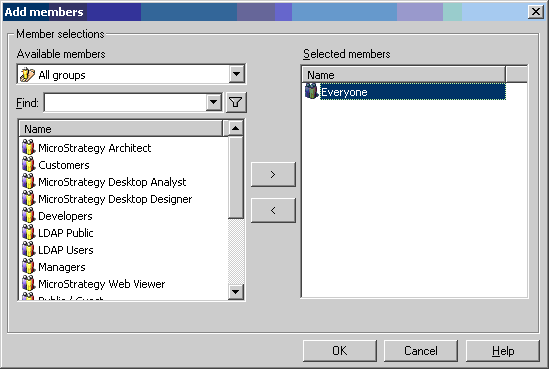
  • In User/Group, double-click on the "…" button to pull up the Add Members window.
  • From All Groups, select the Everyone Group:
ka02R000000kcRnQAI_0EM440000002BlY.gif
  •  
    The selection in the Schedule Administration Tasks window should appear as follows:
ka02R000000kcRnQAI_0EM440000002Ble.gif
  • Select OK.

Deleting the History List messages

  • In Strategy Developer, select Administration > Events.
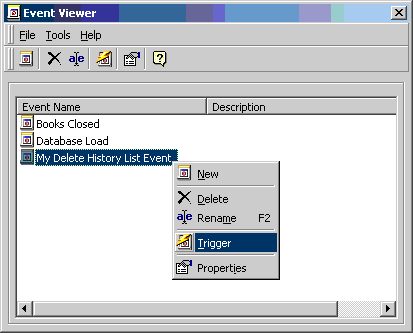
  • Right-click on the previously created Event, and select Trigger:
ka02R000000kcRnQAI_0EM440000002Blh.gif

All Schedules tied to this event will be triggered, including the "Delete History List messages" event previously created. The history list messages for the Project specified will now be deleted. The History folder below the Project specified must be refreshed to reflect the change.


Comment

0 comments

Details

Knowledge Article

Published:

April 20, 2017

Last Updated:

April 20, 2017