EducationSoftwareStrategy.com
StrategyCommunity

Knowledge Base

Product

Community

Knowledge Base

TopicsBrowse ArticlesDeveloper Zone

Product

Download SoftwareProduct DocumentationSecurity Hub

Education

Tutorial VideosSolution GalleryEducation courses

Community

GuidelinesGrandmastersEvents
x_social-icon_white.svglinkedin_social-icon_white.svg
Strategy logoCommunity

© Strategy Inc. All Rights Reserved.

LegalTerms of UsePrivacy Policy
  1. Home
  2. Topics

KB11357: How to set column widths for a grid report in MicroStrategy Developer


Stefan Zepeda

Salesforce Solutions Architect • Strategy


How to set column widths for a grid report in MicroStrategy Developer

In Strategy Developer, report columns and rows can be expanded as long or as short as desired and saved with the report. The steps outlined in this document describe how to achieve this.
 

  • Execute a report in Strategy Developer, as shown in the example below:
ka02R000000kXHIQA2_0EM440000002Flt.jpeg
  • Click Grid > View Column Handles and notice the gridlines that appear when enabling column widths.
     
    Note: In Strategy Developer, this feature is also available by double-clicking on the area just above the leftmost attribute on the grid report template. This area is highlighted in the screen shot below:
ka02R000000kXHIQA2_0EM440000002FlQ.jpeg
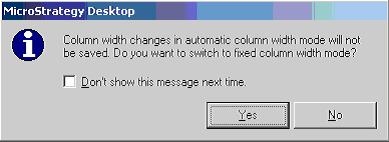
  • The following prompt will appear if this is the first time that the column widths have been altered for the report. Click Yes to save the column width changes when saving or executing the report:
ka02R000000kXHIQA2_0EM440000002FlS.jpeg
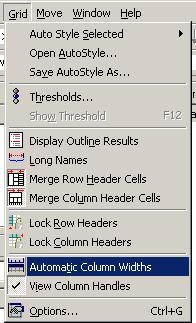
  • Note: By clicking the "Don't show this message next time" option, the "Automatic Column Widths" option must be turned off manually. To do this, click Grid > Automatic Column Widths, as shown below:
ka02R000000kXHIQA2_0EM440000002FlZ.jpeg
  • Drag the column handles and adjust to the desired width.
  • Save the report.

Execute the report again and notice the changes to the columns are saved with the report:
 

ka02R000000kXHIQA2_0EM440000002Flo.jpeg


Comment

0 comments

Details

Knowledge Article

Published:

June 19, 2017

Last Updated:

June 19, 2017