EducationSoftwareStrategy.com
StrategyCommunity

Knowledge Base

Product

Community

Knowledge Base

TopicsBrowse ArticlesDeveloper Zone

Product

Download SoftwareProduct DocumentationSecurity Hub

Education

Tutorial VideosSolution GalleryEducation courses

Community

GuidelinesGrandmastersEvents
x_social-icon_white.svglinkedin_social-icon_white.svg
Strategy logoCommunity

© Strategy Inc. All Rights Reserved.

LegalTerms of UsePrivacy Policy
  1. Home
  2. Topics

KB11378: How to sort by a non-displayed attribute form in a Report Services document in MicroStrategy Developer


Community Admin

• Strategy


Sort attributes on a Report Services Document by a form not displayed.

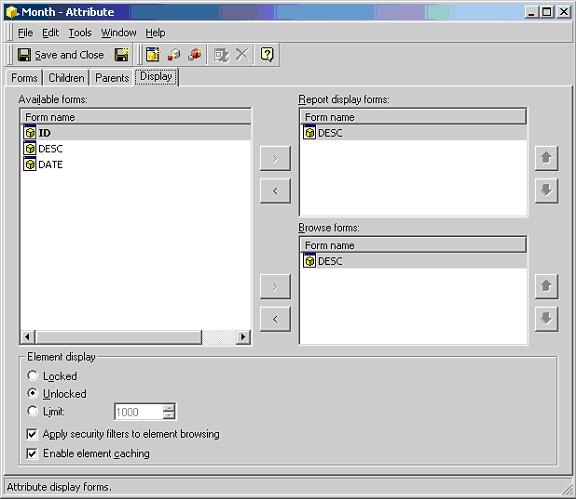
The following example, using the Strategy Tutorial project, includes the attribute Month with three forms: ID, DESC and DATE. By default, only the DESC form is in display form:
ka04W000000uGFsQAM_0EM440000002FlN.jpeg

 
If users wish to sort by a non-displayed form, such as DATE, in the Report Service document, the following steps can be taken:
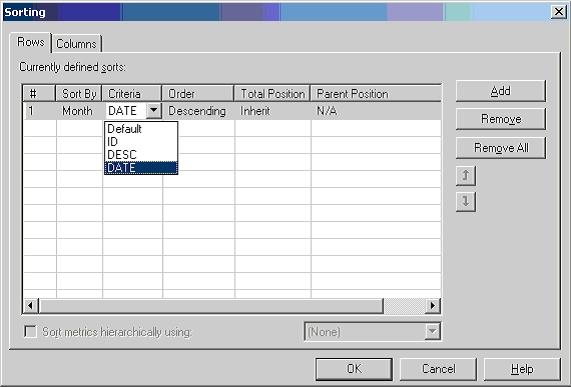
 

  • At the base report level, go to Data > Advance Sorting, then add Month to the 'Sort By' column.
  • Define the sort to be performed by DATE in the Criteria column:
ka04W000000uGFsQAM_0EM440000002FlO.jpeg
  • Save and close the report.
  • Open the document editor and add the above report as a dataset.
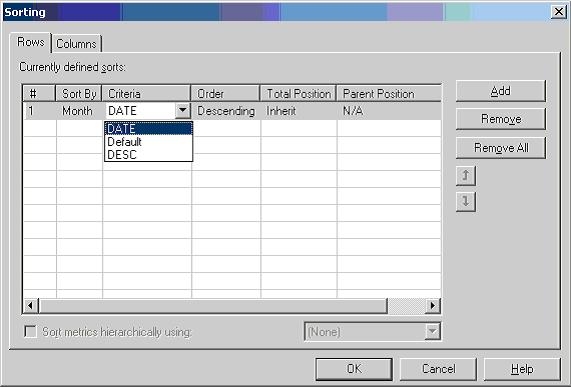
  • Press the SHIFT key while dragging and dropping the above report to the document design area.

Notice that the DATE form now becomes available for sorting:
ka04W000000uGFsQAM_0EM440000002FlL.jpeg

 
KB11378


Comment

0 comments

Details

Knowledge Article

Published:

June 2, 2017

Last Updated:

November 28, 2018