EducationSoftwareStrategy.com
StrategyCommunity

Knowledge Base

Product

Community

Knowledge Base

TopicsBrowse ArticlesDeveloper Zone

Product

Download SoftwareProduct DocumentationSecurity Hub

Education

Tutorial VideosSolution GalleryEducation courses

Community

GuidelinesGrandmastersEvents
x_social-icon_white.svglinkedin_social-icon_white.svg
Strategy logoCommunity

© Strategy Inc. All Rights Reserved.

LegalTerms of UsePrivacy Policy
  1. Home
  2. Topics

KB11572: Metrics using a time format with milliseconds always display zeroes for the fractional part


Stefan Zepeda

Salesforce Solutions Architect • Strategy


KB11572: Metrics using a time format with milliseconds always display zeroes for the fractional part

SYMPTOM:
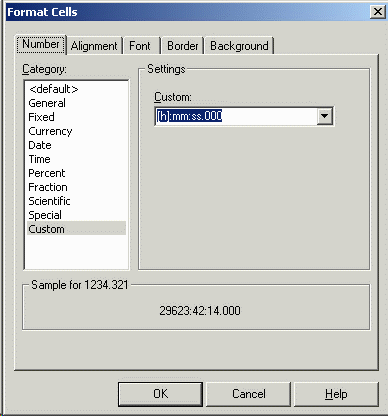
A user creates a metric to display a time value (e.g., elapsed time), and wants to see hours, minutes, seconds and milliseconds. The following custom formatting string is applied:
 
:mm:ss.000
ka02R000000kZggQAE_0EM440000002Fl9.gif

 
Note: The available syntax for custom formatting strings is described in the Advanced Reporting PDF manual, in the section Metrics > Formatting metrics > Number display codes.
 
When executing the report, however, the fractional part of the second always displays as zero:
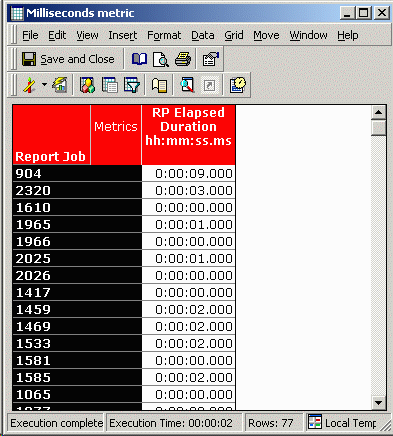
ka02R000000kZggQAE_0EM440000002FlC.gif

 
Note: Examples in this article are taken from the Enterprise Manager project; however, the issue may occur in any Strategy project.
 
CAUSE:
This is a known issue in Strategy.
 
Strategy licenses grid display controls from a third-party vendor, and these controls do not support the display of fractional parts of a second.
 
WORKAROUND:
If it is not necessary to see hours, minutes and seconds, multiply the metric value by 86400 (the number of seconds in a day) and format the metric with fixed decimal precision. The metric will then display the time value in seconds, down to whatever precision is set in the formatting dialog.
 
Alternately, if the hours/minutes display is needed, a pair of metrics may be used: one to display hours, minutes, and the other to display seconds with the fractional part.
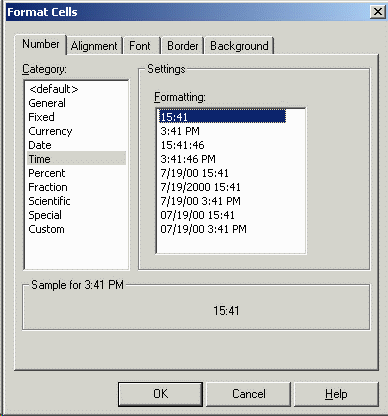
 

  • Format the elapsed time metric for hours and minutes (with no seconds). Use this metric on the report as before:
ka02R000000kZggQAE_0EM440000002FlK.gif
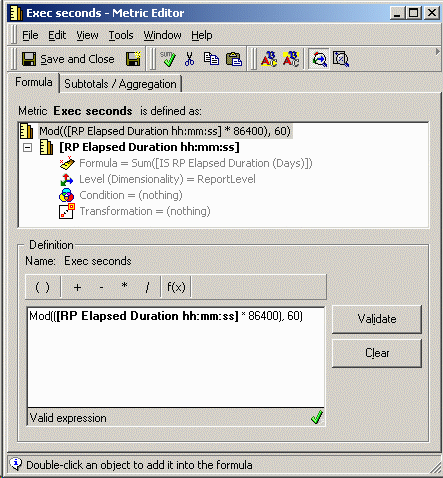
  • Create a second metric, using the following as the formula. The formula converts the metric value (which is calculated as a fraction of a day) into seconds, then uses the modulo function to obtain the remainder when dividing the number of seconds by 60.
    Mod(( * 86400), 60)
ka02R000000kZggQAE_0EM440000002FlA.gif
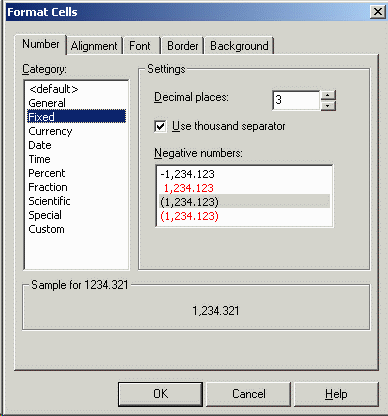
  • Format the metric to a fixed decimal place display, with as many places of precision as desired:
ka02R000000kZggQAE_0EM440000002FlI.gif
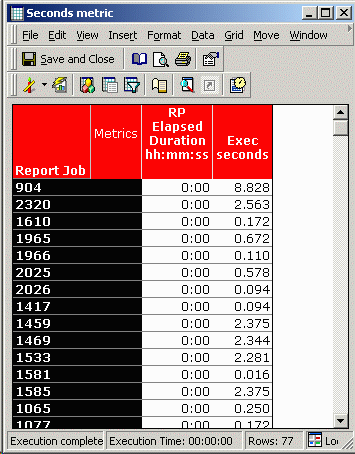
  • Using the two metrics side-by-side on the report will display the milliseconds. In this case, the hours/minutes metric is always zero because none of the report jobs took longer than a minute (compare to the report screen shot above).
ka02R000000kZggQAE_0EM440000002Fl7.gif

If OLAP Services are available, the second/milliseconds metric may be created as a derived metric using the same formula as above.


Comment

0 comments

Details

Knowledge Article

Published:

June 8, 2017

Last Updated:

June 8, 2017