SYMPTOM:
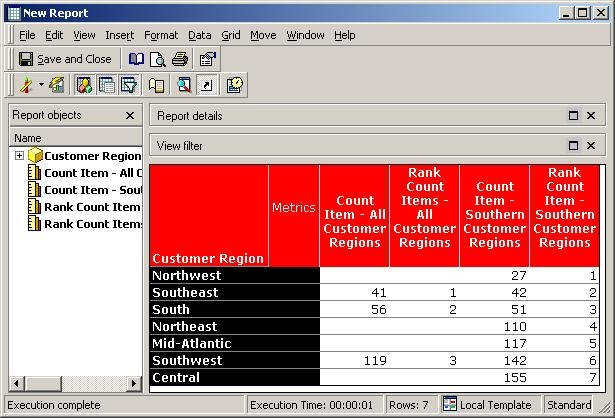
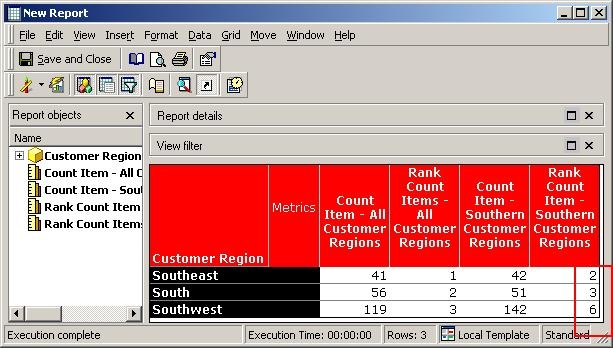
Multiple Rank Metrics are placed on a grid report having different Rank criteria. When the report is executed, only one of the Metrics returned the ranking as expected. The other Rank Metrics either do not start with Rank 1 and/or displayed with missing ranks, as shown below:
CAUSE:
In Strategy, the default Metric Join Type is an Inner Join. In this case, each Rank Metric has different criteria. Strategy generates SQL and creates Temp Tables for each Metric with their respected result set. Based on the result set saved in the Temp tables, the Analytical Engine applies and inserts the ranks using the Rank Functionality within the respected tables.
When these Metrics/Temp tables are joined (using inner join) in the final SQL pass to retrieve the final result set, it only has the elements that have non-Null values in the row for every Metric. Because of the Inner Join some elements with Null Values for one or more Metrics are skipped in the result set, it causes the Metrics to display the ranks missing on the Grid in the report.
ACTION:
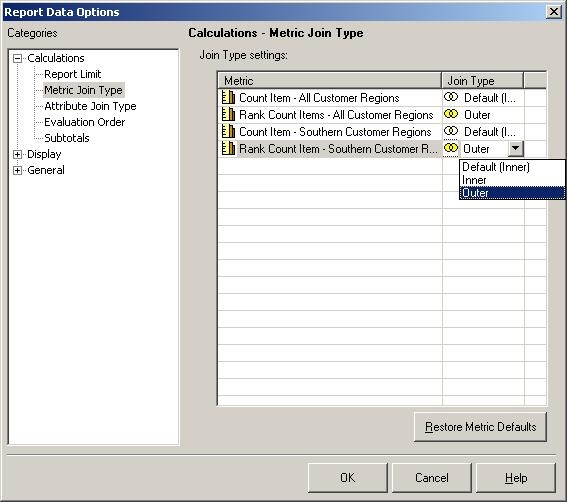
To display all the elements on the Grid, set the Metric Join Type to Outer Join:
When the Metric Join Type for the Rank Metrics is modified from default Inner Join to Outer Join type, all the rows will be displayed on the report even though there is no result is displayed for some of the elements in some of the Metrics. This will resolve the issue and display all the ranks for all the Metrics: