EducationSoftwareStrategy.com
StrategyCommunity

Knowledge Base

Product

Community

Knowledge Base

TopicsBrowse ArticlesDeveloper Zone

Product

Download SoftwareProduct DocumentationSecurity Hub

Education

Tutorial VideosSolution GalleryEducation courses

Community

GuidelinesGrandmastersEvents
x_social-icon_white.svglinkedin_social-icon_white.svg
Strategy logoCommunity

© Strategy Inc. All Rights Reserved.

LegalTerms of UsePrivacy Policy
  1. Home
  2. Topics

KB11693: New Feature in MicroStrategy 9 – Report Services Document Caching


Community Admin

• Strategy


This knowledge base article describes a new feature in Report Services Document Caching introduced in MicroStrategy 9

In Strategy 9, users can cache their entire formatted report services document output in different formats through the new feature called Report Services Document Caching.
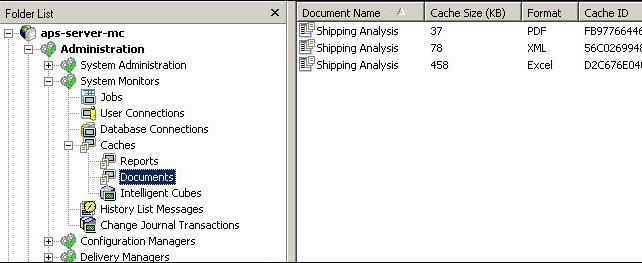
As seen below, administrators can specify the output formats such as PDF, XML, and Excel at the project level or at the document level. HTML formats can also be specified at the same level; however, HTML document caches are created when a document subscription is created with the export format set to HTML.
ka04W000000OadcQAC_0EM440000002B9N.jpeg

 
Benefits of Report Services Document Caching
The benefits of Report Services Document Caching are two-fold:
 

  1. Document formatting is often very CPU intensive. With large datasets, CPU gets maxed out with a small number of simultaneous document executions. Report Services Document Caching will increase concurrent document execution count.
  2. The process of generating document output consume a lot more memory than the final output itself. Report Services Document Caching will also reduce memory consumption.

Support for Report Services Document Caching
Although Report Services Document Caching must be configured via Strategy Desktop, Report Services Document cache creation is currently not supported via Strategy Desktop. Document cache can be created via Strategy Web, Strategy Office, Strategy Narrowcast Server and Strategy Scheduler.
 
How to Enable Document Caching
Even though document cache creation is not supported in Strategy Desktop, document caching must be first configured via Strategy Desktop and then in Strategy Web as seen below:
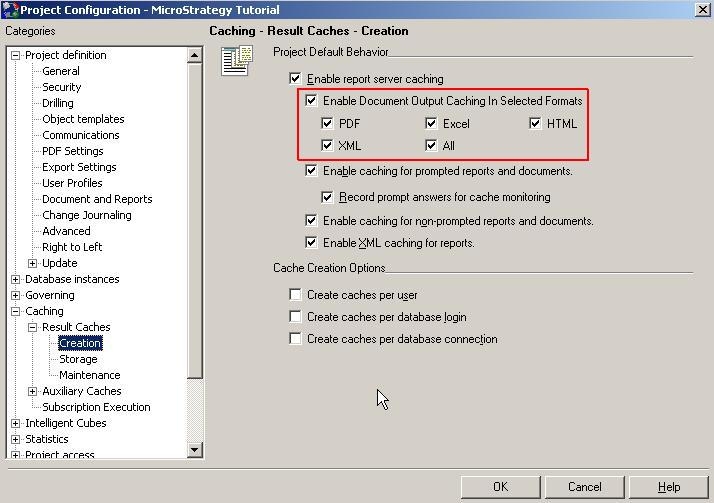
 

  • Configuring Report Services Document Caching via Strategy Desktop
    • At the Project Level:
      In the Project Configuration Editor, under Caching -> Result Caches-> Creation, select the setting called "Enable Document Output Caching in Selected Formats" along with the desired output formats, as seen below:
       
ka04W000000OadcQAC_0EM440000002B9O.jpeg
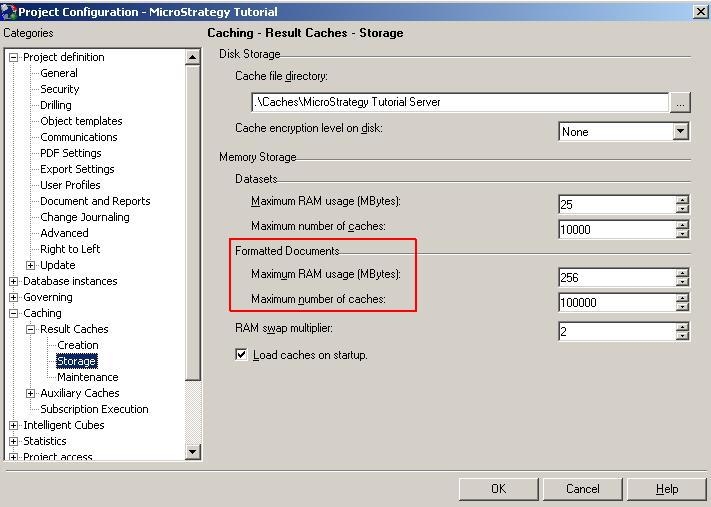
    • A separate section called "Formatted Documents" contains two additional settings for cache storage, as seen below:
ka04W000000OadcQAC_0EM440000002B9f.jpeg
    •  
      Note:
      Maximum RAM Usage limits the total amount of memory that can be used for document caching for a particular project. The default value is 256.
       
      The maximum number of caches limits the number of document caches allowed in the project at one time. The default value is 100,000
       
    • At the Document Level:
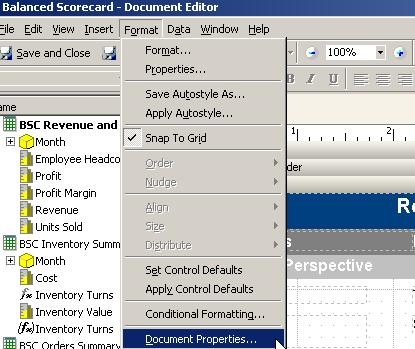
      Document-level cache settings can be found by going to Format menu and then to Document Properties as seen below:
       
      Note: Document level settings override project level settings.
ka04W000000OadcQAC_0EM440000002B9e.jpeg
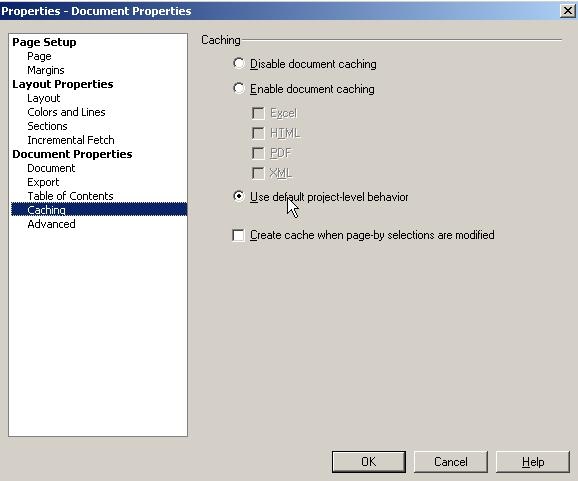
    • In the Document Properties dialog box, select the Caching tab and the following dialog will show up where users can disable or enable document caching in various formats.
ka04W000000OadcQAC_0EM440000002B9Q.jpeg

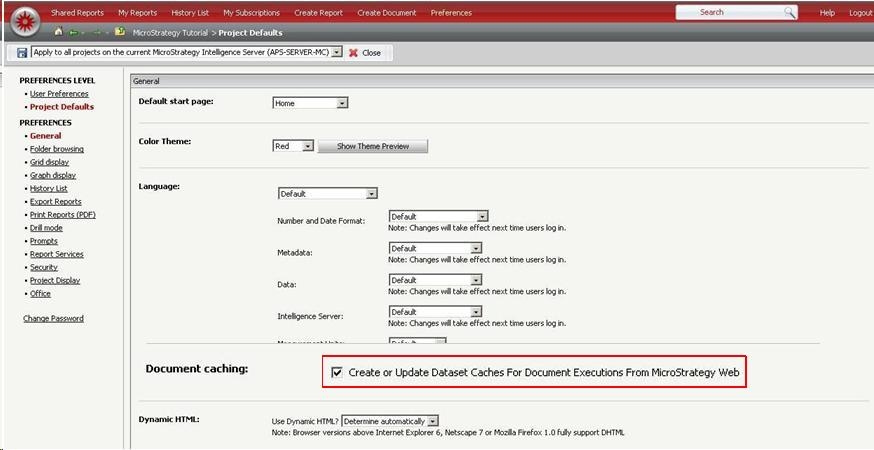
Configuring Report Services Document Caching via Strategy Web
As seen below, a new setting has been introduced in Strategy 9 called "Create or Update Dataset Caches For Document Executions From Strategy Web"
 
Note: This setting is enabled by default and is needed to create document and dataset caches. If this setting is not the dataset caches will not be created and subsequently, no document caches will be created either.
ka04W000000OadcQAC_0EM440000002B9i.jpeg

​
This issue has been logged as KB ID: KB11693


Comment

0 comments

Details

Knowledge Article

Published:

June 2, 2017

Last Updated:

December 5, 2018