EducationSoftwareStrategy.com
StrategyCommunity

Knowledge Base

Product

Community

Knowledge Base

TopicsBrowse ArticlesDeveloper Zone

Product

Download SoftwareProduct DocumentationSecurity Hub

Education

Tutorial VideosSolution GalleryEducation courses

Community

GuidelinesGrandmastersEvents
x_social-icon_white.svglinkedin_social-icon_white.svg
Strategy logoCommunity

© Strategy Inc. All Rights Reserved.

LegalTerms of UsePrivacy Policy
  1. Home
  2. Topics

KB11754: How to display the page-by selection in the subject line of email messages generated by a MicroStrategy Narrowcast Server service


Community Admin

• Strategy


This document uses the Strategy Tutorial project to describe a method for displaying the page-by selection in the subject line of email messages generated by a Strategy Narrowcast Server service.
 
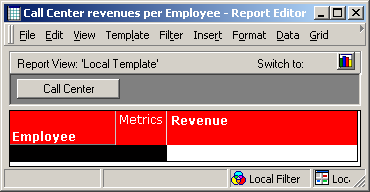
A Narrowcast Server service of type Personalized Page execution delivers a content report sliced by attribute Call Center:
ka04W00000148jBQAQ_0EM440000002Bjc.gif

 
Each subscription in this service receives a different page of the Call Center attribute. The users want the subject line to contain the name of the selected Call Center.
 
Follow the steps below to implement a solution to this requirement:
 

  • Download the MSTR7ToText-MVOnlyCUSTOMER.txt file attached to this article. Rename the file extension to .xsl. This XSL file returns a single metric value and renders it as plaintext. The XSL file is specific for use with Narrowcast Server plaintext documents; it will not work with HTML documents:
    Save the XSL in the default location for plaintext document XSLs, Program Files\MicroStrategy\Narrowcast Server\Delivery Engine\XSL\TextDocuments.
  • Import this XSL into the Narrowcast Server system by following the instructions in the following Strategy Knowledge Base document:
    • KB6857 : How to import an XSL stylesheet to the Strategy Narrowcast Server 7.x system
  • Name it MSTR7ToText-MVOnly.xsl:
ka04W00000148jBQAQ_0EM440000002BjR.gif
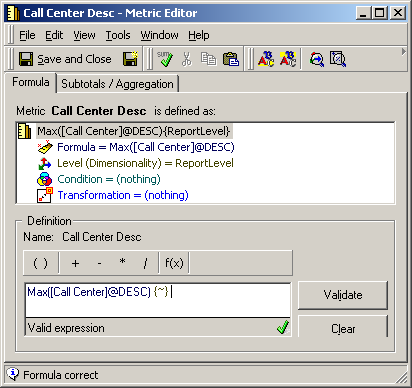
  • Create a metric defined as follows:
    • Formula = Max(@DESC). In this example, the formula would be Max(@DESC)
    • Condition = Transformation = nothing
    • Dimensionality = ReportLevel
ka04W00000148jBQAQ_0EM440000002Bjm.gif
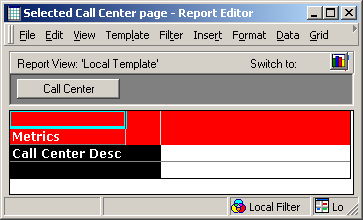
  • Create a report defined as follows:
    • Page-by axis: same slicing attribute used in the content report. In this example, this would be the attribute Call Center.
    • Rows: the metric created in previous step.
ka04W00000148jBQAQ_0EM440000002BjY.gif
  • Create a Narrowcast Question Object (QO) pointing to the report in previous step. Set its type as Personalized Page execution. In this example, the name of this QO is Call Center selection and this is what will appear in Subscription Properties Editor > Preferences.
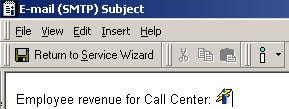
  • Create a Narrowcast Server plaintext document for the subject line of the service. This document will contain an information object (IO) pointing to the report created in Step 5:
ka04W00000148jBQAQ_0EM440000002Bjk.gif
    • Set its execution mode as Personalized Page execution
    • Set it to use the QO object created in previous step
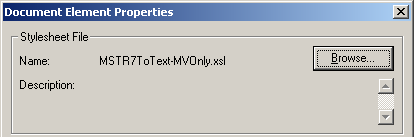
  • Right-click on the IO icon and select Edit Document Element. Browse and select the XSL imported in Step 3, MSTR7ToText-MVOnly.xsl:
ka04W00000148jBQAQ_0EM440000002BjS.gif
  • Set the content IO to use the QO object created in Step 6. Now, both IOs are personalized via the same QO.
  • For each subscription in the subscription set, create a preference for the QO. This preference will apply to both IOs in the service:
ka04W00000148jBQAQ_0EM440000002BjW.gif

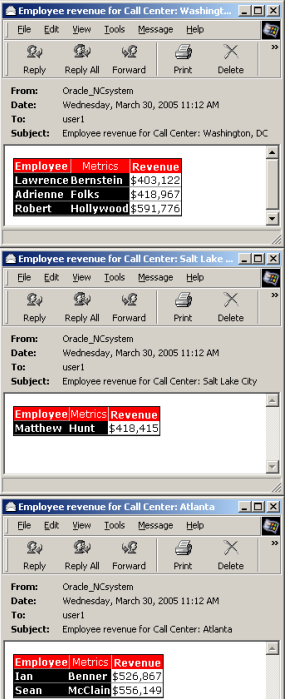
In this example, there are three subscriptions for the service. The subscriptions selected these pages of the slicing attribute Call Center: Washington, DC, Salt Lake City, and Atlanta. The resulting messages follows:
ka04W00000148jBQAQ_0EM440000002Bjl.gif


Comment

0 comments

Details

Knowledge Article

Published:

June 8, 2017

Last Updated:

January 11, 2021