EducationSoftwareStrategy.com
StrategyCommunity

Knowledge Base

Product

Community

Knowledge Base

TopicsBrowse ArticlesDeveloper Zone

Product

Download SoftwareProduct DocumentationSecurity Hub

Education

Tutorial VideosSolution GalleryEducation courses

Community

GuidelinesGrandmastersEvents
x_social-icon_white.svglinkedin_social-icon_white.svg
Strategy logoCommunity

© Strategy Inc. All Rights Reserved.

LegalTerms of UsePrivacy Policy
  1. Home
  2. Topics

KB11832: How to enable Scheduler tracing in MicroStrategy 9.x - 10.x.


Stefan Zepeda

Salesforce Solutions Architect • Strategy


The Scheduler Trace is useful for monitoring and/or troubleshooting the execution of different scheduled tasks available in MicroStrategy Intelligence Server. This technical note lists the steps to enable it.

The Scheduler Trace is useful for monitoring and/or troubleshooting the execution of different scheduled tasks available in Strategy Intelligence Server. Information regarding the trigger of schedules and the execution of tasks associated with it can be written to a log file for further analysis.
 
To enable Scheduler tracing, perform the following steps on the Strategy Intelligence Server machine: 
  1. Open the Strategy Diagnostics Configuration tool, by selecting Start > Programs > Strategy > Tools > Diagnostics Configuration if running on Windows, or running <Strategy HOME>/bin/mstrdiag, if running Strategy Universal on UNIX/Linux environments.
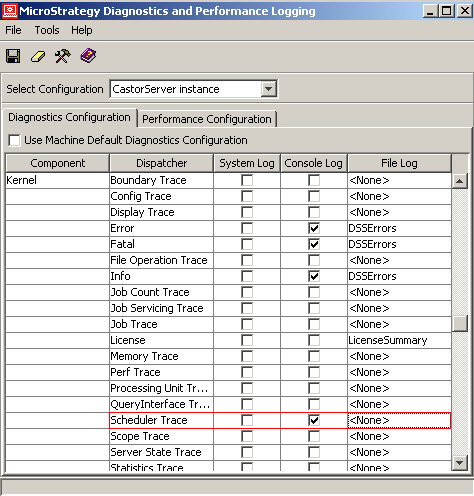
  2. In the 'Select Configuration' section, select 'CastorServer Instance'.
  3. Enable the Console Log column checkbox for the Kernel component, Scheduler Trace dispatcher, as shown below:
ka02R000000g2aoQAA_0EM440000002Fjr.jpeg


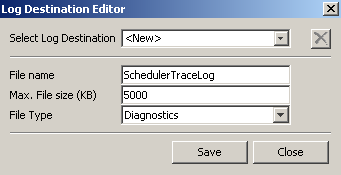
  • In the File Log column, choose the log file destination. An existing destination can be used. For better analysis, it is suggested to create a new log destination.  
ka02R000000g2aoQAA_0EM440000002Fjt.jpeg

 
For additional information, refer to the Strategy Help file or contact Strategy Technical Support.
 

  • Save the configuration and exit. Make sure the newly created Log Destination is selected in the File Log column before saving changes.
  • Restart the Strategy Intelligence Server to the reflect changes.

Comment

0 comments

Details

Knowledge Article

Published:

June 5, 2017

Last Updated:

September 11, 2019