In a Strategy Report Services document, users can add grids to the header or footer sections of their layout. If there are filters on each of these grids then it is possible to display the filter details dynamically by using the autotext feature available through the top menu options in the document editor: Insert > Auto Text > Filter Details.
As shown in the image below, there are two grids in the dataset with different filters. One filters upon the year 2002 and the other filters on 2003. The auto text feature, by default, displays the filter details for the primary dataset (denoted in the screen shot below as the dataset in bold):
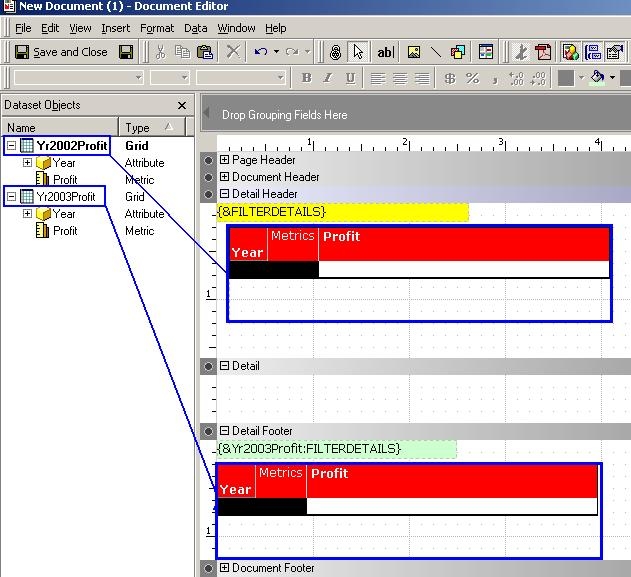
Here, if a user wishes to display the filter details for the other dataset report, then the name of the report must be added to the autotext syntax, thus modifying the syntax from:
{&FILTERDETAILS}
to
{&XXX:FILTERDETAILS} where XXX is the name of the dataset report
In the example above, the non-primary dataset grid is referenced by using {&Yr2003Profit:FILTERDETAILS} and this is highlighted in green to differentiate from the default &FILTERDETAILS (which is highlighted in yellow).
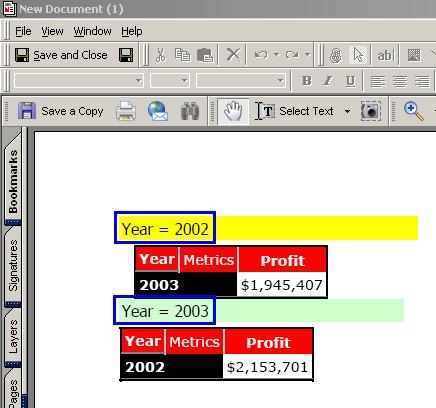
As shown in the image below, once the document is executed then the {&Yr2003Profit:FILTERDETAILS} text field will dynamically be resolved to the filter from the second grid, as shown by the value in green: