EducationSoftwareStrategy.com
StrategyCommunity

Knowledge Base

Product

Community

Knowledge Base

TopicsBrowse ArticlesDeveloper Zone

Product

Download SoftwareProduct DocumentationSecurity Hub

Education

Tutorial VideosSolution GalleryEducation courses

Community

GuidelinesGrandmastersEvents
x_social-icon_white.svglinkedin_social-icon_white.svg
Strategy logoCommunity

© Strategy Inc. All Rights Reserved.

LegalTerms of UsePrivacy Policy
  1. Home
  2. Topics

KB11941: How to use conditional formatting thresholds on individual report objects in a MicroStrategy Report Services 9.4.x - 10.x document


Stefan Zepeda

Salesforce Solutions Architect • Strategy


This technical note documents the steps to use conditional formatting thresholds on individual report objects in a MicroStrategy Report Services 9.4.x - 10.x document

Thresholding is a feature that allows a user to highlight certain data cells in a report depending on predefined criteria such as attribute or metric qualifications. Certain data cells on a report such as Sales > 1000 or Date of Sale prior to December 1, 2003 could assume special significance.
A user can apply these types of threshold conditions to the graphical form of a report. as shown in the image below:
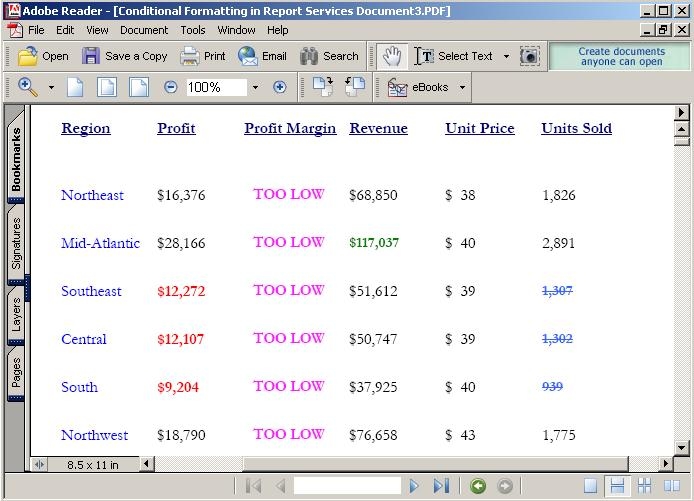
ka02R000000kcPyQAI_0EM440000002FjF.jpeg

 
Thresholds also allow a user to draw immediate attention to such data based on the result of certain expression evaluations. If an expression evaluates to TRUE, a user could choose the format definition for the cell as:
For individual report objects:

  • Format
  • Hide Object
  • Replace Text with
  • Quick Symbol

Note: Replace with image is only available while performing conditional formatting on an entire grid/graph.
The steps to define thresholds on individual objects in a Strategy Report Services document are as follows:
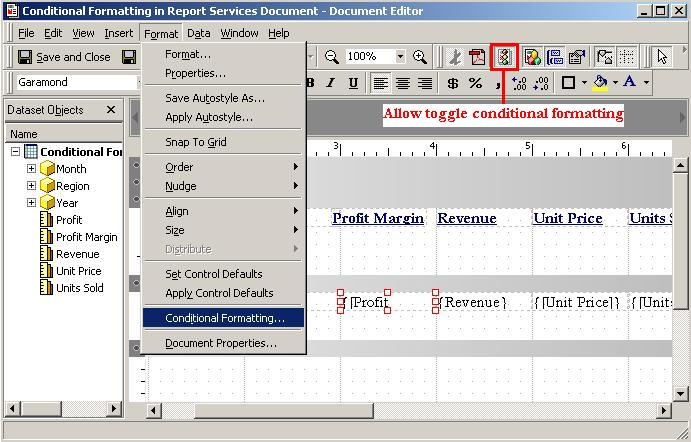
  • In a Strategy Report Services document, drag the individual report object(s) from the Dataset Objects window on to the Strategy Report Services document
     
  • Select the individual report object element. From the Format menu select Conditional Formatting as shown in the image below:
     
ka02R000000kcPyQAI_0EM440000002FjE.jpeg
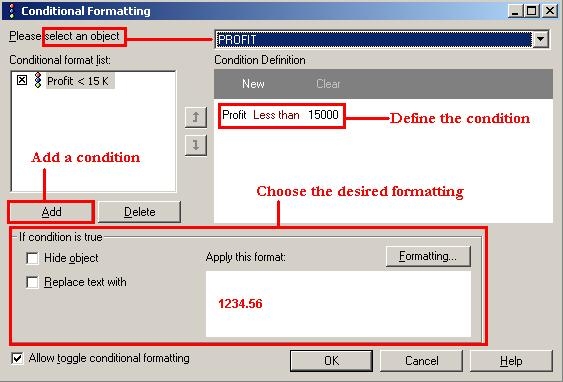
  • In the Conditional Formatting Editor, select an object from the drop down box. Click Add to add a new threshold condition definition into the conditional format list.
     
  • Define the condition definition, and choose the appropriate options to set the threshold formatting as desired. Steps 3 and 4 are illustrated in the image below:
     
    Note: The "Allow toggle conditional formatting" check-box at the bottom of the editor allows users to toggle conditional formatting on and off. If the check box is cleared, the Conditional Formatting icon on the toolbar and the Show Conditional Formatting option on the Document Properties dialog box are disabled.
     
ka02R000000kcPyQAI_0EM440000002FjH.jpeg


Comment

0 comments

Details

Knowledge Article

Published:

April 26, 2017

Last Updated:

April 26, 2017