EducationSoftwareStrategy.com
StrategyCommunity

Knowledge Base

Product

Community

Knowledge Base

TopicsBrowse ArticlesDeveloper Zone

Product

Download SoftwareProduct DocumentationSecurity Hub

Education

Tutorial VideosSolution GalleryEducation courses

Community

GuidelinesGrandmastersEvents
x_social-icon_white.svglinkedin_social-icon_white.svg
Strategy logoCommunity

© Strategy Inc. All Rights Reserved.

LegalTerms of UsePrivacy Policy
  1. Home
  2. Topics

KB12017: When exporting reports from MicroStrategy Web or Developer in CSV format, the exported file does not open correctly in Excel.


Stefan Zepeda

Salesforce Solutions Architect • Strategy


KB12017: When exporting reports from MicroStrategy Web or Developer in CSV format, the exported file does not open correctly in Excel.

SYMPTOM:
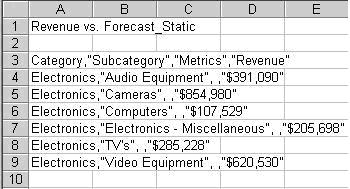
When exporting a report grid from Strategy Web or Developer CSV format, the exported file does not open correctly in Excel. All the data is in one column, and commas appear, but they are not used to delimit the data properly, as shown in the image below:
ka02R000000g4nGQAQ_0EM440000002Fhm.jpeg

 
CAUSE:
Excel does not understand that data is saved in CSV (comma separated values) format because the file extension used is .txt.
 
ACTION:
Option 1:
When saving the text file change the extension to.csv from .txt and select the 'All files' option from file type drop down list as shown in the image below:

ka02R000000g4nGQAQ_0EM440000002Fhl.jpeg

 
Option 2:
If the file is saved in .txt format:

  • Open Microsoft Excel
  • From the menu bar select File > Open and browse to the text file
  • Select the option 'Delimited by Comma' as shown in the image below:
ka02R000000g4nGQAQ_0EM440000002Fhi.jpeg
  • The report should display all the values in separate columns in Excel

Comment

0 comments

Details

Knowledge Article

Published:

June 7, 2017

Last Updated:

November 22, 2019