EducationSoftwareStrategy.com
StrategyCommunity

Knowledge Base

Product

Community

Knowledge Base

TopicsBrowse ArticlesDeveloper Zone

Product

Download SoftwareProduct DocumentationSecurity Hub

Education

Tutorial VideosSolution GalleryEducation courses

Community

GuidelinesGrandmastersEvents
x_social-icon_white.svglinkedin_social-icon_white.svg
Strategy logoCommunity

© Strategy Inc. All Rights Reserved.

LegalTerms of UsePrivacy Policy
  1. Home
  2. Topics

KB12038: How to create a report filter that filters on metric subtotals in MicroStrategy Developer 10.x


Stefan Zepeda

Salesforce Solutions Architect • Strategy


MicroStrategy does not provide out of the box functionality to filter a report on metric subtotals because the subtotals are processed in the Analytical Engine after the result set has been retrieved. However, creating a level/dimensionality metric in MicroStrategy Desktop 8.x can help users create a report filtered on the report subtotals.

Strategy does not provide out of the box functionality to filter a report on metric subtotals because the subtotals are processed in the Analytical Engine after the result set has been retrieved.
However, creating a level/dimensionality metric in Strategy Developer 10.x can help users create a report filtered on the report subtotals.
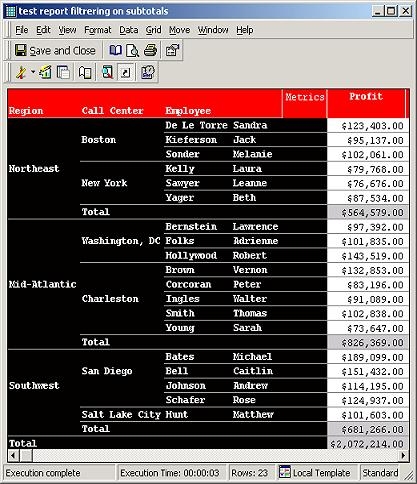
The following report is created using the Strategy Tutorial Project:
ka02R000000kVGzQAM_0EM440000002FiS.jpeg

To filter the above report based on Profit subtotals such as All Employees from the region where profit is greater than or equal to $564,579.00, complete the following steps:
  • Create a New Level/Dimensionality Metric by following these steps:
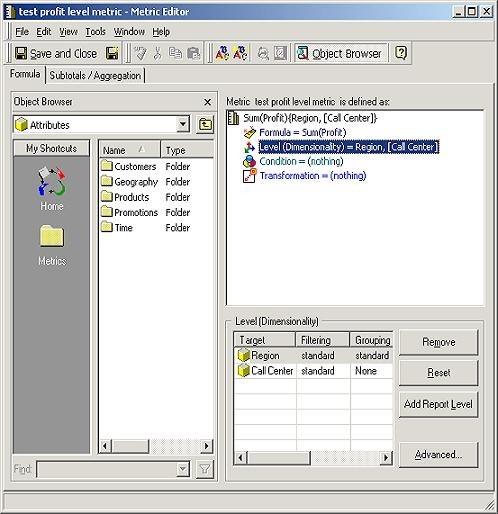
    • Define the Metric with the exact same definition as Profit Metric. In this case the metric would be defined as Sum(Profit)
    • Select the dimensionality of the metric, and remove the report level
    • Insert the level or the result to be filtered on. In this example, the user would choose Region and Call Center
    • Modify the Grouping for 'Call Center' dimensionality to 'None'
    • Save and close the Metric with the desired name
      The metric should appear as follows:
ka02R000000kVGzQAM_0EM440000002FiU.jpeg
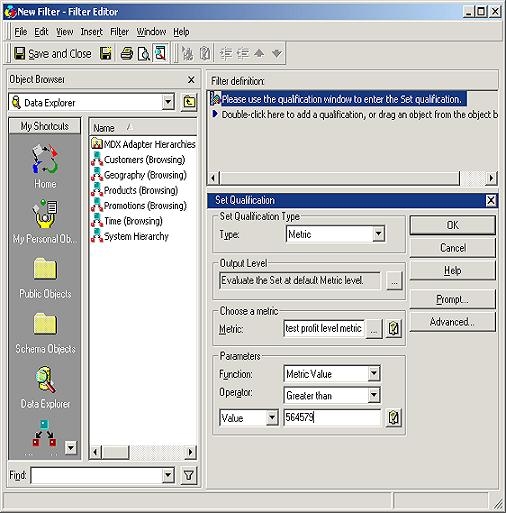
    • Create a new filter as Set Qualification Filter on the Metric created and saved in the steps above by completing the following steps:
      • Set the Qualification Type to 'Metric'
      • For the Output Level select 'Evaluate the Set at default Metric Level'
      • Set the Metric to the name of the Metric that is created in the previous step.
      • For the Function select 'Metric value'
      • Set the Operation to 'Greater than or equal to'
      • For the Value specify 564579.00
        The filter should appear as follows:
ka02R000000kVGzQAM_0EM440000002FiV.jpeg
    • Click 'OK' to save the Filter, and save and close the filter with the preferred name
    • Insert the Filter into the report filter of the report
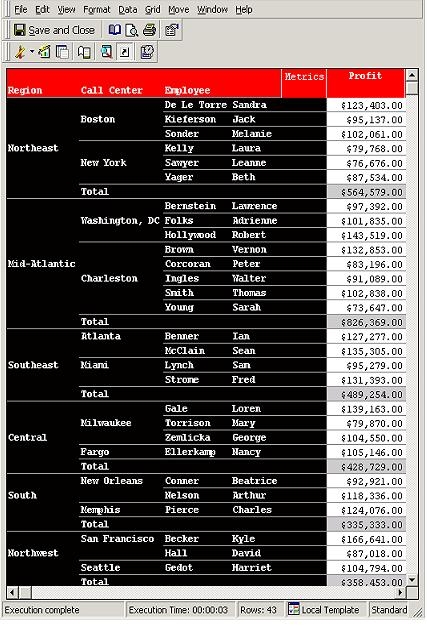
    • Executing report will return the following report results:
ka02R000000kVGzQAM_0EM440000002FiX.jpeg
    •  
      Create a dynamic filter Prompt:
      To provide the user with an option to select the value dynamically, replace the 'Operation' and 'Values' settings in Step 2 above with the following values:
       
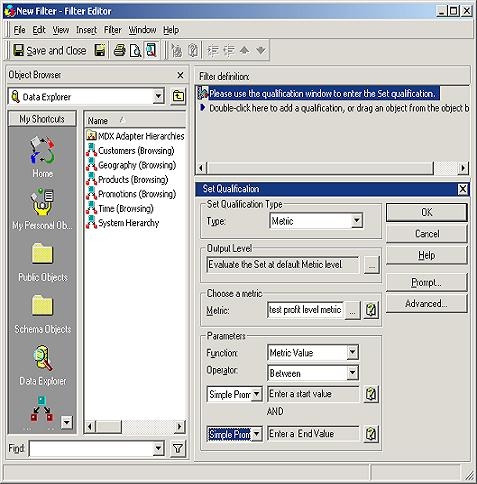
      • Set the Operation to 'Between.' Selecting Between as the default operation will allow maximum flexibility. This allows the user to choose operations such as 'exactly', 'between', 'greater than', etc.
      • For the Arguments, select 'Simple Prompt' with the default value as 0 for the first argument and the largest expected subtotal number for the second value to cover all results by default. For example, the first argument would be 0 and the second argument would be 1,000,000.
        This filter would appear as follows:
ka02R000000kVGzQAM_0EM440000002FiN.jpeg
      •  
        Note: The same metric could be inserted into the report objects window to use for filtering the report on subtotals dynamically using View Filter in Strategy OLAP Services.
         

12038


Comment

0 comments

Details

Knowledge Article

Published:

May 27, 2017

Last Updated:

June 8, 2018