EducationSoftwareStrategy.com
StrategyCommunity

Knowledge Base

Product

Community

Knowledge Base

TopicsBrowse ArticlesDeveloper Zone

Product

Download SoftwareProduct DocumentationSecurity Hub

Education

Tutorial VideosSolution GalleryEducation courses

Community

GuidelinesGrandmastersEvents
x_social-icon_white.svglinkedin_social-icon_white.svg
Strategy logoCommunity

© Strategy Inc. All Rights Reserved.

LegalTerms of UsePrivacy Policy
  1. Home
  2. Topics

KB12045: How to configure LDAP connectivity using Cleartext or SSL using the Tivoli Directory Client Libraries and GSKit 7 for Intelligence Server 9.x on AIX operating systems.


Community Admin

• Strategy


The following technical note discusses LDAP integration for the MicroStrategy Intelligence Server only, and not Single Sign On (SSO) integration with the Tivoli Access manager.

NOTE: The following technical note discusses LDAP integration for the Strategy Intelligence Server only, and not Single Sign On (SSO) integration with the Tivoli Access manager.
 
Strategy certifies LDAP configurations based on three components:
 

  1. Strategy Intelligence Server Operating System (Platform)
  2. LDAP Libraries (SDK vendor name)
  3. LDAP Server (Server vendor name)

In case of Strategy Intelligence Server on AIX, the same LDAP libraries have to be used to connect to any of the certified LDAP Servers. In order to set up LDAP authentication using either Clear text or SSL on Strategy Intelligence Server Universal 9.x on AIX 5.2 and 5.3 the following steps need to be performed:
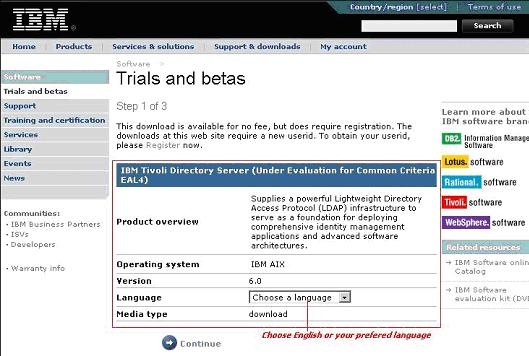
 

  • Download the following 64-bit libraries: IBM Tivoli 6.0 (or 6.2) Directory SDK and GSKit 7 (or newer version) from IBM download site: Tivoli Version 6.0 for AIX.
     
    NOTE: These libraries may be available are free of charge, however users will need to register for an account with the IBM Web Site if they have not registered already. Because IBM may periodically change the location that the libraries may be downloaded the URL provided above may not always be current. Strategy Technical Support is unable to assist users with the download and installation of the IBM libraries - for assistance please contact IBM Technical Support.
     
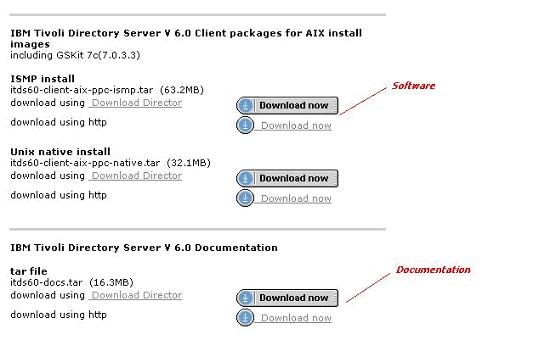
    • Download "IBM Tivoli Directory Server client package and GSKit".
       
ka04W000000OfVZQA0_0EM440000002BiN.jpeg
    • Choose this version and related documentation:
       
ka04W000000OfVZQA0_0EM440000002BiM.jpeg
    • Install it. The following libraries that come with Tivoli 6.0 package will be installed on AIX machine:
      idsldap_plugin_ibm_gsskrb.a
      libidsldapiconv.a
      idsldap_plugin_sasl_cram-md5.a
      libidsldapstatic.a
      idsldap_plugin_sasl_digest-md5.a
      libidsldifstatic.a
      libibmldap.a
      libidsmsg.a
      libibmldapdbg.a
      libidsmsgstatic.a
      libibmldapn.a
      libidsstr.a
      libibmldapstatic.a
      libldap.a
      libibmldapstaticn.a
      libldapstatic.a
      libidsldap.a
  • Strategy Intelligence Server has to be notified of the location of the above libraries. The Administrator will have to edit LDAP.SH file found in /StrategyROOT/env directory with the location of LDAP libraries. Only the highlighted part of the file below has to be changed:
    #
    # set up the environment for LDAP
    #
    MSTR_LDAP_LIBRARY_PATH='/full_path'
    if ; then
    mstr_append_path LIBPATH "${MSTR_LDAP_LIBRARY_PATH:?}"
    export LIBPATH
    fi
  • Restart the Strategy Intelligence Server in another terminal after adding these parameters to the LDAP.sh file.
     

Clear text (or NON SSL) Connection

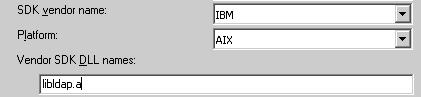
  • Libraries libibmldapn.a, libldap.a, libibmldap.a are used with Clear text. It is sufficient to type "libldap.a" in the “Vendor SDK DLL names” section if it does not come by default when you select IBM SDK and IBM platform as shown below:
ka04W000000OfVZQA0_0EM440000002Bi5.jpeg

SSL Connection

  • Obtain a valid certificate from the LDAP Server, and save it on the AIX machine.
     
  • GSKit 7 supplied with IBM Tivoli needs to be correctly configured to use the certificate generated by the LDAP Server.
     
    1. GSKit 7 requires Java 1.4.1 SDK to be installed on the machine. After installing Java 1.4.1, set the JAVA_HOME environmental variable to point to that directory.
       
    2. Edit .cshrc file by adding the full path of the IBM Tivoli Directory SDK library and the full path of GSKit 7 libraries into the environment variable, LIBPATH. If LIBPATH does not exist, add the following line:
      setenv LIBPATH /path
    3. NOTE: Setting the environmental variable LIBPATH is not necessary if LDAP.SH file has been updated with correct path.
       
      Restart Strategy Intelligence Server to reflect the change in the environmental variable.
       
  • SSL connection setup requires the following two steps to be performed:
     
    • Use GSKit to establish key database (with .kdb extension) and import certificate:
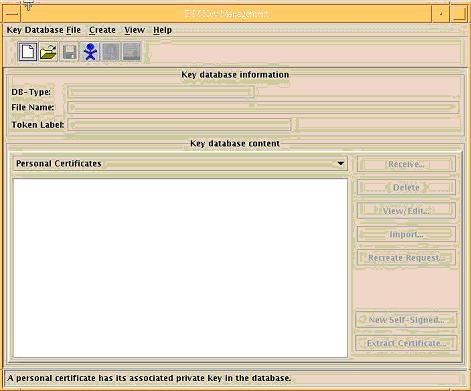
      • Use the gsk7ikm command to open the GSKit.
         
      • If you do not have the key database, you may create one using option "New" under "Key Database File":
         
ka04W000000OfVZQA0_0EM440000002Bhr.jpeg
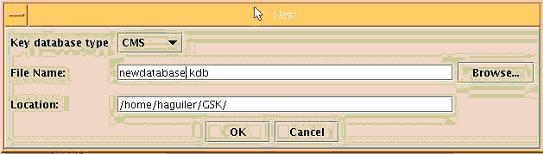
      • Select "CMS" as key database type. Provide the file name with .kdb as extension. Provide the directory to store the key database:
         
ka04W000000OfVZQA0_0EM440000002Bht.jpeg
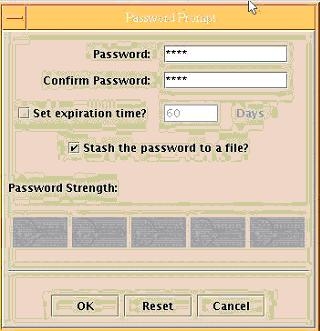
      • Provide a new password, and stash it by checking "Stash the password to the file?" option:
         
ka04W000000OfVZQA0_0EM440000002BiK.jpeg
      •  
        NOTE: After stash password, there will be four files: XXXXXX.kdb, XXXXXX.sth, XXXXXX.rdb, and XXXXXX.crl. If you want to copy the key database from another place, you should copy all of these four files and put them under the same directory.
         
      • Open the key database (select "CMS" as key database type).
         
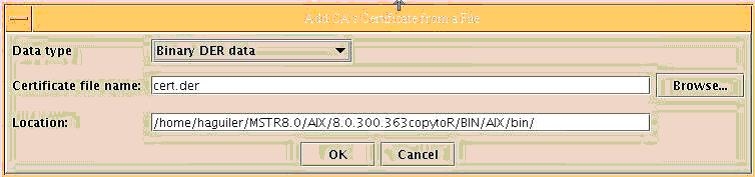
      • Import the LDAP certificate (.cer file) obtained in step 2 by using "Add...":
         
ka04W000000OfVZQA0_0EM440000002Bhv.jpeg
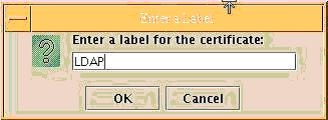
      • Label the added certificate as follows:
         
ka04W000000OfVZQA0_0EM440000002BiP.jpeg
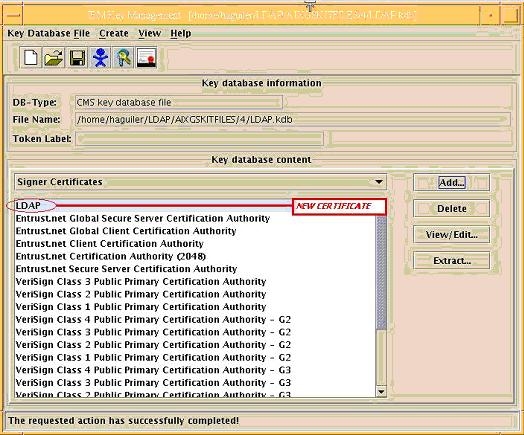
      • Once the certificate is added and labeled you will see it as follows:
         
ka04W000000OfVZQA0_0EM440000002BiB.jpeg
      • Save the current database (save icon).
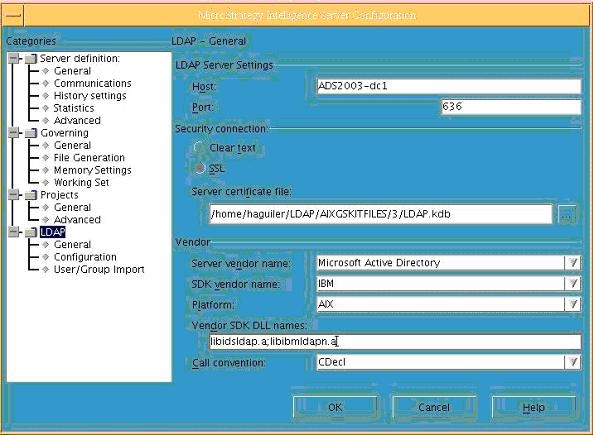
    • Configure the LDAP certificate setting in the Strategy Intelligence Server Definition through Strategy Desktop or Control Center:
      • Type the key database name with the full path starting with home directory, e.g. /home/.../database.kdb
         
      • Change the library used to connect using SSL to libidsldap.a (add that library next to libibmldapn.a used to connect using Cleartext).
         
      • Choose AIX as the Platform, IBM as the SDK vendor, and the appropriate LDAP server vendor.
         
ka04W000000OfVZQA0_0EM440000002Bi7.jpeg
      • Test the connectivity. 
         

Third Party Software Installation
 
WARNING:
 
The third-party product(s) discussed in this technical note is manufactured by vendors independent of Strategy. Strategy makes no warranty, express, implied or otherwise, regarding this product, including its performance or reliability.


Comment

0 comments

Details

Knowledge Article

Published:

April 3, 2017

Last Updated:

April 3, 2017