SYMPTOM:
When launching Strategy Developer, a user receives the following error message:
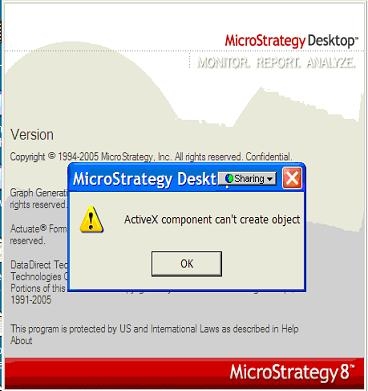
ActiveX Component can't create object
Clicking 'OK' kills the application.
The user has recently installed either the entire Strategy Product Suite or parts of the Strategy Product Suite. If Strategy Object Manager is installed on the machine, launching the application hangs on the machine and the application must be killed through the Windows Task Manager.
CAUSE:
After installing a program or patch, some Dynamic Link Libraries or Controls may not be registered automatically . In this case, REGOBJ.DLL is not registered automatically.
NOTE: Registering a file modifies a machine's registry in the background. Please see the warning message at the bottom of this page.
ACTION:
To resolve this issue, the user must unregister and register the regobj.dll file manually on the machine on which the issue exists. To do this, complete the following steps:
Steps to Register .dll/.ocx files:
Un-registering and registering .dll or .ocx files is accomplished via the RegSvr32 Windows utility. To register a regobj.dll file complete the following steps or refer to the following KnowledgeBase document: KB1200-000-0064
For more information on the regsvr32 utility please consult the following Microsoft knowledge base article: http://support.microsoft.com/kb/q249873/
Registry Modification:
WARNING:
Modifying registry values incorrectly may cause serious, system-wide problems that may require the re-installation of Microsoft Windows. Any edit of the registry is done at the user's own risk. Since these are user-initiated changes, they are not covered by any Strategy warranty. If using Microsoft Windows, the user should backup the registry and/ or update an Emergency Repair Disk prior to alterations.
