EducationSoftwareStrategy.com
StrategyCommunity

Knowledge Base

Product

Community

Knowledge Base

TopicsBrowse ArticlesDeveloper Zone

Product

Download SoftwareProduct DocumentationSecurity Hub

Education

Tutorial VideosSolution GalleryEducation courses

Community

GuidelinesGrandmastersEvents
x_social-icon_white.svglinkedin_social-icon_white.svg
Strategy logoCommunity

© Strategy Inc. All Rights Reserved.

LegalTerms of UsePrivacy Policy
  1. Home
  2. Topics

KB12156: Advanced Sorting orders by the attribute in a MicroStrategy Report Services document even though a metric is selected in the advanced sort in MicroStrategy Developer 9.x


Stefan Zepeda

Salesforce Solutions Architect • Strategy


Advanced Sorting orders by the attribute in a MicroStrategy Report Services document even though a metric is selected in the advanced sort in MicroStrategy Developer 9.x

SYMPTOM:
"Advanced Sorting" orders by the attribute in a Strategy Report Services document even though a metric is selected in the advanced sort in Strategy Developer 9.x
 
Steps to Reproduce:
  • In the Strategy Tutorial Project, add 'Quarter' and 'Cost' to a report template.
  • Add 'Year' to the Page-By.
  • In the Advanced Sorting, add 'Cost' to the rows in descending order.
  • Save the report.
  • Create a Strategy Report Services document with the above report as the dataset.
  • Add 'Year' to the Grouping section.
  • Add the grid to the Detail Header.
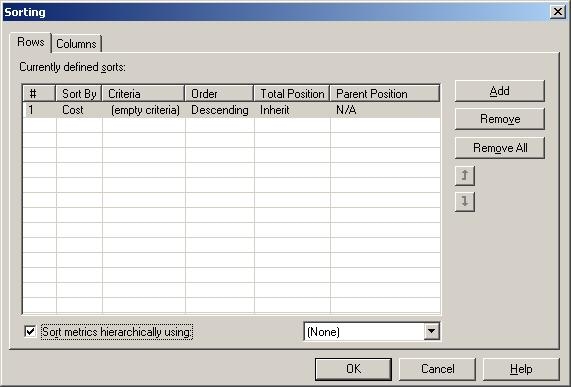
  • Add the 'Cost' metric to the Advanced sorting, and check the "Sort metrics hierarchically using" option as shown in the image below:
ka02R000000kYLAQA2_0EM440000002Fhv.jpeg
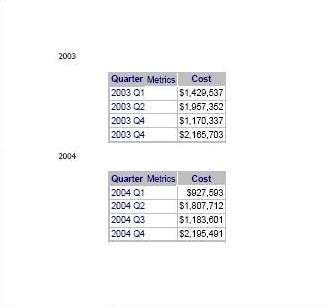
  • View the document in PDF view. Notice that the grid is not sorted by Cost, but it is sorted by Quarter as shown in the image below:
ka02R000000kYLAQA2_0EM440000002Fhx.jpeg

CAUSE:
The "Sort metrics hierarchically using" option is selected in the Advanced sorting.
 
ACTION:
Remove the "Sort metrics hierarchically using" option from the Advanced sorting and the Strategy Report Services document grid will be sorted correctly as shown in the image below:
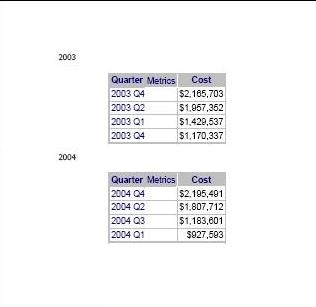
ka02R000000kYLAQA2_0EM440000002Fhz.jpeg


Comment

0 comments

Details

Knowledge Article

Published:

June 8, 2017

Last Updated:

June 8, 2017