EducationSoftwareStrategy.com
StrategyCommunity

Knowledge Base

Product

Community

Knowledge Base

TopicsBrowse ArticlesDeveloper Zone

Product

Download SoftwareProduct DocumentationSecurity Hub

Education

Tutorial VideosSolution GalleryEducation courses

Community

GuidelinesGrandmastersEvents
x_social-icon_white.svglinkedin_social-icon_white.svg
Strategy logoCommunity

© Strategy Inc. All Rights Reserved.

LegalTerms of UsePrivacy Policy
  1. Home
  2. Topics

KB12270: How to create a schedule to purge object caches in MicroStrategy Command Manager


Community Admin

• Strategy


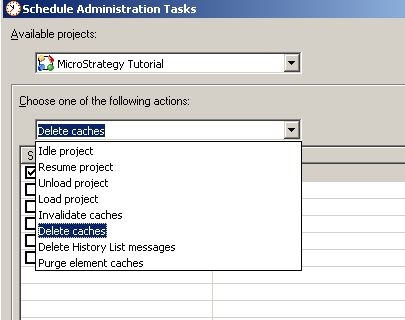
Strategy Developer 9.4.x - 10.x do not have an administration task to purge object caches, as illustrated below:
 

ka0PW0000002yMfYAI_0EM440000002SX2.jpeg

 
However, administrator can use a script to purge object cache in Strategy Command Manager and schedule the script in the Windows Scheduler. Follow the steps below:
 

  1. Open Strategy Command Manager and save the script below as PurgeObjectCache.scp i
    
    PURGE OBJECT CACHING IN PROJECT "Project_Name";

     
  2. Create a batch file named PurgeObjectCache.bat, as shown below, to run PurgeObjectCache.scp in 
    cmdmgr -n Project_Source_Name -u Username -f Inputfile
  3. For example:
    
    cmdmgr -n "Project_Source_Name" -u Administrator -f C:\PurgeObjectCache.scp -o C:\CommandManagerOutput.txt

     
  4. Schedule PurgeObjectCache.bat with Windows Scheduler (Scheduled Task) in the Control Panel.

Comment

0 comments

Details

Knowledge Article

Published:

June 29, 2017

Last Updated:

August 12, 2024