EducationSoftwareStrategy.com
StrategyCommunity

Knowledge Base

Product

Community

Knowledge Base

TopicsBrowse ArticlesDeveloper Zone

Product

Download SoftwareProduct DocumentationSecurity Hub

Education

Tutorial VideosSolution GalleryEducation courses

Community

GuidelinesGrandmastersEvents
x_social-icon_white.svglinkedin_social-icon_white.svg
Strategy logoCommunity

© Strategy Inc. All Rights Reserved.

LegalTerms of UsePrivacy Policy
  1. Home
  2. Topics

KB12274: Differences between Lock Schema, Lock Project and Lock Configuration in MicroStrategy Developer 2021


Stefan Zepeda

Salesforce Solutions Architect • Strategy


This article outlined the differences between Lock Schema, Lock Project and Lock Configuration in MicroStrategy Developer 2021.

Lock Schema
Lock Schema is an exposed feature on the interface that will allow the project administrator to freeze the schema state. When the lock is turned on under the Schema menu, no one, including the administrator, can perform changes on the schema objects. The purpose of this lock is to prevent accidental modification to the schema in a project.
 
The following are the steps to lock the schema for a project:

  • From Strategy Developer, expand the project whose schema needs to be locked.
  • Select the project name from the folder list.
  • From the Schema menu, select Lock Schema as shown below:
ka0PW0000000jd3YAA_0EM440000002FhU.jpeg

The following dialog will be prompted when opening any schema related editors:

ka0PW0000000jd3YAA_0EM440000002FhM.jpeg


The schema is locked by Administrator. Do you want to open Fact Editor in read-only mode?
 
The schema object can be opened in read-only mode and the details about the schema lock can be viewed. The schema can be unlocked from Strategy Developer by anyone with administrator privileges.
 
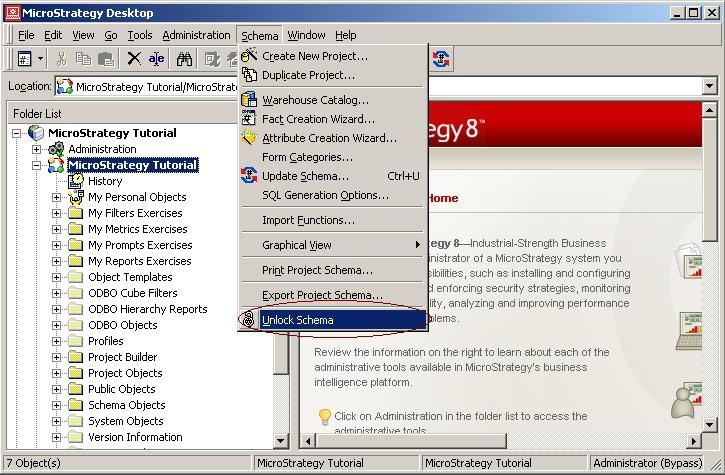
The following are the steps to unlock the schema for a project:

  • From Strategy Developer, expand the project whose schema needs to be unlocked.
  • Select the project name from the folder list.
  • From the Schema menu, select Unlock Schema as shown below:
ka0PW0000000jd3YAA_0EM440000002FhG.jpeg

Lock Project
Lock Project prevents other Strategy users from modifying any objects in the locked project in Strategy Developer or Strategy Web. When this lock is turned on under the Administration menu, no one, including the administrator, can perform changes on any objects. Users can execute reports in a locked project, but the report definition that is used is the last definition saved prior to the project being locked.
 
The following are the steps to lock a project:
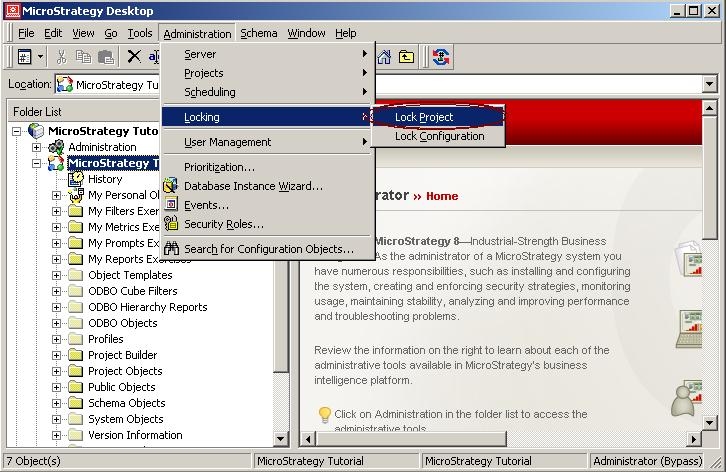
  • From Strategy Developer, expand the project that needs to be locked.
  • Select the project name from the folder list.
  • From the Administration menu, select Locking -> Lock Projects as shown below:
ka0PW0000000jd3YAA_0EM440000002FhK.jpeg

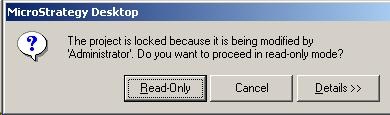
The following dialog will be prompted when attempting to open an object in a locked project:
ka0PW0000000jd3YAA_0EM440000002FhI.jpeg


The project is locked because it is being modified by 'Administrator'. Do you want to proceed in read-only mode?
 
The project object can be opened in read-only mode and the details about the project lock can be viewed. Only the user who locks the project or a user with administrative privileges can unlock the project. All other users can only view the project in read-only mode.
 
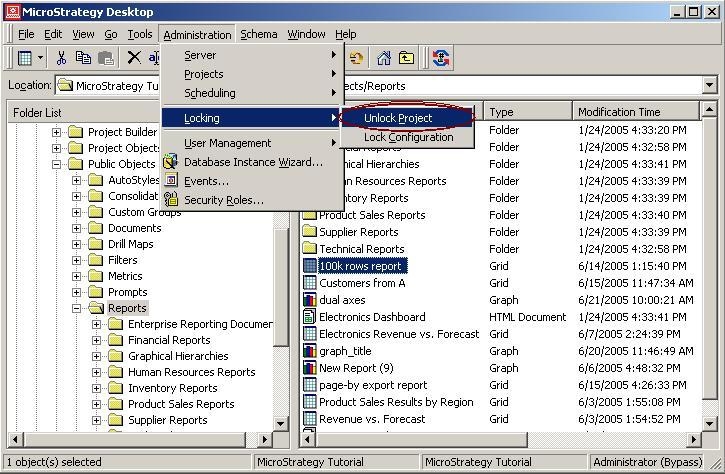
The following are the steps to unlock a project:

  • From Strategy Developer, select the project that needs to be unlocked.
  • Select the project name from the folder list.
  • From the Administration menu, select Locking -> Unlock Project as shown below:
ka0PW0000000jd3YAA_0EM440000002Fh7.jpeg

Lock Configuration
When Lock Configuration is enabled under the Administration menu, administrators cannot perform changes on any configuration objects. Thus, no changes can be made to any objects that fall under the Administration icon in Strategy Developer.
 
The following are the steps to lock configuration for a project source:
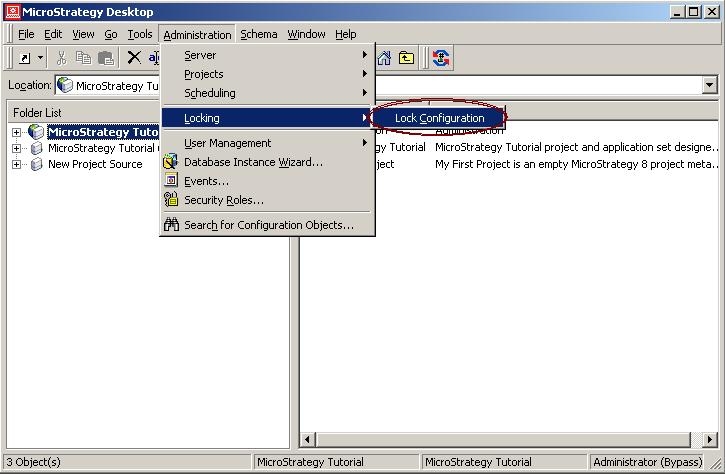
  • From Strategy Developer, select the project source for which the configuration objects need to be locked.
  • From the Administration menu, select Locking -> Lock Configuration as shown below:
ka0PW0000000jd3YAA_0EM440000002FhO.jpeg

The administrator will be prompted with the following dialog when attempting to open a configuration object when the configuration of a project source is locked:
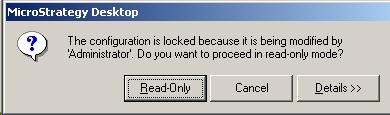
ka0PW0000000jd3YAA_0EM440000002FhE.jpeg


The configuration is locked because it is being modified by 'Administrator'. Do you want to proceed in read-only mode?

 
Administrators can then choose to open the object in read-only mode or view the details about the configuration lock. Only the user who locks the configuration, or a user with administrative privileges can unlock the configuration.
 
The following are the steps to unlock configuration:

  1. From Strategy Developer, select the project source for which the configuration objects need to be unlocked.

From the Administration menu, select Locking - > Unlock Configuration as shown below:
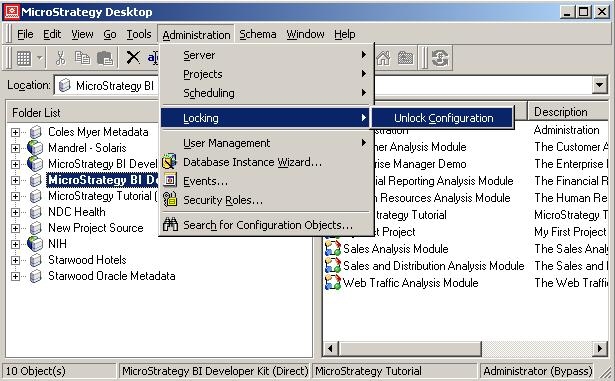
ka0PW0000000jd3YAA_0EM440000002FhB.jpeg

The same options are available in Strategy Workstation 2021, the "Lock Environment Configuration and Project" option is available from "Tools" menu. The Lock schema option is available from Schema blade and lock status.


Comment

0 comments

Details

Knowledge Article

Published:

May 24, 2017

Last Updated:

February 13, 2024