Starting with the release of Strategy ONE (March 2024), dossiers are also known as dashboards.
A HyperIntelligence card with an interactive link to a dossier opens a dossier with the filter selection of the attribute element that was reviewed on the HyperIntelligence card. The same attribute connects both objects by the object ID.
The following demo will walk you through dynamically setting a filter when linking from a HyperIntelligence card to a dossier. The video also shows you how to get the filter ID.
Note: The filter must be in the last viewed page of the dossier to be passed from a HyperIntelligence card to a dossier.

1. Create a card with a browsing attribute (e.g., "Name") and use the same attribute to filter on a dossier.
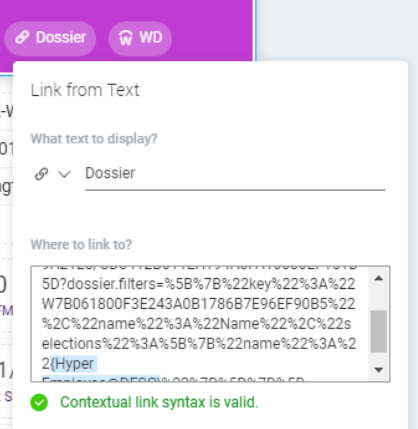
Your HyperIntelligence Card's header has an option to link to a target dossier.
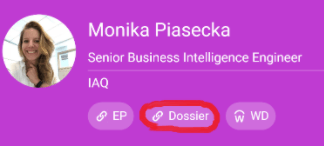
2. Copy the link to the dossier in Library that should be opened. For example:
https://tutorial.Strategy.com/MicroStrategyLibrary/app/6B2553DC4FD434547F9923A8BE9A21E3/CD3412B011EA194A0FA10080EF151D5D
dossier.filters= [{"key":"xxxxxxxxxx","yyyyy":"FILTERNAME","selections":[{"name":"zzzzz"}]}]https://tutorial.Strategy.com/MicroStrategyLibrary/app/6B2553DC4FD434547F9923A8BE9A21E3/CD3412B011EA194A0FA10080EF151D5D?dossier.filters=%5B%7B%22key%22%3A%22 W7B061800F3E243A0B1786B7E96EF90B5%22%2C%22name%22%3A%22Name%22%2C%22selections%22%3A%5B%7B%22name%22%3A%22{Name@Desc}%22%7D%5D%7D%5Dkey: the keyid of the filter in the target dossier. You can get it from your browser's developer tool.
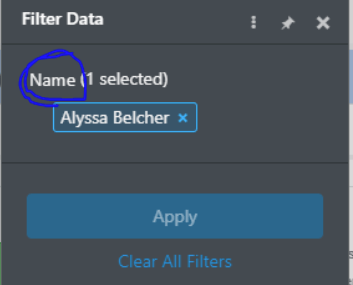
name: the exact name of the attribute on the filter panel in your dossier.
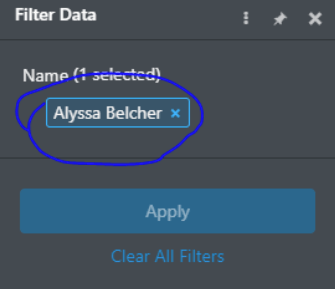
selection: the dynamic value that you want to pass to the dossier (attribute element). For example, Name@Desc from the HyperIntelligence card.
4. Paste the created link in the HyperIntelligence card.