SYMPTOM:
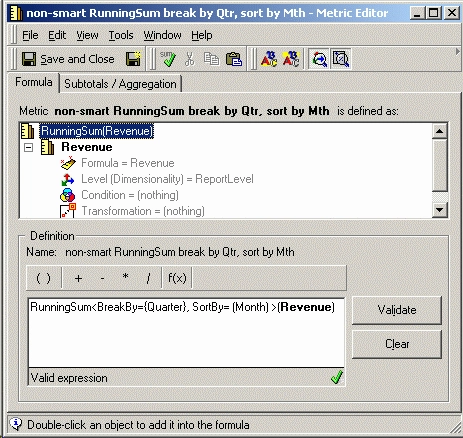
Consider a scenario in which a user of the Strategy Tutorial project wants to create a report displaying a running sum of revenue at the monthly level, breaking by quarter. The user would also like to select different product categories in the page-by axis.
The metric and report definitions are shown in the images below:
When the report is executed, the RunningSum metric displays extremely inflated values, as shown below:
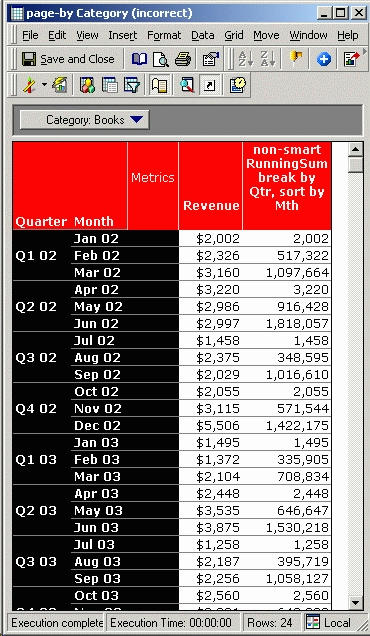
Note: It does not matter whether or not the metric is configured as a smart metric.
CAUSE:
In the RunningSum metric definition, the RunningSum function's sort by parameter includes only the Month attribute. Thus, when the RunningSum function processes the Revenue metric, the Revenue values are in an arbitrary order with respect to the attribute Category.
As a result, values from different Categories are being mixed in the RunningSum calculation.
ACTION:
When configuring the sort by parameter of the RunningSum function, users should take care to place all attributes in the correct order:
In this example, configuring the sort by parameter with the page-by attribute (Category) preceding the template attribute (Month) will return the expected results, as shown below:
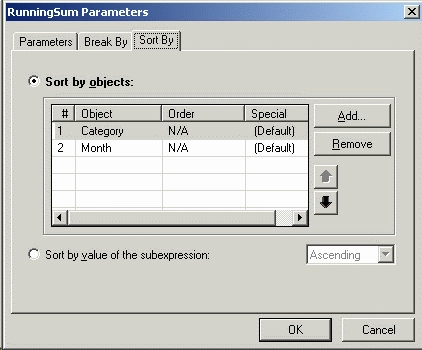
Note that for this report, the template attribute Quarter may be omitted from the sort by because the Month attribute is a one-to-many child of the Quarter attribute. Sorting by Month implicitly sorts by Quarter also. Indirectly related attributes should be included in the sort by parameter.
