SYMPTOM:
Whenever the user tries to use Strategy License Manager 9.x to connect to Strategy Intelligence Server 9.x to perform audits, the following error occurs:

The Intelligence server name could not be resolved using the IPAddress. Please fix this before trying to connect.
CAUSE:
This error occurs because Strategy License Manager 9.x requires the hostname of the Strategy Intelligence Server 9.x machine in order to perform an audit. Thus, if the user machine does not have access to the name of the Strategy Intelligence Server machine in the network but has access to the server IP address only, then Strategy License Manager 9.x will not be able to resolve the Strategy Intelligence Server name and will not be able to connect to the Strategy Intelligence Server.
All other Strategy components, such as Strategy Desktop and Strategy Object Manager, continue to function correctly, as they do not require the server name and can access the server using IP address only. This issue does not occur in Strategy License Manager 7.x.x or below.
ACTION:
In order to resolve this issue in a Microsoft Windows OS, access the C:\WinNT\system32\drivers\etc folder and open a file called Hosts using Notepad as shown below:
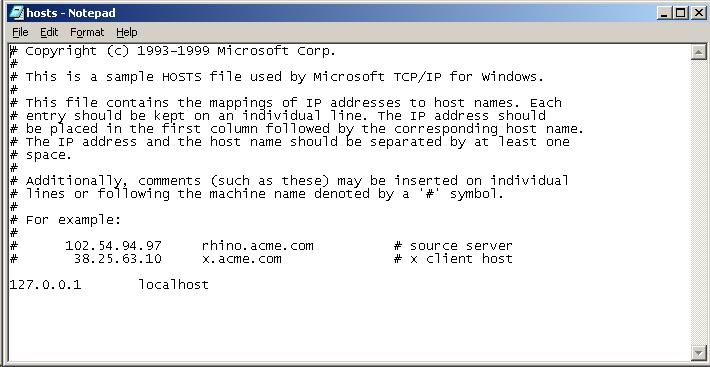
Add the Strategy Intelligence Server 9.x IP address and hostname to this file in the same format as shown in the figure above. The Strategy Intelligence Server IP address should be placed in the first column followed by the corresponding host name. The IP address and host name should be separated by at least one space. This should enable the resolution of the Strategy Intelligence Server name using the IP address and resolve this issue.
KB12424
