SYMPTOM:
When smart metrics are enabled or compound metrics created and placed in a report, they return only blank result cells when the report is run against a MySQL 5.0.1 database in Strategy Developer 9.4.x-10.x.
CAUSE:
The MySQL 5.0.1 database returns integer values in the tables as strings, therefore the Strategy Analytical Engine attempts to perform a mathematical calculation on two strings, returning null values.
ACTION:
Enable MSIFile Table tracing and examine the log generated. Refer to the following Strategy Knowledge Base document for instructions on how to generate this log:
An example of part of an MSI File Table trace is shown below:
Report Id: 398FDE004AEB2C593886C39D367596EF
Table Id: 0
Number of Columns: 3
Number of Rows: 16
Column Length: 19 8 10
DATETIME 16 STRING 9 STRING 9
16 2005:7:25:0:0:0:0 8 64385828 10 7249632108
16 2005:7:26:0:0:0:0 8 61841544 10 7120271658
…
Notice the line 'DATETIME 16 STRING 9 STRING 9'. By examining the original report that was executed to generate the log, the MSI File Table can show what datatype the object on the report is being returned as from the database. In this case, two metrics are being returned as STRINGS.
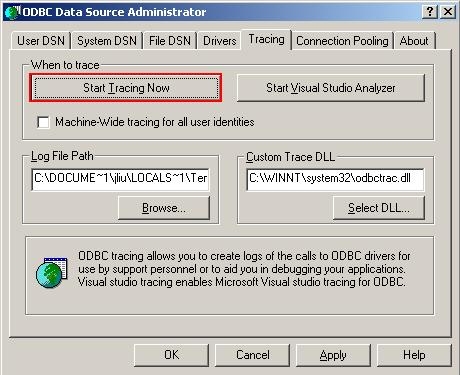
To verify, enable the ODBC Tracing to view the SQL being passed. This trace is resource intensive and can drastically affect performance. Therefore after running the report, disable this trace again. Follow the steps below to enable this functionality:
WORKAROUND:
To allow the Analytical Engine to perform calculations, the strings must be cast into integers after they are retrieved from the database. Redefine the metrics using an ApplySimple statement to wrap a cast statement around the function. In this case, the statement would be similar to ApplySimple(`CAST(#0 AS SIGNED)`, METRIC_DEFINITION {~+} ).
