SYMPTOM:
A user places an attribute or a metric on a Strategy Report Services document. The user then places another attribute or metric directly beneath the previous object. If the first attribute/metric is too long, it will overlap the first attribute, as shown below:

CAUSE:
Strategy Report Services documents display the attribute/metric exactly where it is placed on the document. The vertical length of the attribute/metric depends not only on the size of the attribute/metric object, but also on the horizontal length of the text box in design view. This issue is applicable to all currently supported versions of Strategy Desktop.
ACTION:
The user can place both of the attributes/metrics in the same text box to correct this issue, as shown on the image below.
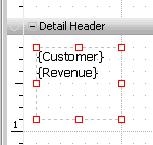
The user can also add a second text box and then drop the attribute in the second text box. Then the user can add additional attributes below the text box. The lower attributes/metrics will slide down the document if the text box needs to grow, and no overlapping will occur.
KB12501
