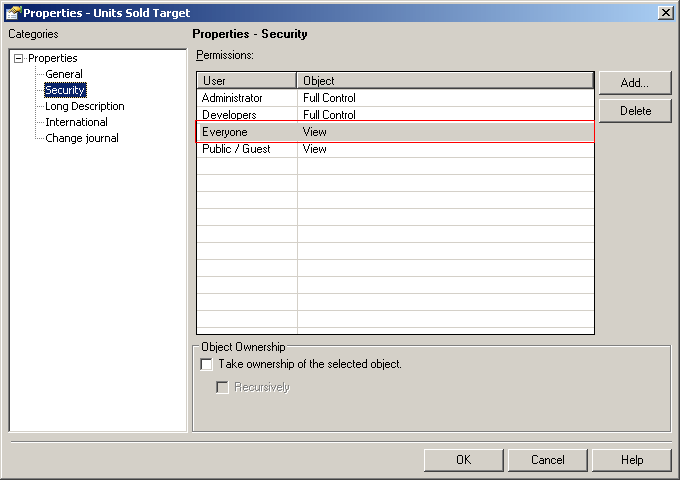
In the Project Configuration -> Project definition -> Security dialog box for a project is an option to "Update ACL For Reports" as shown in the image below:
The purpose of this update is to add the Use and Execute privileges for the Everyone group to all of the report objects that are present so that users will continue to be able to access reports. The Strategy 7.1.x security model did not require these privileges, so system administrators will want to update the ACLs for the objects to enable users to continue seamlessly interacting with reports. The ACL privilege that is added will be the View permission for the Everyone group, as View contains both Use and Execute permissions.
Clicking this button will perform the following actions:
NOTE:
The above process does NOT alter the ACLs for metrics. These will remain unchanged. The Strategy 7.2.x security model allows for a user to execute a report for which he/she does not have permission to use the metric. The end result is that the report will be generated without the metric on it, but will contain all of the other information.
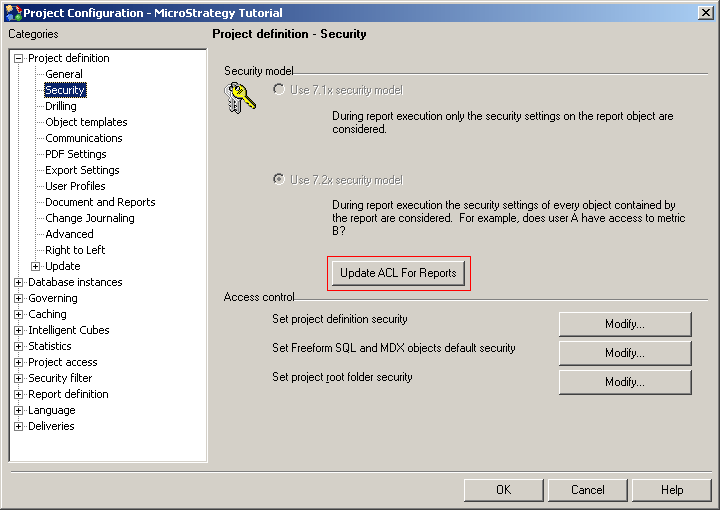
To enable access to metrics, add the View permission for the Everyone group to the ACLs of metrics as shown in the image below: