EducationSoftwareStrategy.com
StrategyCommunity

Knowledge Base

Product

Community

Knowledge Base

TopicsBrowse ArticlesDeveloper Zone

Product

Download SoftwareProduct DocumentationSecurity Hub

Education

Tutorial VideosSolution GalleryEducation courses

Community

GuidelinesGrandmastersEvents
x_social-icon_white.svglinkedin_social-icon_white.svg
Strategy logoCommunity

© Strategy Inc. All Rights Reserved.

LegalTerms of UsePrivacy Policy
  1. Home
  2. Topics

KB12623: ‘No Items Found’ message appears when doing an In List search on an attribute ID form in a view filter in MicroStrategy Developer 10.x


Stefan Zepeda

Salesforce Solutions Architect • Strategy


When doing an In List search on an attribute ID form in a view filter in MicroStrategy Developer 9.x, the following message appears

SYMPTOM:
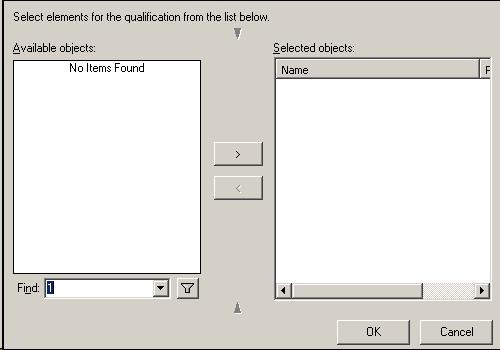
When doing an In List search on an attribute ID form in a view filter in Strategy Developer 9.x, the following message appears:
 

ka02R000000kVH9QAM_0EM440000002FeQ.jpeg

 
No Items Found
The attribute elements are not found and the above message is displayed.
 
STEPS TO REPRODUCE:
Follow the steps below to reproduce this issue using the Strategy Tutorial project:
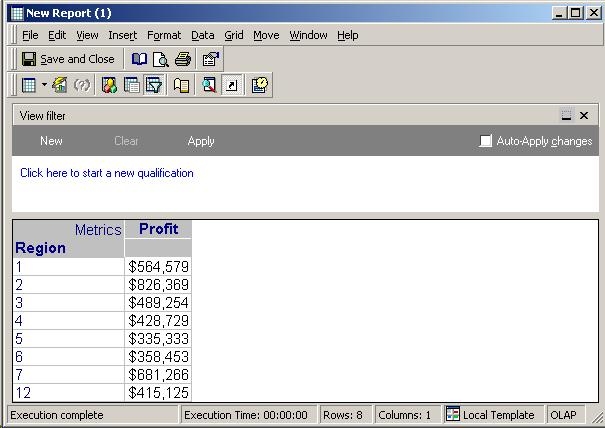
 

  • Create a report with one attribute and one metric. Execute the report and display only the ID form for the attribute, as shown below:
ka02R000000kVH9QAM_0EM440000002Fe6.jpeg
  • In the view filter, select Region -> In List -> Select Elements. The list of attribute elements are displayed under the Available objects window.
     
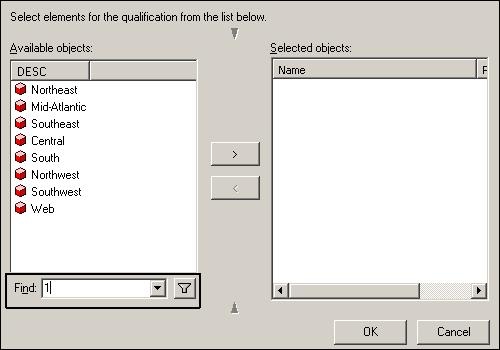
  • Enter an ID number in the Find box, as shown below:
ka02R000000kVH9QAM_0EM440000002FeM.jpeg
  • Click on the search button and the attribute element with ID '1' is not found. Also, the message 'No Items Found' is displayed.

CAUSE:
This is working per design. The issue occurs because the ID form is not included as one of the Browse forms under the Display tab in the attribute editor.
 
ACTION:
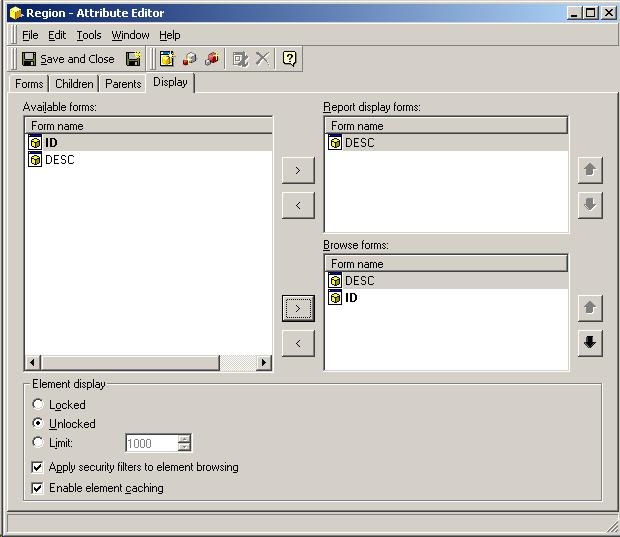
  • The issue does not occur if the ID form is added as one of the Browse forms in the attribute editor.
     
    Follow the steps below to resolve this issue:
     
    • Edit the attribute Region by opening the attribute editor.
       
    • Select the Display tab and add the ID form to the Browse forms section of the window, as shown below:
ka02R000000kVH9QAM_0EM440000002FeJ.jpeg
    • Save and Close the attribute editor and update the schema.
       
    • Now, execute the report again. In the view filter, select Region -> In List -> Select Elements. The list of attribute elements are displayed under the Available objects window.
       
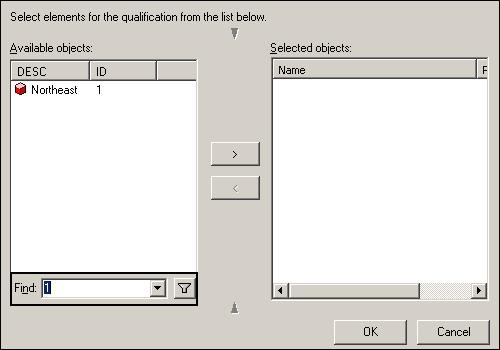
    • Enter the ID '1' in the Find box and then click on the search button. This time the attribute element with ID '1' is found and displayed in the window, as shown below:
ka02R000000kVH9QAM_0EM440000002FeO.jpeg
    • Move the attribute elements to the selected objects window and click on OK. The report will be filtered to display only the attribute elements with ID '1'.
       
  • The issue also does not occur if the Exactly operator is used in the view filter instead of the In List operator.
     
    Follow the steps below to resolve this issue:
     
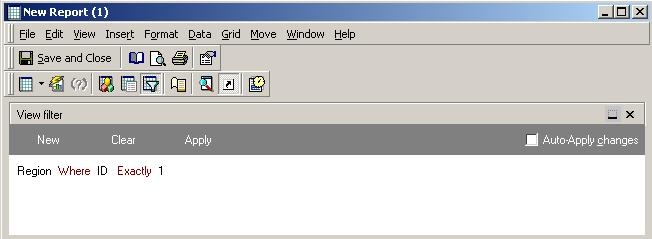
    • In the view filter, select Region -> Where -> ID -> Exactly -> 1, as shown below:
ka02R000000kVH9QAM_0EM440000002FeL.jpeg
    • Click on Apply and only the attribute element with ID '1' will be displayed on the report.

12623


Comment

0 comments

Details

Knowledge Article

Published:

May 31, 2017

Last Updated:

June 8, 2018