EducationSoftwareStrategy.com
StrategyCommunity

Knowledge Base

Product

Community

Knowledge Base

TopicsBrowse ArticlesDeveloper Zone

Product

Download SoftwareProduct DocumentationSecurity Hub

Education

Tutorial VideosSolution GalleryEducation courses

Community

GuidelinesGrandmastersEvents
x_social-icon_white.svglinkedin_social-icon_white.svg
Strategy logoCommunity

© Strategy Inc. All Rights Reserved.

LegalTerms of UsePrivacy Policy
  1. Home
  2. Topics

KB12646: How to allow a user/group to purge the report cache by right-clicking on a report in MicroStrategy Developer 9.x - 10.x


Stefan Zepeda

Salesforce Solutions Architect • Strategy


This technical note lists the steps to perform in order to allow a user or group to purge the report cache in MicroStrategy Developer 9.x - 10.x

The 'Use Cache Monitor' privilege and the appropriate permissions on the 'Administration' ACL can allow a user/group to purge the report cache. Follow the steps below to allow a user or group to purge report cache:
 

  • Grant the user or group the 'Use Cache Monitor' privilege is listed under the Administration privileges as shown below:
     
ka02R000000kZZiQAM_0EM440000002Fea.jpeg
  • Change the permissions on the Administration ACL by right-clicking on Administration and selecting Properties, as shown below:
     
ka02R000000kZZiQAM_0EM440000002Feg.jpeg
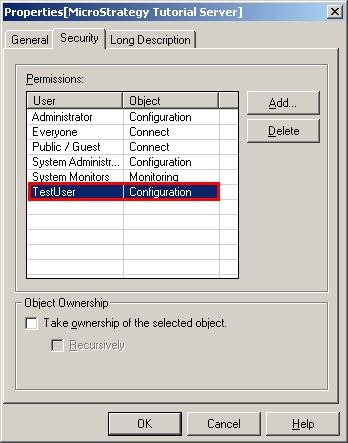
  • Add the desired user/group to this ACL and grant the 'Configuration' access permission as shown below (In this case, TestUser needs to be granted this functionality):
     
ka02R000000kZZiQAM_0EM440000002Fee.jpeg

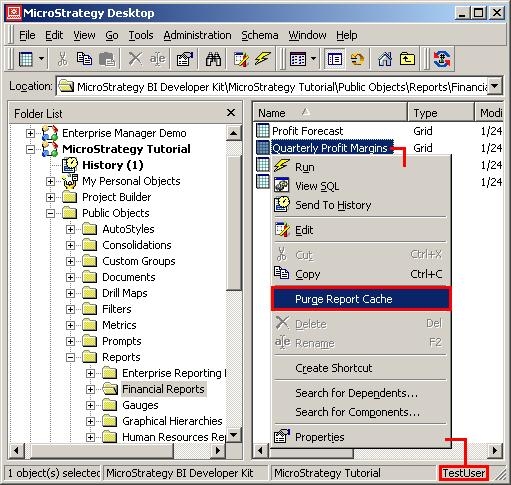
Now with the 'Use Report Cache' privilege and the appropriate permissions on the Administration ACL, the TestUser will be able to purge the report cache by right-clicking on a report, as shown below:
 

ka02R000000kZZiQAM_0EM440000002Fec.jpeg


Comment

0 comments

Details

Knowledge Article

Published:

June 12, 2017

Last Updated:

June 12, 2017