SYMPTOM:
When a Report Services document that includes formatting based on the regional settings set within Strategy is exported to Excel in Strategy Developer and Web 9.x and 10.x, the formatting is lost. Instead, the formatting within the Excel document is based off different regional settings.
Consider the following example:
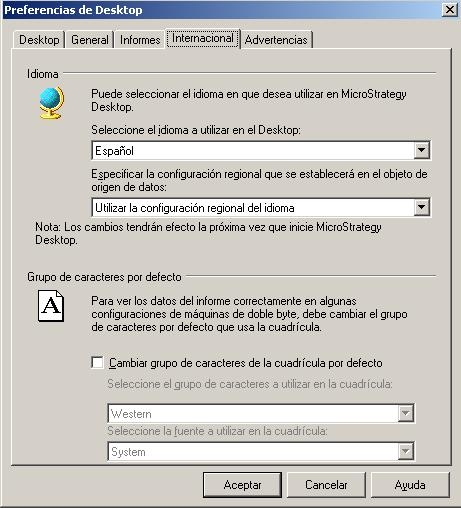
The International settings within Strategy Desktop Preferences have been set to use the Spanish locale, as illustrated below:
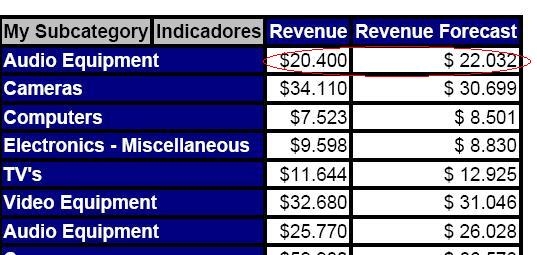
A Report Services document is executed, as illustrated below:
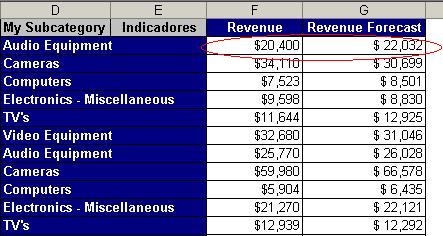
When the Report Services document is exported to Excel, the exported document displays everything using the English (United States) locale, as illustrated below:
CAUSE:
This issue will occur if the regional settings within Strategy Desktop and Web differ from the regional settings of the operating system of the client machine (i.e., the Strategy Developer client or the Strategy Web client). When a document is exported to Excel, Strategy has no way of indicating to the Excel application which locale to use because Excel inherently uses the locale set by the operating system.
ACTION:
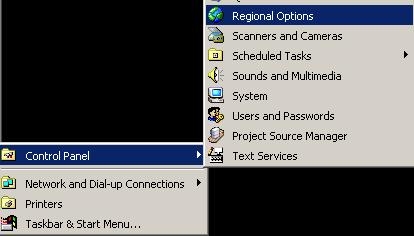
In order for the Excel regional formatting to match the Strategy regional formatting, the regional settings on the operating system must be changed.
To modify the regional settings on the operating system, perform the following on the client machine:
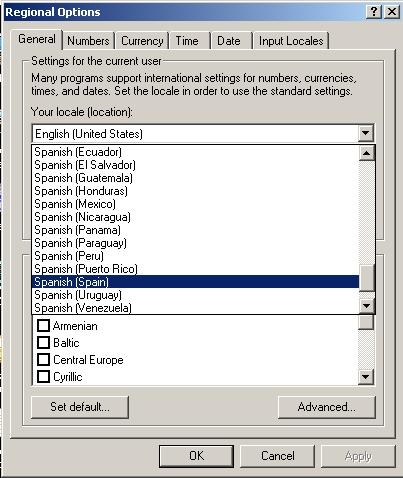
The next time the Report Services document is exported, the formatting should be retained.
WARNING:
The third-party product(s) discussed in this technical note is manufactured by vendors independent of Strategy. Strategy makes no warranty, express, implied or otherwise, regarding this product, including its performance or reliability.
