EducationSoftwareStrategy.com
StrategyCommunity

Knowledge Base

Product

Community

Knowledge Base

TopicsBrowse ArticlesDeveloper Zone

Product

Download SoftwareProduct DocumentationSecurity Hub

Education

Tutorial VideosSolution GalleryEducation courses

Community

GuidelinesGrandmastersEvents
x_social-icon_white.svglinkedin_social-icon_white.svg
Strategy logoCommunity

© Strategy Inc. All Rights Reserved.

LegalTerms of UsePrivacy Policy
  1. Home
  2. Topics

KB12755: How to use the metric level (dimensionality) settings in MicroStrategy Developer 9.x to control the behavior of a rank metric in child reports after drilling


Stefan Zepeda

Salesforce Solutions Architect • Strategy


How to use the metric level (dimensionality) settings in MicroStrategy Developer 9.x to control the behavior of a rank metric in child reports after drilling

SYMPTOM:
Consider the following scenerio:
 
A user wants to create a metric which ranks the Regions according to Revenue at a company-wide level. The user also requires that when drilling down from Region to lower-level attributes, the rank values for those attributes should be calculated on a company-wide basis rather than constrained by the Region from which the user has drilled. However, when drilling on this attribute, the rank values are not calculated on a company-wide basis.
 
STEPS TO REPRODUCE:
Follow the steps below to reproduce this issue in Strategy Developer 9.x using the Strategy Tutorial project:
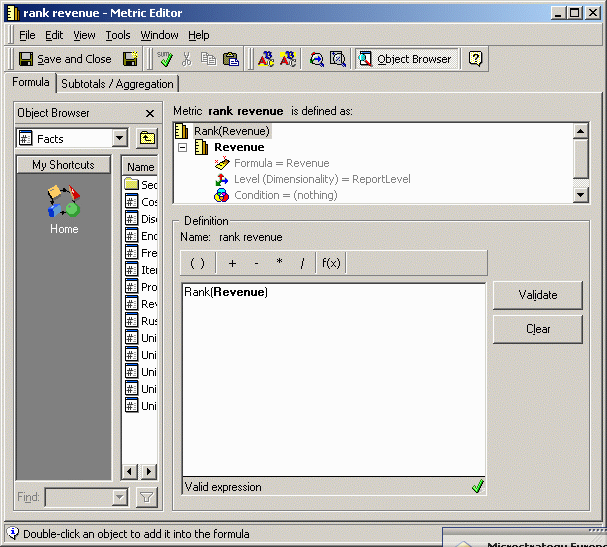
 

  • Create the relevant metric as Rank(Revenue) with the Rank parameter set to ascending, as shown below:
ka02R000000kbltQAA_0EM440000002FdS.gif
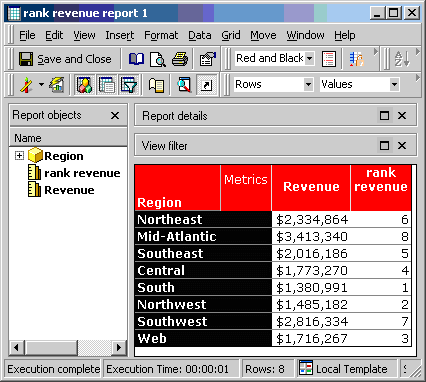
  • Add the metric to a report containing the attribute Region and the metric Revenue, and the results are as follows:
ka02R000000kbltQAA_0EM440000002FdU.gif
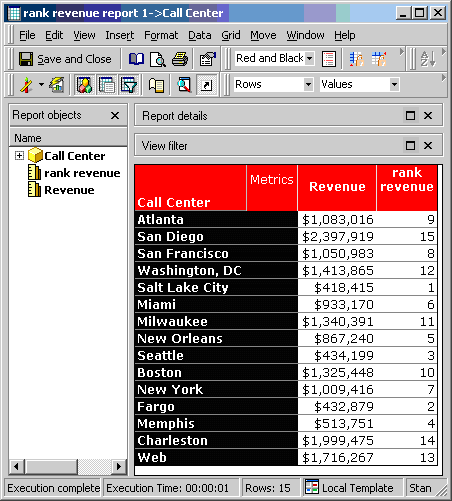
  • Drill down to Call Center from the row header for Region to obtain the company-wide ranks for the Call Centers, as shown below:
ka02R000000kbltQAA_0EM440000002FdQ.gif
  •  
    Note the values 7 and 10 for New York and Boston respectively, these being the two Call Centers in the Northeast Region. These represent their company-wide rankings.
     
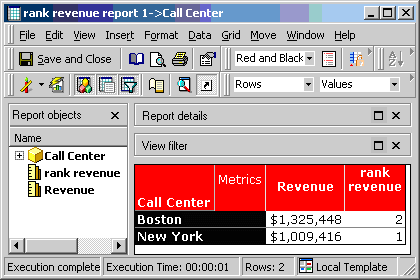
  • Return to the parent report and drills down on Northeast to Call Center. Notice the rank values have changed. They are calculated only within the selected Region and the two Call Centers are ranked 1 and 2. The company-wide ranking has been lost, as shown below:
ka02R000000kbltQAA_0EM440000002FdY.gif

CAUSE:
The reason for this is that the qualification on Region forced by the drill is resolved in the Strategy Engine first, and only then is the rank metric calculated. This may be seen in the SQL generated by the report where the qualification "a12.[REGION_ID] in (1)" appears before the Analytical SQL which represents the ranking calculation, as shown below:
 
select a11.[CALL_CTR_ID] AS CALL_CTR_ID,
max(a12.[CENTER_NAME]) AS CENTER_NAME,
sum(a11.[TOT_DOLLAR_SALES]) AS WJXBFS1
from [CITY_CTR_SLS] a11,
[LU_CALL_CTR] a12
where a11.[CALL_CTR_ID] = a12.[CALL_CTR_ID]
and a12.[REGION_ID] in (1)
group by a11.[CALL_CTR_ID]
[An Analytical SQL]
ACTION:
In order to preserve the company-wide ranking values, follow the steps below:
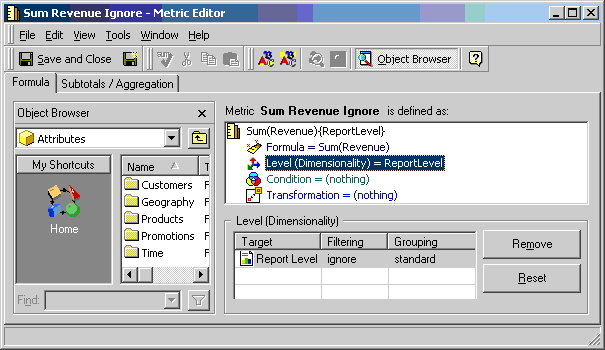
 

  • Create a metric called 'Revenue Ignore' defined as the sum of the Revenue fact. In the Level settings, set the Filtering option in the Report Level target to Ignore. Do not add any further target attributes, as shown below:
ka02R000000kbltQAA_0EM440000002Fda.gif
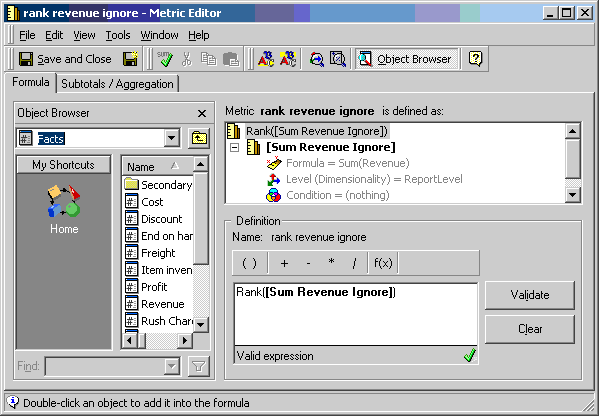
  • Use this metric as the basis for a ranking metric called 'Rank Revenue Ignore', defined as the rank of the Sum Revenue Ignore metric, as shown below:
ka02R000000kbltQAA_0EM440000002Fdg.gif
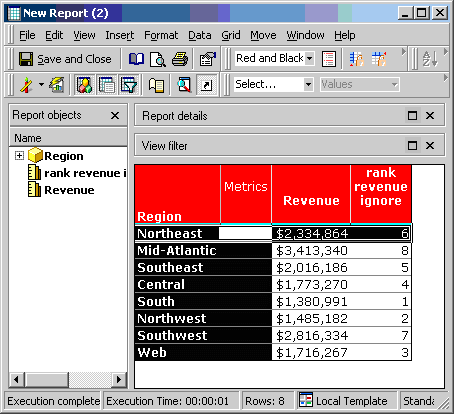
  • Create a report containing the attribute Region and the metrics Revenue and 'Rank Revenue Ignore'. When executed the results are identical to those of the first report described above, as shown below:
ka02R000000kbltQAA_0EM440000002FdW.gif
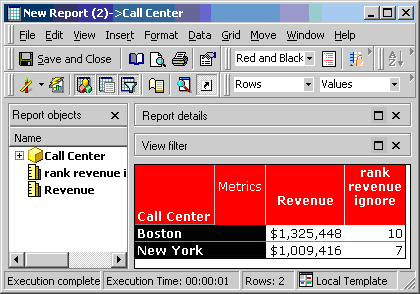
  • Now drill down on the Northeast Region. The selected Call Centers now show their true company-wide ranks of 7 and 10, as shown below:
ka02R000000kbltQAA_0EM440000002FdH.gif

The SQL View indicates that the rank metric is now resolved in its own pass of SQL in the temporary table ZZMD01 without reference to the qualification on Region, as shown below:
 
create table ZZMD00 (
CALL_CTR_ID BYTE,
WJXBFS1 DOUBLE)
insert into ZZMD00
select a11.[CALL_CTR_ID] AS CALL_CTR_ID,
sum(a11.[TOT_DOLLAR_SALES]) AS WJXBFS1
from [CITY_CTR_SLS] a11,
[LU_CALL_CTR] a12
where a11.[CALL_CTR_ID] = a12.[CALL_CTR_ID]
and a12.[REGION_ID] in (1)
group by a11.[CALL_CTR_ID]
select a11.[CALL_CTR_ID] AS CALL_CTR_ID,
sum(a11.[TOT_DOLLAR_SALES]) AS WJXBFS1
from [CITY_CTR_SLS] a11
group by a11.[CALL_CTR_ID]
create table ZZMD01 (
CALL_CTR_ID BYTE,
WJXBFS1 DOUBLE)
[An analytical SQL]
insert into ZZMD01 values ([DummyInsertValue])
select pa1.[CALL_CTR_ID] AS CALL_CTR_ID,
a11.[CENTER_NAME] AS CENTER_NAME,
pa1.[WJXBFS1] AS WJXBFS1,
pa2.[WJXBFS1] AS WJXBFS2
from [ZZMD00] pa1,
[ZZMD01] pa2,
[LU_CALL_CTR] a11
where pa1.[CALL_CTR_ID] = pa2.[CALL_CTR_ID] and
pa1.[CALL_CTR_ID] = a11.[CALL_CTR_ID]
drop table ZZMD00
drop table ZZMD01


Comment

0 comments

Details

Knowledge Article

Published:

June 8, 2017

Last Updated:

June 8, 2017