When a Strategy Report Services document contains certain special characters, including those found in character sets such as Cyrillic, there may be issues with the formatting in the resulting PDF, as shown below:
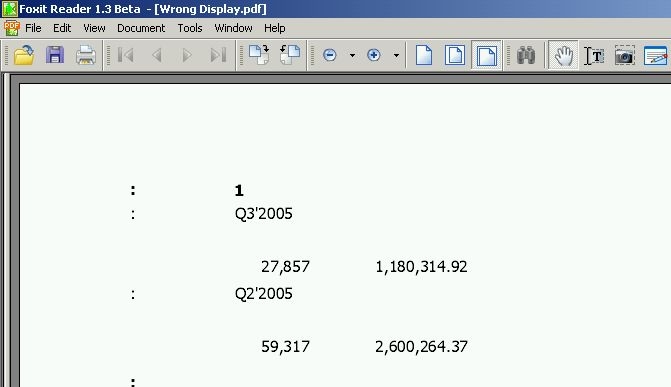
In order to be able to display the characters properly, users need to utilise the embed fonts setting.
However, this needs to be set for each Report Services document, which can be a laborious process. To make sure that each new document will be created using this setting, users can follow the instructions on page 12 under 'Creating a document using another document as a template' in the Document Creation Guide as follows:
"You can save a document as a template and pattern new documents based on it. Any new document made using this template will contain the same underlying datasets, fields, formatting, and layout as the template document. After the new document is created, you can customize the document as you want.
Creating a new template for documents
If you want a document to be available as a template so that you can format your other documents based on it, save it or copy it to the following folder: Project name/Object Templates/Documents.
The document will then be available as a template for selection in the New Document dialog box when you create a new document.
The Object Templates folder is hidden by default. To display it, from the Tools menu, select Desktop Preferences. On the Desktop tab, click Browsing Options.
Select Display Hidden Objects check box and click OK."
Then, follow the steps below:
