EducationSoftwareStrategy.com
StrategyCommunity

Knowledge Base

Product

Community

Knowledge Base

TopicsBrowse ArticlesDeveloper Zone

Product

Download SoftwareProduct DocumentationSecurity Hub

Education

Tutorial VideosSolution GalleryEducation courses

Community

GuidelinesGrandmastersEvents
x_social-icon_white.svglinkedin_social-icon_white.svg
Strategy logoCommunity

© Strategy Inc. All Rights Reserved.

LegalTerms of UsePrivacy Policy
  1. Home
  2. Topics

KB12835: How to create a timestamp information object for MicroStrategy Narrowcast Server 9.4.x-10.x that uses local system time?


Community Admin

• Strategy


This knowledge base article explains how to create a timestamp information object for MicroStrategy Narrowcast Server 9.4.x-10.x that uses local system time.

SYMPTOM:
Strategy Narrowcast Server 9.4.x-10.x uses UTC (Universal Time Coordinated or Greenwich Mean Time) for the Service Creation Date, Service Execution Date, and Service Execution Time. This can cause confusion when sending documents with these information objects contained in them. For example:
 
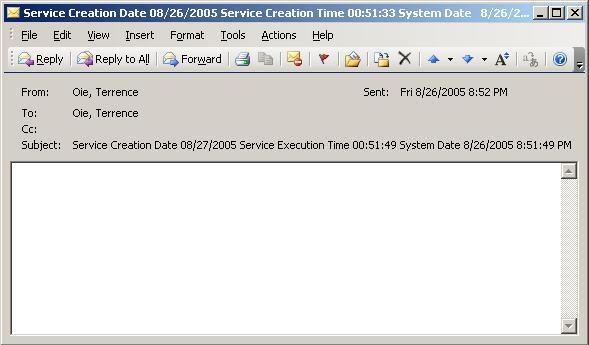
The following service was executed on 8/26/2005 at 8:51:33 PM Eastern Standard Time:

ka04W000000OeKuQAK_0EM440000002Bfa.jpeg

The subject line of the email uses the Service Execution Date and Service Execution Time information objects. Since these are in UTC (4 hours ahead), the date is displayed as 8/27/2005 and 12:51:33 AM. This can confuse users.
 
CAUSE:
 
Strategy Narrowcast Server uses UTC (Universal Time Coordinated or Greenwich Mean Time) for the Service Creation Date, Service Execution Date, and Service Execution Time.
Strategy Narrowcast Server uses UTC for the Service Execution Time and Local Time for the Service Creation Date and Service Execution Date.
 
ACTION:
To use the local system date and time for documents, users must create an information object that pulls the system time from the Database Server by following the steps below:

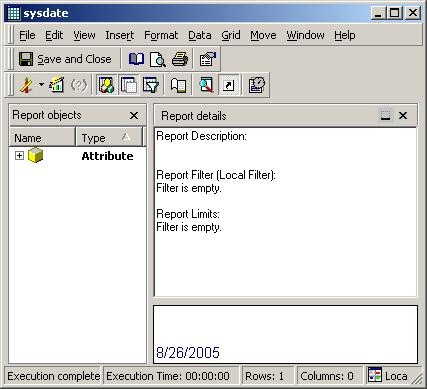
  • Create a system date (sysdate) attribute as follows. Use any lookup table since this is just a constant and will not access a table:
ka04W000000OeKuQAK_0EM440000002BfW.jpeg
  • Update the schema.
  • Create a report that uses the attribute created in step 1.
  • Remove all borders and background colors from the values and headers.
  • Create an alias for the sysdate as a SPACE by selecting the Data menu ->Report Data Options ->Display ->Alias. The report should look as follows:
ka04W000000OeKuQAK_0EM440000002BfY.jpeg
  • Create an information object that points to the report created in steps 3-5.
  • Execute the service and the correct system date and time is displayed, as shown below:
ka04W000000OeKuQAK_0EM440000002BfS.jpeg

NOTE: Ensure that the database server is in the same time zone as the Strategy Narrowcast server or the times will still not match.


Comment

0 comments

Details

Knowledge Article

Published:

June 12, 2017

Last Updated:

June 12, 2017