EducationSoftwareStrategy.com
StrategyCommunity

Knowledge Base

Product

Community

Knowledge Base

TopicsBrowse ArticlesDeveloper Zone

Product

Download SoftwareProduct DocumentationSecurity Hub

Education

Tutorial VideosSolution GalleryEducation courses

Community

GuidelinesGrandmastersEvents
x_social-icon_white.svglinkedin_social-icon_white.svg
Strategy logoCommunity

© Strategy Inc. All Rights Reserved.

LegalTerms of UsePrivacy Policy
  1. Home
  2. Topics

KB12994: How to change the port number of MicroStrategy Intelligence Server?


Stefan Zepeda

Salesforce Solutions Architect • Strategy


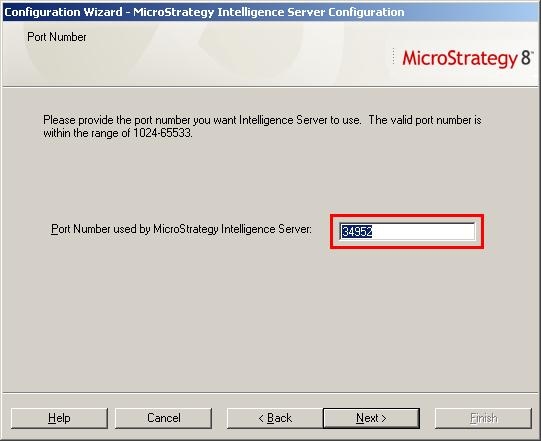
Users can choose the port number that Strategy Intelligence Server will use to communicate with client machines and other processes on the same machine. By default, this port number is 34952.
 
This port number can be changed through the 'Configuration Wizard' dialog box by following the steps below:
 

  • Open the Strategy Configuration Wizard by choosing Start > Programs > Strategy > Configuration Wizard. On Universal platforms, the binary for the configuration wizard (mstrcfgwiz) is present used <MSTR_HOM_PATH>bin.
  • Select the option for 'Set up Strategy Intelligence Server' and click Next.
  • Select the ODBC Data Source Name to connect to the metadata repository and provide the necessary User Name and Password. Click Next.
  • Enter the Strategy user name and password to connect to the metadata repository. Click Next.
  • Select the operation to perform with the server definitions, such as create a new definition, use an existing definition or delete a current definition. Click Next.
  • Provide the port number for Strategy Intelligence Server to use and then click Next. By default, this port number is 34952, as shown below:
ka02R000000kbrwQAA_0EM440000002Fcj.jpeg
  • Select the projects to load at startup on the server. Click Next.
  • Verify the tasks and click finish. When prompted, stop and start Strategy Intelligence Server for the changes to take effect.

For the client machine to connect to a Strategy Intelligence Server whose port has been changed, the port number set for the Strategy Intelligence Server should match the port number set in the client machine interface.
 
In Strategy Desktop:
For a 3-tier project source to connect to a Strategy Intelligence Server whose port has been changed, the port number specified in the 'Project Source Manager' (right-click project source -> Project Source Manager) must match the port number set for the Strategy Intelligence Server, as shown below:
 

ka02R000000kbrwQAA_0EM440000002Fca.jpeg

 
In Strategy Web:
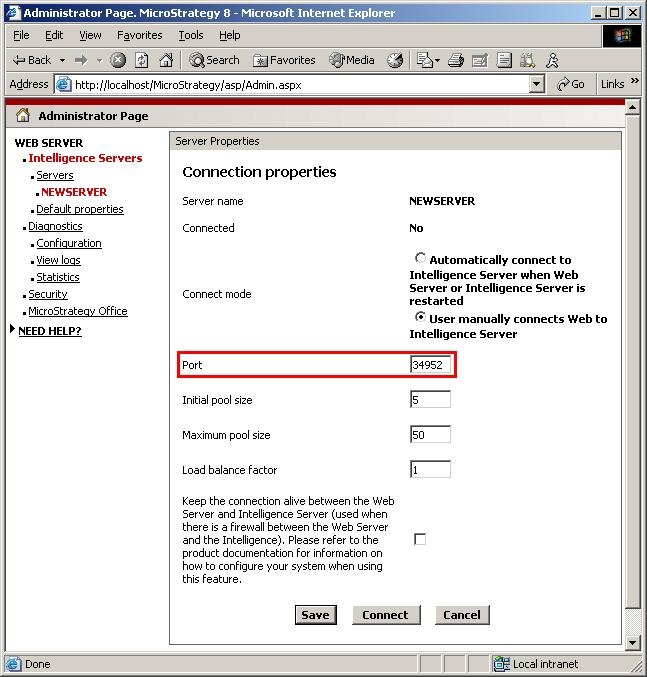
The port number specified in the 'Connection Properties' must match the port number set for Strategy Intelligence Server, as shown below:
 

ka02R000000kbrwQAA_0EM440000002Fci.jpeg

 
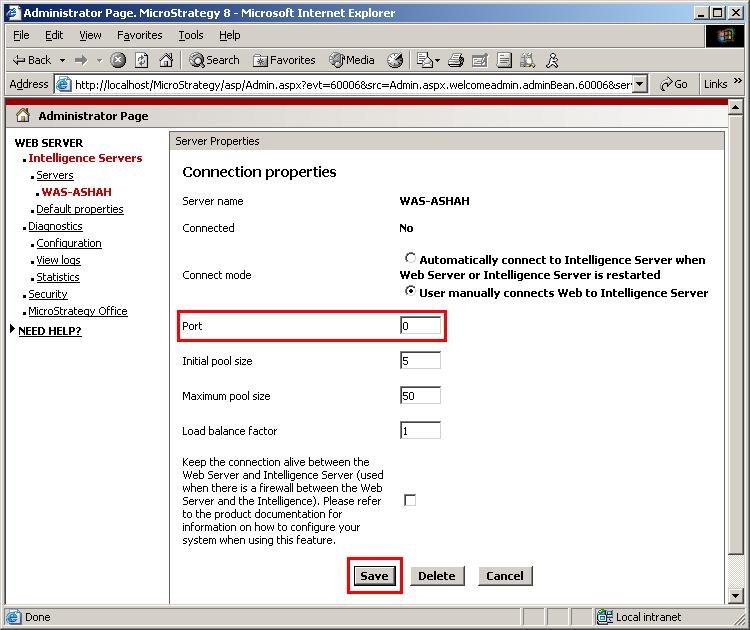
NOTE: This value is set to '0' by default, which will automatically pick up the default value (34952 in this case) that is set at the Strategy Intelligence Server level via the 'Configuration Wizard' editor.
 
In order to change this value manually, follow the steps below:
 

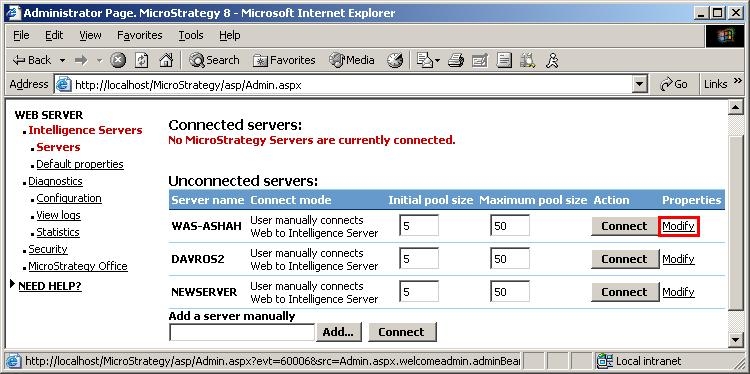
  • Disconnect Strategy Intelligence Server, as shown below:
ka02R000000kbrwQAA_0EM440000002Fck.jpeg
  • Modify the 'Connection Properties', as shown below:
ka02R000000kbrwQAA_0EM440000002Fch.jpeg
  • Change the 'Port Number' and save the changes, as shown below:
ka02R000000kbrwQAA_0EM440000002FcZ.jpeg

Comment

0 comments

Details

Knowledge Article

Published:

June 7, 2017

Last Updated:

June 7, 2017