EducationSoftwareStrategy.com
StrategyCommunity

Knowledge Base

Product

Community

Knowledge Base

TopicsBrowse ArticlesDeveloper Zone

Product

Download SoftwareProduct DocumentationSecurity Hub

Education

Tutorial VideosSolution GalleryEducation courses

Community

GuidelinesGrandmastersEvents
x_social-icon_white.svglinkedin_social-icon_white.svg
Strategy logoCommunity

© Strategy Inc. All Rights Reserved.

LegalTerms of UsePrivacy Policy
  1. Home
  2. Topics

KB13189: How to trace the SQL generated by MicroStrategy Engine


Community Admin

• Strategy


MicroStrategy Engine uses SQL to retrieve information about the project definition (schema, metrics, templates, filters, reports, etc.) by querying the metadata. SQL is also used to retrieve information that is shown in reports, prompts, and element browsing and MicroStrategy Enterprise Manager activities such as Statistics Purge and Data Load. Logging these queries is necessary to troubleshoot SQL related issues.

Strategy Engine uses SQL to retrieve information about the project definition (schema, metrics, templates, filters, reports, etc.) by querying the metadata. SQL is also used to retrieve information that is shown in reports, prompts, and element browsing and Strategy Enterprise Manager activities such as Statistics Purge and Data Load. Logging these queries is necessary to troubleshoot SQL related issues.
In order to enable SQL tracing on Strategy Secure Enterprise, follow the steps below:
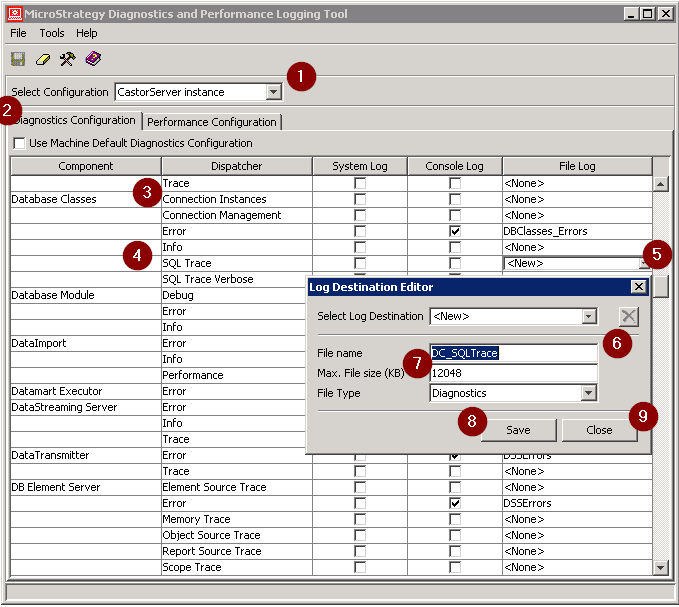
  • Launch the Strategy Diagnostics and Performance Logging tool. The following window appears:

ka04W00000148xTQAQ_0EM2R0000019fzW.jpeg
  • Ensure that the Select Configuration box shows 'CastorServer instance', and make sure to uncheck the checkbox for 'Use Machine Default Diagnostics Configuration'.
  • Go to the component 'Database Classes' and dispatcher 'SQL Trace'.
  • Click on the drop down for the corresponding 'File Log' and choose the log file to which the SQL Trace needs to be written into. The user can also write the SQL Trace to a new log file by selecting the option from the drop down. In the image above, the SQL is being logged to the DSSErrors.log file. Save the changes.

 
NOTE:

  • Enabling the SQL tracing is used for troubleshooting purposes since performance can be greatly reduced due to intensive hard-disk access.


Comment

0 comments

Details

Knowledge Article

Published:

May 22, 2017

Last Updated:

May 22, 2017