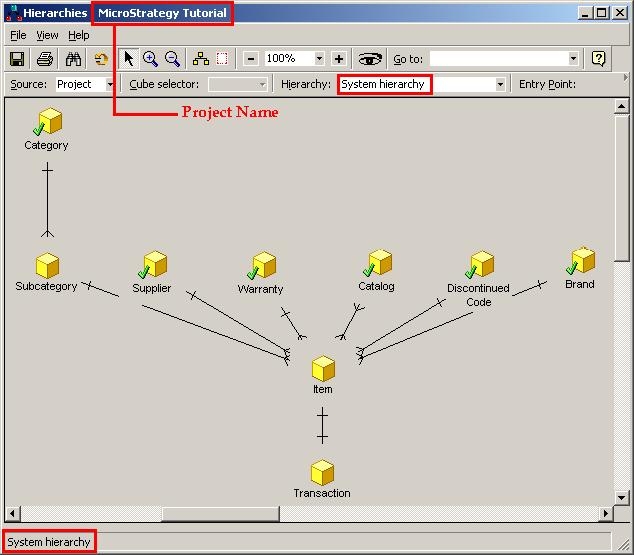
The Hierarchy Viewer allows users to view both the user-defined hierarchies and the system hierarchy in Strategy Developer 9.4.x and 10.x. When the system hierarchy is displayed, the background of the viewer is grey. When the user hierarchies are viewed, the background color is determined by the computer's settings.
Accessing the Hierarchy Viewer:
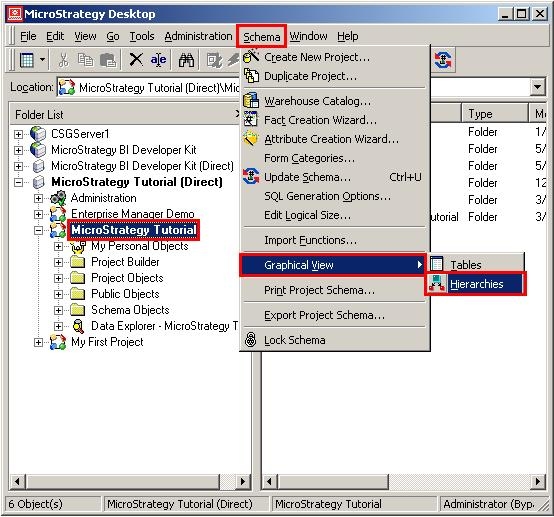
Users can access the Hierarchy Viewer from the Strategy Developer Schema menu by choosing Graphical View then Hierarchies, as shown below:
The Hierarchy Viewer initially opens the system hierarchy, as shown below:
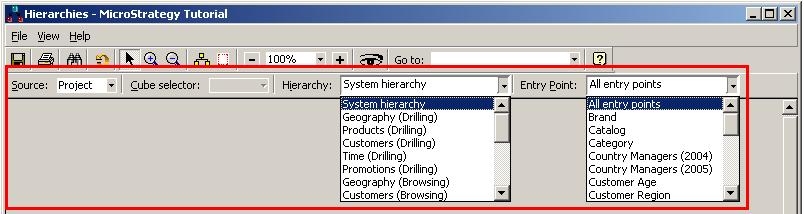
Users can also select a different hierarchy to view from the Hierarchy drop-down menu on the toolbar. Within each hierarchy, users can focus on an entry point by selecting it from the Entry Point drop-down menu on the toolbar, as shown below:
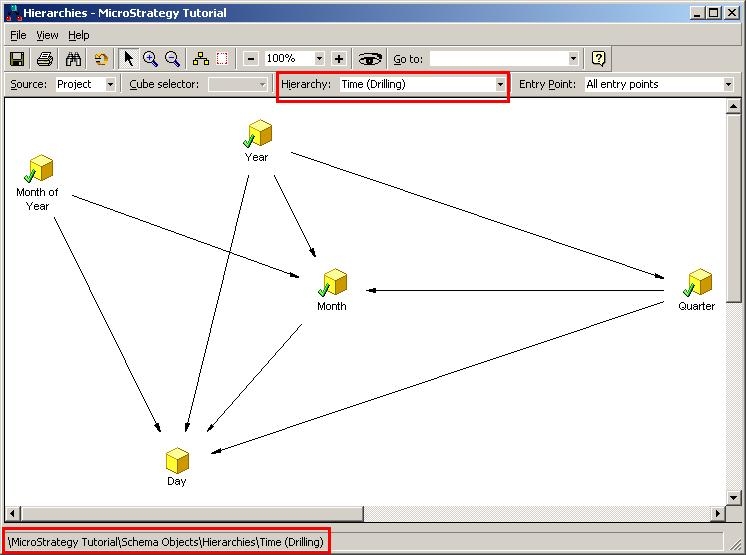
The default layout view of each hierarchy presents the attributes in a logical manner, as shown below:
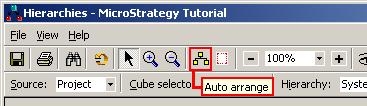
Users can rearrange the attributes by dragging and dropping. If users save their custom view, it will be displayed the next time the hierarchy is opened in the Hierarchy Viewer. To return to the default view, click Auto arrange in the toolbar, as shown below:
NOTE: Rearranging the attributes in the Hierarchy Viewer does not change the browse order. Users can change the browse order of user hierarchies in the Hierarchy Editor.
Aerial Perspective:
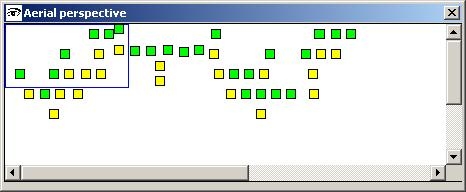
Aerial perspective provides an overview of the project hierarchies in a separate window, as shown below:
Toolbar Options:
The toolbar options are shown below:
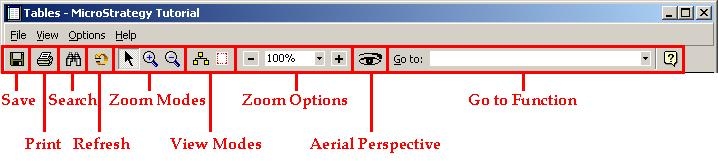
Users can zoom in and out using the mode buttons on the toolbar (Normal, Zoom In, Zoom Out). Go to allows you to select an object to view. This is particularly helpful with a large or complicated hierarchy. Users can access the Attribute Editor to edit an attribute by right-clicking the attribute and selecting Edit. Users can access the Search for Objects dialog box to find an object by right-clicking and selecting Search for objects or Search for dependents. To view attributes related to a selected attribute, right-click and choose Select related attributes.
