When defining a hierarchy prompt in Strategy Desktop 9.x, project architects may want to display a subset of available hierarchies based on their location within the folder tree, and also allow the user to navigate all of the subfolders underneath the desired root folder.
Refer to the following Strategy knowledge Base technical note for more information on how to create a hierarchy prompt.:
KB4000-7X0-0503 - How to create a Hierarchy Prompt in Strategy Agent 7.x
For instance, consider a folder structure such as the following:
The project designer would like to create a set of hierarchy prompts originating from the "Finance hierarchies" folder. From this location, the user could navigate into the "Geography hierarchies" and "Time hierarchies" folders, and from there choose the hierarchies desired.
Other hierarchy prompts should originate from the "Sales hierarchies" folder, from which the user would see "Sales regional hierarchies" and "Time hierarchies."
When creating the hierarchy prompts using the option 'List all hierarchies (no restriction),' the user may navigate through the folders, but the origin is always the Data Explorer folder inside Schema Objects\Hierarchies. In this scenario, the desired behavior is to start folder navigation at an arbitrary folder anywhere in the project.
It is also possible to create a hierarchy prompt using the results of a search object to define which hierarchies to allow. In a search, an originating folder may be specified; however, by default the results of the search are displayed as a single flat list and the folder structure is not represented.
NOTE: Shortcuts to hierarchies are interchangeable with hierarchy objects in terms of prompting, making this a powerful way to organize the end-user experience of navigating among hierarchies.
To achieve the desired prompting behavior, follow the steps below:
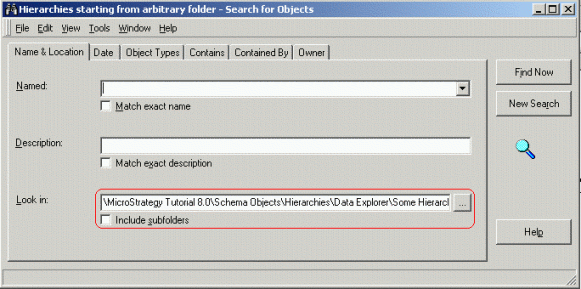

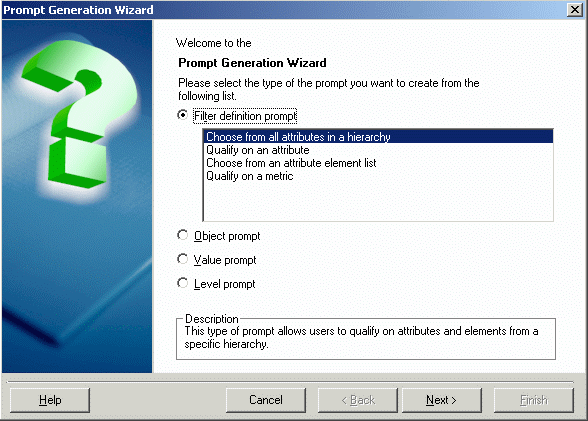
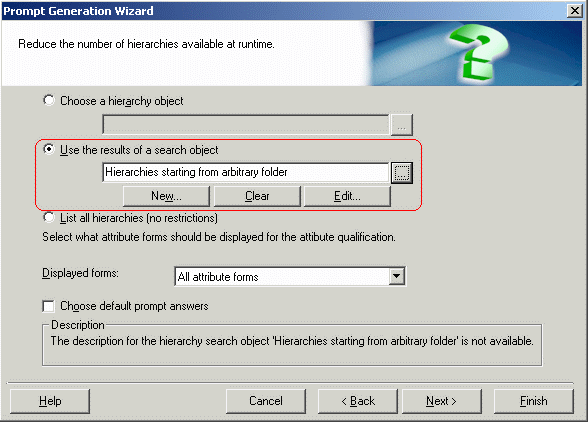
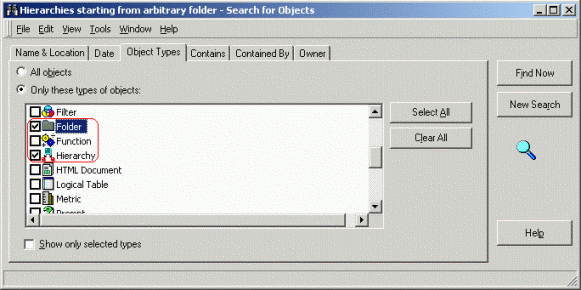
NOTE: Due to an architecting restriction in Strategy Desktop, if the search object is configured initially to retrieve hierarchies and folders, the prompt wizard will not allow users to use that search in a hierarchy prompt. It will display the following error:

This search object does not return objects of the desired type.
Please use a valid search object.
To get around this error, it is necessary to configure the search to retrieve only hierarchies at first. After the search is used in the hierarchy prompt, it is the possible to edit the search to retrieve folders as well.
When the report is executed with Strategy Desktop, the user will be able to navigate into the folders underneath the search origin, as shown below:
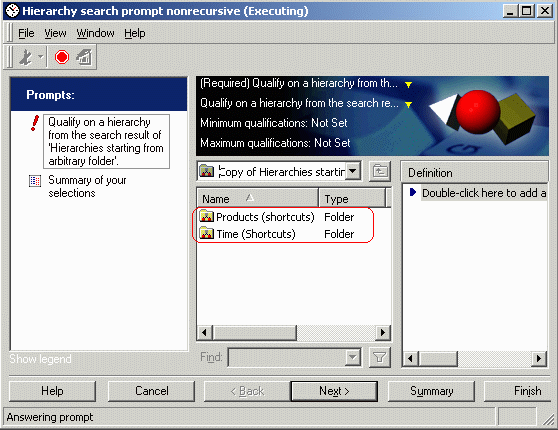
The folder structure will also display in Strategy Web.
