EducationSoftwareStrategy.com
StrategyCommunity

Knowledge Base

Product

Community

Knowledge Base

TopicsBrowse ArticlesDeveloper Zone

Product

Download SoftwareProduct DocumentationSecurity Hub

Education

Tutorial VideosSolution GalleryEducation courses

Community

GuidelinesGrandmastersEvents
x_social-icon_white.svglinkedin_social-icon_white.svg
Strategy logoCommunity

© Strategy Inc. All Rights Reserved.

LegalTerms of UsePrivacy Policy
  1. Home
  2. Topics

KB13381: How to create a list of MicroStrategy Intelligence Server Configuration Settings using MicroStrategy Command Manager


Community Admin

• Strategy


How to create a list of MicroStrategy Intelligence Server Configuration Settings using MicroStrategy Command Manager.

Administrators can use Strategy Command Manager to generate a list of the Strategy Intelligence Server Configuration Settings. Following the steps below to create a list of Strategy Intelligence Server Configuration Settings in the Strategy Tutorial project using Strategy Command Manager 9.x:
 

  • Launch the Strategy Command Manager utility by going to Start > Run > CMDMGR.EXE.
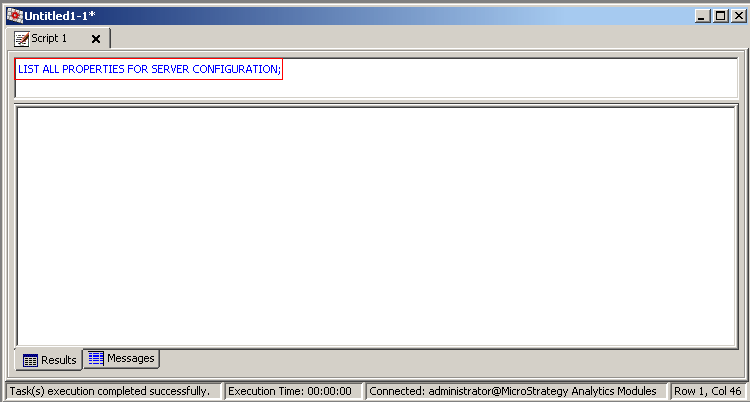
  • Connect to the DSN that points to the Strategy Tutorial metadata and enter the following text:
ka04W000000OeoKQAS_0EM440000002Bdi.png
  •  
    LIST ALL PROPERTIES FOR SERVER CONFIGURATION;
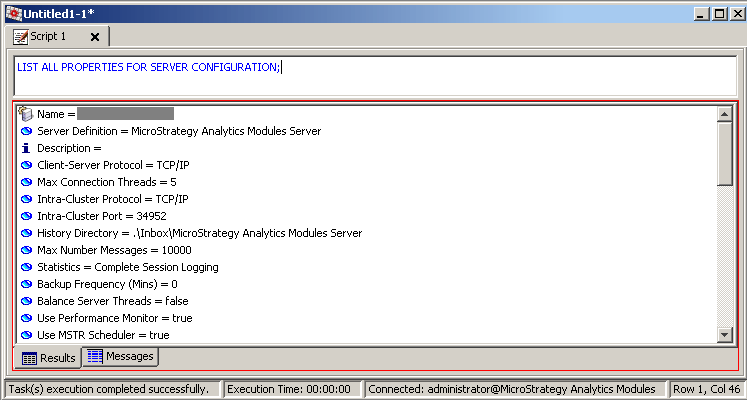
  • Execute the script. The default output appears as follows:
ka04W000000OeoKQAS_0EM440000002Bdl.png
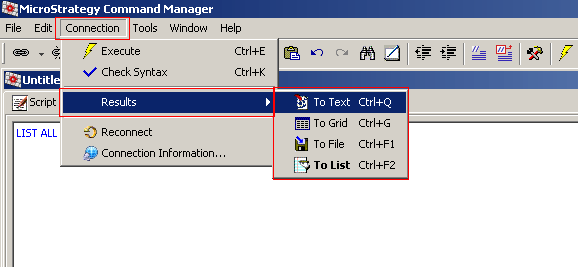
  • Alternatively, users can change the output format (to text, grid, or file) by going to Connection > Results, as shown below:
ka04W000000OeoKQAS_0EM440000002Bdj.png

Exporting results to Microsoft Excel
To export the results to Microsoft Excel, do one of the following:
 

  • Select Connection > Results > To Grid (shortcut: Ctrl+G). Then select File -> Export result set to excel…
  • Select Connection > Results > To File (shortcut: Ctrl+F1), and save the results to an existing Excel file

Comment

0 comments

Details

Knowledge Article

Published:

June 5, 2017

Last Updated:

June 5, 2017