It is possible to change the default project preferences in Strategy Developer for a specific user or for new projects.
However, if users want to change the global default preferences for an existing project, the technical note mentioned above does not apply. There is a way to modify the default style for new reports for an existing project. This will only be possible at the project level.
These changes need to be performed by the administrator user, who can create a new report template in the hidden folder Objects Templates -> Reports, or the administrator may use an existing template.
Edit the new report object and select the style to use by choosing the Grid menu -> Autostyle, as shown below:
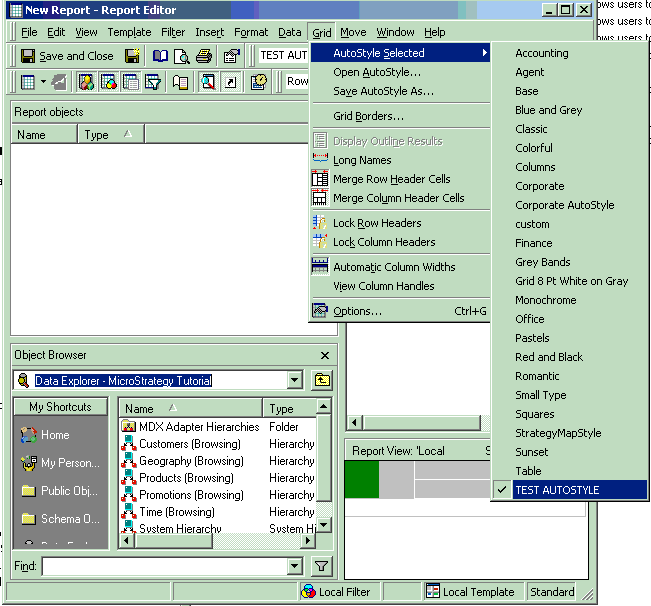
All other report templates need to be hidden in order to force all users to use the same template. To hide the templates, right-click on the template and select Properties and enable Hidden in the General tab.
Now, all new reports within the existing project will use the same report template with the style that has been selected, as shown below:
