EducationSoftwareStrategy.com
StrategyCommunity

Knowledge Base

Product

Community

Knowledge Base

TopicsBrowse ArticlesDeveloper Zone

Product

Download SoftwareProduct DocumentationSecurity Hub

Education

Tutorial VideosSolution GalleryEducation courses

Community

GuidelinesGrandmastersEvents
x_social-icon_white.svglinkedin_social-icon_white.svg
Strategy logoCommunity

© Strategy Inc. All Rights Reserved.

LegalTerms of UsePrivacy Policy
  1. Home
  2. Topics

KB13489: How to remove the ‘Metrics’ column when exporting a report in MicroStrategy Web 9.x and 10.x


Community Admin

• Strategy


This technical note details a setting in MicroStrategy 9.x and 10.x that allows for users to remove the extra column during export that says "Metrics"

SUMMARY:
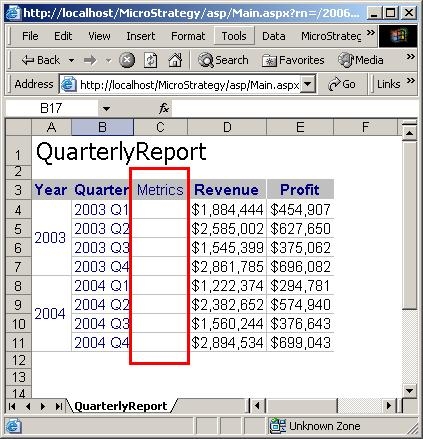
When users export to Microsoft Excel in Strategy Web 9.x and 10.x, an additional column is added to the Excel spreadsheet to include the word 'Metrics', as shown below:
ka04W000001483jQAA_0EM4400000028vP.jpeg

CAUSE:
The option in Strategy Web 9.x and 10.x is available to remove the 'Metrics' column when exporting grids to Microsoft Excel with formatting is not enabled.
ACTION:
The following steps describe how to remove the 'Metrics' column when exporting to Microsoft Excel with formatting:
  • In the Strategy Web 9.x and 10.x, choose to export a specific report
  • On the "Export Options" page that shows up, choose "Excel with formatting"
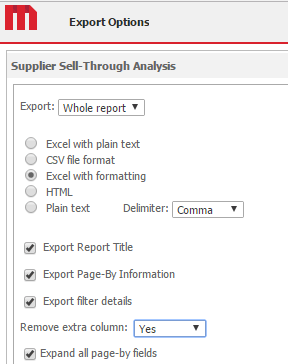
  • Find the drop down for "Remove extra column," as shown in the screenshot below, and set it to "Yes":
ka04W000001483jQAA_0EM440000002M4t.png
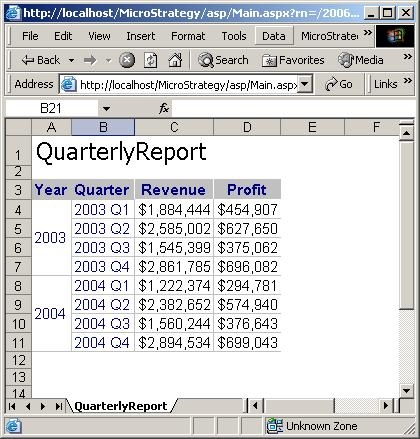
  • Click on the Export button. The extra 'Metric' column is now removed from the exported grid, as shown below:
ka04W000001483jQAA_0EM4400000028vM.jpeg

NOTE: This option to 'Remove extra column from exported grid' is only available for the export to Excel with formatting, CSV file format, and Excel with plain text options.


Comment

0 comments

Details

Knowledge Article

Published:

May 17, 2017

Last Updated:

December 3, 2019