EducationSoftwareStrategy.com
StrategyCommunity

Knowledge Base

Product

Community

Knowledge Base

TopicsBrowse ArticlesDeveloper Zone

Product

Download SoftwareProduct DocumentationSecurity Hub

Education

Tutorial VideosSolution GalleryEducation courses

Community

GuidelinesGrandmastersEvents
x_social-icon_white.svglinkedin_social-icon_white.svg
Strategy logoCommunity

© Strategy Inc. All Rights Reserved.

LegalTerms of UsePrivacy Policy
  1. Home
  2. Topics

KB13511: In a clustered MicroStrategy Narrowcast Server environment, DELog files are created but contain no data and the System Message Viewer does not show any MicroStrategy Narrowcast Server 8.1.x activities


Community Admin

• Strategy


Article outlines why in a clustered MicroStrategy Narrowcast Server environment, DELog files are created but contain no data and the System Message Viewer does not show any MicroStrategy Narrowcast Server activities

SYMPTOM:
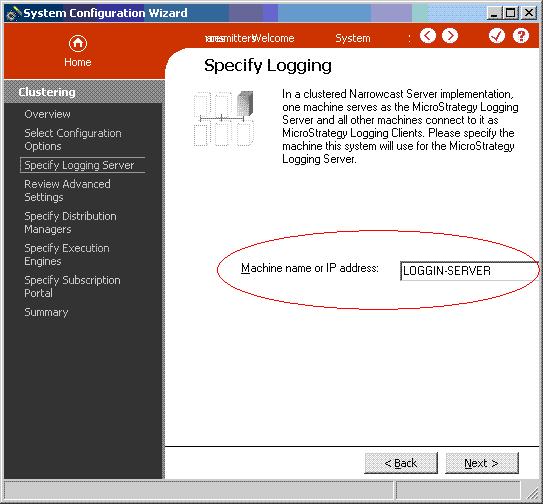
In a clustered Strategy Narrowcast Server  environment, DELog files are created under the '\Program Files\MicroStrategy\Narrowcast Server\Delivery Engine' folder, but the DELog files contain no data. The System Message Viewer does not show any Strategy Narrowcast Server  activities. When a user checks the logging server used by the Strategy Narrowcast Server 8.1.x system, it shows the correct server has been used, as shown below:
 

ka04W000000OglJQAS_0EM440000002Bcl.gif

 
CAUSE:
This issue may occur because of one of the following:
 

  • The logging server information inside the Strategy Narrowcast Server machine's registry is not using the correct logging server.
  • Strategy Logging Server service is not running on the machine specified inside the registry.

ACTION:
Follow the steps below to set the logging server to use the correct machine:
 

  • Open the Windows Registry on the Strategy Narrowcast Server machine, as shown below:
ka04W000000OglJQAS_0EM440000002Bcn.gif
  • Navigate to:
    HKEY_LOCAL_MACHINE\SOFTWARE\MicroStrategy\Strategy Broadcast Server\7.0\Distributed Logging Service\MLS Client Settings\MLS Servers\Server 1
ka04W000000OglJQAS_0EM440000002Bck.gif
  • On the right hand pane, make sure the HostName used is the desired logging server name.
  • Close the Registry Editor.
  • Open the Windows Service Manager on the logging server and restart the following services:
     
    • Strategy Logging Client
    • Strategy Logging Server
    • Strategy Logging Consumer
ka04W000000OglJQAS_0EM440000002Bcj.gif
  • Execute a test service to make sure the logging functionality is restored.

REGISTRY MODIFICATION:
WARNING:
Modifying registry values incorrectly may cause serious, system-wide problems that may require the re-installation of Microsoft Windows NT. Any edit of the registry is done at the user's own risk. Since these are user-initiated changes, they are not covered by any Strategy warranty. If using Microsoft Windows NT, the user should backup the registry and/or update an Emergency Repair Disk (ERD) prior to alterations.


Comment

0 comments

Details

Knowledge Article

Published:

June 12, 2017

Last Updated:

June 12, 2017