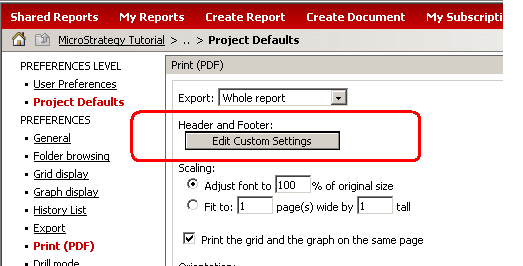
Users can embed images in a custom header/footer to export to PDF in Strategy Web 8.x, 9.x, 10.x. To access and edit the custom header/footer in Strategy Web, go to Preferences -> Project Defaults or User Defaults -> Print(PDF). Click the 'Edit Custom Settings' button, as shown below:
NOTE: Any changes made to the User Preferences will override the Project Default settings. This remains true even if the user saves a blank page of preferences; this saved page will always take precedence over the Project Defaults.
Choose the desired location, and enter the path for the image with the following syntax:
<img src="path" />
Since exporting to PDF is done by the Intelligence Server, the image path has to be set so that it is accessible by the Intelligence Server.
The following is an example path for the image:
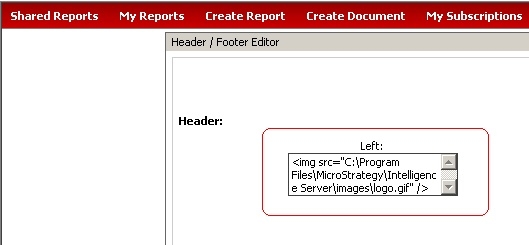
<img src="C:\Program Files\Strategy\Intelligence Server\images\logo.gif" />
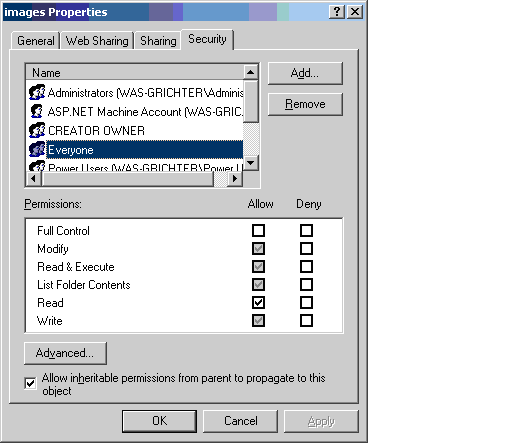
If when viewing the image, a broken image (a red x) is displayed, check that the Everyone group has access to the Images folder and the path to the Images folder. Right-click on the folder and choose Properties. Choose to add Everyone with Modify permission, as shown below: