EducationSoftwareStrategy.com
StrategyCommunity

Knowledge Base

Product

Community

Knowledge Base

TopicsBrowse ArticlesDeveloper Zone

Product

Download SoftwareProduct DocumentationSecurity Hub

Education

Tutorial VideosSolution GalleryEducation courses

Community

GuidelinesGrandmastersEvents
x_social-icon_white.svglinkedin_social-icon_white.svg
Strategy logoCommunity

© Strategy Inc. All Rights Reserved.

LegalTerms of UsePrivacy Policy
  1. Home
  2. Topics

KB13543: When trying to access the Shared Reports link, users get error ‘Error in Shared Reports: You do not have sufficient permission to access the resource you requested’ in MicroStrategy Web


Community Admin

• Strategy


When trying to access the Shared Reports link, users get error ‘Error in Shared Reports: You do not have sufficient permission to access the resource you requested’ in MicroStrategy Web.

SYMPTOM:
 
After logging into Strategy Web, if users select the Shared Reports folder, the following errors occur:
 

ka04W000000OdiVQAS_0EM4400000028v2.jpeg

 
An error has occurred on this page.
Error in layout `/WEB-INF/xml/layouts/FolderPathLayout.xml`: line 11: Inside tag: Unsupported type, needs Enumeration, HashList, or List.
Error in shared reports
You do not have sufficient permission to access the resource you requested. If the problem persists, please contact the Strategy Server Administrator.
An error has occurred on this page.
You do not have sufficient permission to access the resource you requested. If the problem persists, please contact the Strategy Server Administrator.
CAUSE:
 
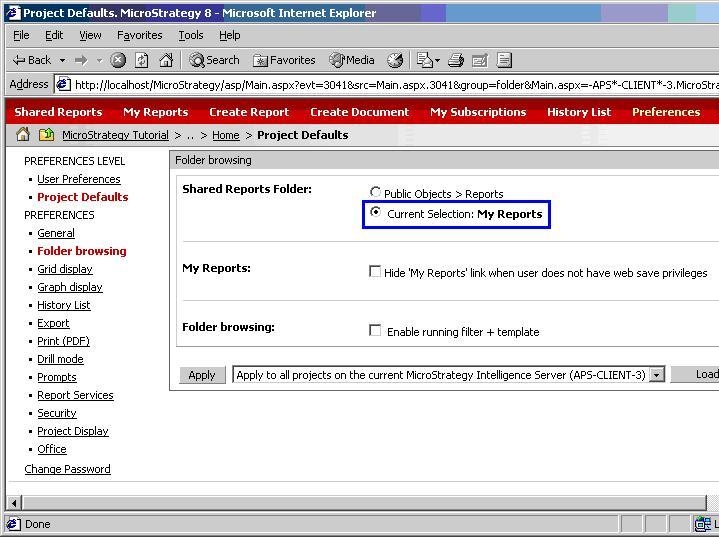
These error messages are caused when the Shared Reports folder has been pointed to a different folder that other users do not have access to. For example, if a user first clicks on My Reports -> Preferences -> Project Defaults -> Folder Browsing, the My Reports folder can be selected as the Shared Reports Folder location, replacing the normal Public Objects -> Reports, as shown below:
 

ka04W000000OdiVQAS_0EM4400000028v4.jpeg

 
As other users do not have access to other My Reports folder, clicking on the Shared Reports folder generates a permissions error message.
 
ACTION:
 
Follow the steps below to resolve this issue:

  • Login to Strategy Web as an administrator.
  • Within Web Preferences, navigate to Project Defaults -> Folder Browsing.
  • Choose the radio button for Public Objects > Reports.
  • Choose 'Apply to all projects on the current Strategy Intelligence Server…', and then click Apply, as shown below:
ka04W000000OdiVQAS_0EM4400000028uz.jpeg

All users should now be able to access the normal Shared Reports Folder.


Comment

0 comments

Details

Knowledge Article

Published:

June 20, 2017

Last Updated:

June 20, 2017