EducationSoftwareStrategy.com
StrategyCommunity

Knowledge Base

Product

Community

Knowledge Base

TopicsBrowse ArticlesDeveloper Zone

Product

Download SoftwareProduct DocumentationSecurity Hub

Education

Tutorial VideosSolution GalleryEducation courses

Community

GuidelinesGrandmastersEvents
x_social-icon_white.svglinkedin_social-icon_white.svg
Strategy logoCommunity

© Strategy Inc. All Rights Reserved.

LegalTerms of UsePrivacy Policy
  1. Home
  2. Topics

KB13548: How to setup authentication for MicroStrategy Intelligence Server with Microsoft Analysis Services (MSAS)


Community Admin

• Strategy


Introduce how to setup authentication for MicroStrategy Intelligence Server 9.x and newer with Microsoft Analysis Services (MSAS)

XMLA for Analysis is a SOAP based interface for exposing OLAP and Data Mining data sources as Web services. The Simple Object Access Protocol (SOAP) is designed to handle simple XML based messages over lower level HTTP or SMTP protocols. Microsoft Analysis Services for SQL Server 2005, 2008 and 2012 is supported as a data provider for Strategy 9.x and newer using XMLA as the communication interface.
 
This technical note describes how to set up authentication for Microsoft Analysis Services from within Strategy. For the steps required to set up connectivity with an XMLA data source, refer to the following Strategy Knowledge Base technical note:
 
KB13303 - How to set up connectivity to Essbase and Microsoft Analysis Services (MSAS) in Strategy 9.x and later
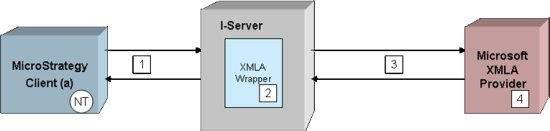
To understand how authentication works, refer to the diagram below:
 

ka04W00000148bVQAQ_0EM440000002Bda.jpeg


  1. Clients (Strategy Desktop, Web) communicate requests for data from the XMLA data provider to Strategy Intelligence Server.
  2. At Strategy Intelligence Server, any mapping that is required to map users credentials to the credentials needed to authenticate against the data source are performed.
  3. Within Strategy Intelligence Server, the XMLA wrapper component performs HTTP authentication with the Web Server hosting the XMLA data source.
  4. Within the Web Server itself, there will be an impersonation of the user to map the credentials to the correct Analysis Services Role required to access the cube objects.

It must be noted at this point, that Microsoft Analysis Services only recognizes Windows (NT) users. Given the various interactions the following are the different scenarios for the type of Strategy login used and the Web Server authentication settings that will allow authentication:
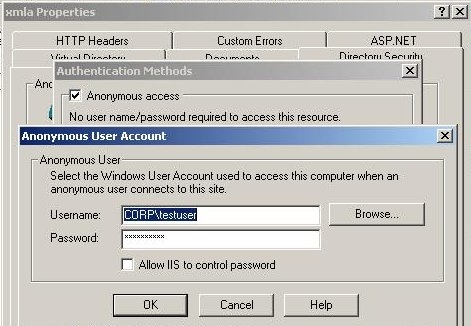
 

  • Web Server authentication set to 'Anonymous':
    With this setting, the Web Server needs to be setup with a user account to use when authenticating against Analysis Services, as shown below:
     
ka04W00000148bVQAQ_0EM440000002Bdc.jpeg
  •  
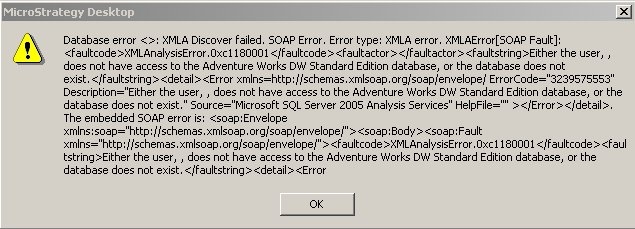
    If this account does not have permissions to connect to Analysis Services, the users will see the following error when trying to open the OLAP cube editor within Strategy:
     
ka04W00000148bVQAQ_0EM440000002Bde.jpeg
  •  
    Database error <>:XMLA Discover failed. SOAP error. Error type: XMLA error. XMLAError:<faultcode>XMLAnalysisError.0xc1180001</faultcode></faultfactor><faultstring>Either the user, {username}, does not have access to the {Catalog Name}, or the database does not exist.</faultstring><detail><Error xmlns=http://schemas.xmlsoap.org/soap/envelope/ErrorCode="3239575553" Description=" Either the user, {username}, does not have access to the {Catalog Name}, or the database does not exist." Source="{error source}" HelpFile=""></Error></detail>.
    The embedded SOAP error is <soap:Envelope xmlns:soap="http://schemas.xmlsoap.org/soap/envelope/"><soap:Body><soap:Fault xmlns:soap="http://schemas.xmlsoap.org/soap/envelope/"><faultcode> XMLAnalysisError.0xc1180001</faultcode>><faultstring>Either the user, {username}, does not have access to the {Catalog Name}, or the database does not exist.</faultstring><detail><Error
    • Strategy login with username and password specified will work, even if the user name and password do not match any user name on the Web Server. This is because in 'anonymous' authentication, the Web Server will not ask for any credentials.
    • Strategy login setup with the option 'Use network login id (Windows authentication)' will also work correctly.
  • Basic Authentication setup for the Web Server:
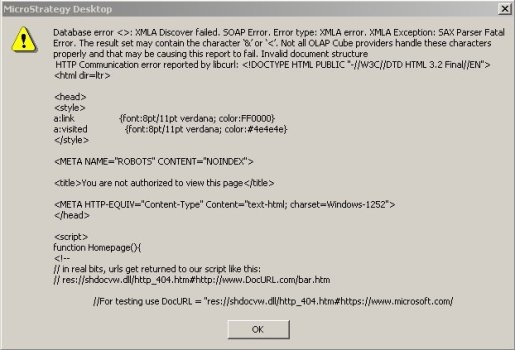
    In this mode, the Web Server needs to be presented with the username and password. If the correct credentials are not provided, users will see an error with the HTTP 404 error included, as shown below:
     
ka04W00000148bVQAQ_0EM440000002Bdb.jpeg
  •  
    Database error <>:XMLA Discover failed. SOAP error. Error type: XMLA error. XMLA Exception: SAX Parser Fatal Error. The result set may contain the character '&' or '<'. Not all OLAP Cube providers handle these characters properly and that may be causing this report to fail. Invalid document structure
    HTTP Communication error reported by libcurl: <!DOCTYPE HTML PUBLIC "-//W3C//DTD HTML 3.2 Final//EN">
    {html page returned by the web server indicating authorization failed}
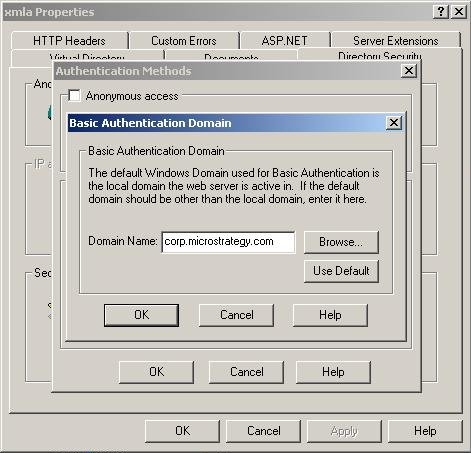
    • Strategy login with username and password specified in the interface. In this case, the default domain used to authenticate the user must be specified in the IIS configuration, as shown below:
ka04W00000148bVQAQ_0EM440000002Bdf.jpeg
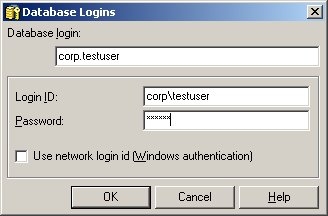
    • Strategy login with username and password specified in the DOMAIN\username format will work correctly as shown below:
ka04W00000148bVQAQ_0EM440000002Bdd.jpeg
    • Strategy login setup with the option 'Use network login id (Windows authentication)' will NOT work when the Web Server is set to use basic authentication.
  • Web Server set to use Integrated Windows authentication:
    • Strategy login with username and password specified in the DOMAIN\username format works when IIS is on the same machine as MSAS and the user is part of the role in the Analysis Server.
    • Strategy login setup with the option 'Use network login id (Windows authentication)' will NOT work when the Web Server is set to use Integrated Windows Authentication.


KB13548


Comment

0 comments

Details

Knowledge Article

Published:

April 1, 2017

Last Updated:

December 31, 2018