How to use Project Documentation to list the results of a search object in Strategy Developer.
1. Run the search as shown below:
Go to : <Project> > Search for Objects > Click 'Find Now'

2. Select all of the results (click on the first one, hold shift and then click the last result) and choose 'Project Documentation' from the Tools menu, as shown below:
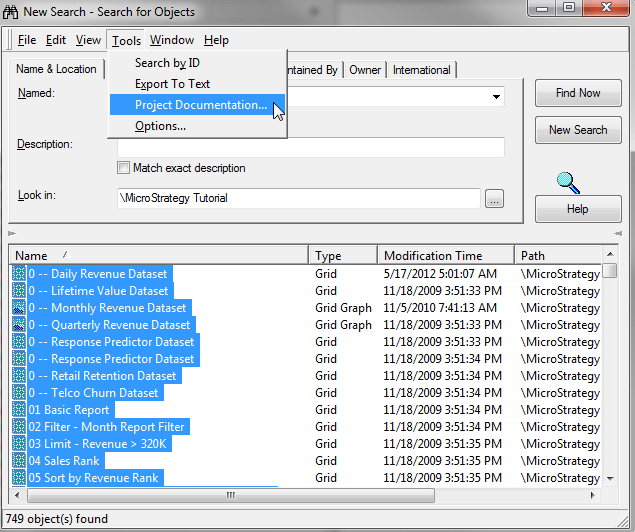
3. The Project Documentation Wizard will run for only the selected objects. This will produce an html document containing the search results and any information that is selected about those objects. Users can also go to Tools - Export to Text if they wish to have the results in a text file.
