Cache management can be automated in Strategy Intelligence Server using the administration scheduling in Strategy Desktop. In order to schedule administration tasks, follow the steps below:
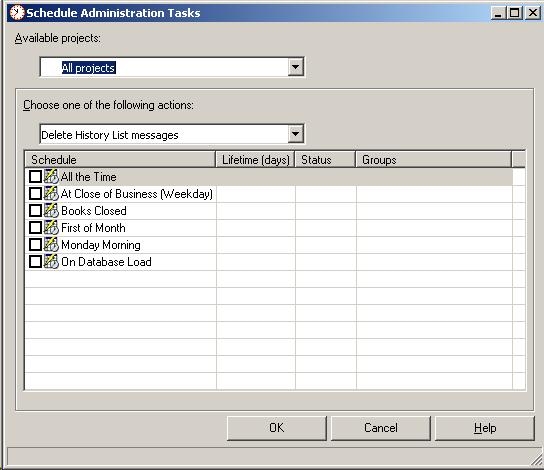
Several administration tasks can be performed using the 'Schedule Administration Tasks' window including invalidating/deleting caches as well as deleting History List messages. The schedules used for the scheduling of administration tasks are the same schedules used for scheduling of reports and created under the Schedule Manager.
Delete History List messages
History List messages can either be deleted for all the projects or for selected projects only. This can be selected from the Available projects drop-down list. Then, select 'Delete History List messages' from the actions drop-down list, as shown below:
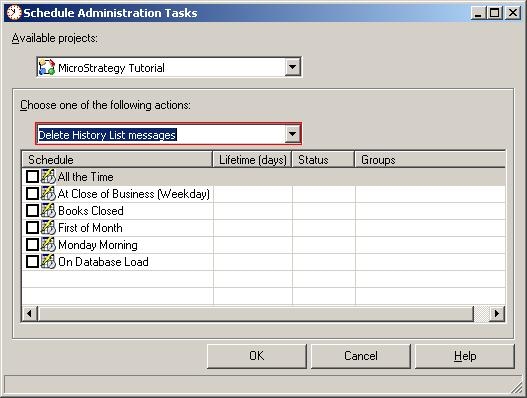
Select one of the pre-defined schedules that are available for selection. History List messages can be deleted using several different criteria:
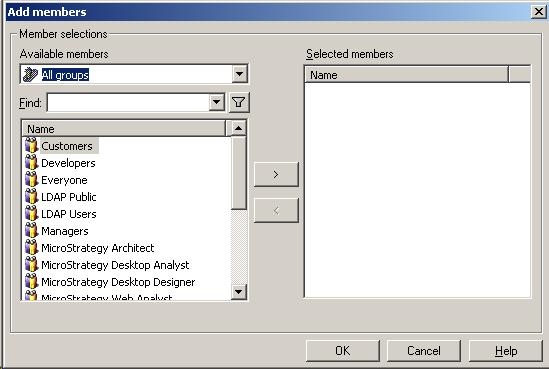
NOTE: Schedule the deletion of History Lists when Strategy Intelligence Server is not busy, such as during off-hours. Otherwise, this maintenance task could potentially overload the server. Also, stagger the deletion of History Lists. Deleting History Lists for a large group places a heavy load on Strategy Intelligence Server. Therefore, instead of scheduling the deletion of History Lists for all users at one time, it is best to schedule the deletion for smaller groups distributed over time, for example, each with a different schedule at 1 AM, 2 AM, and 3 AM, and so on.
Delete Caches
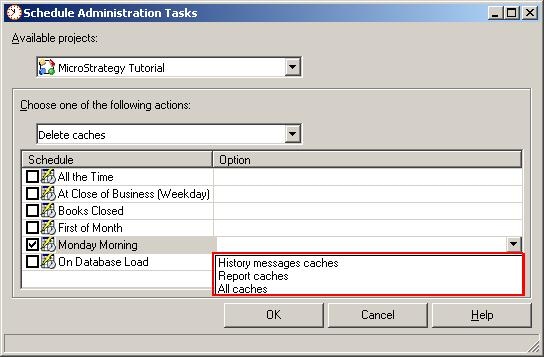
Caches can be deleted for only one project at a time. To delete caches, select a project from the Available Projects drop-down list. Then, select 'Delete Caches' from the Actions drop-down list, as shown below:
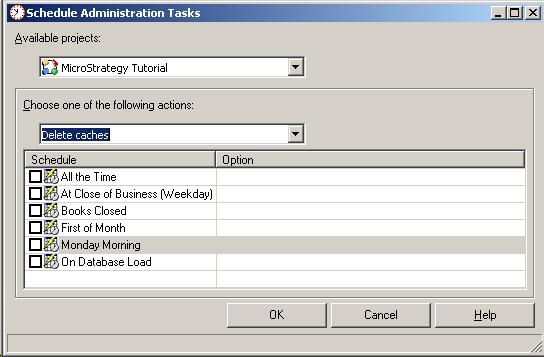
Again, select one of the pre-defined schedules that are available for selection. There are 3 options available to users to choose from when deleting caches as seen below:
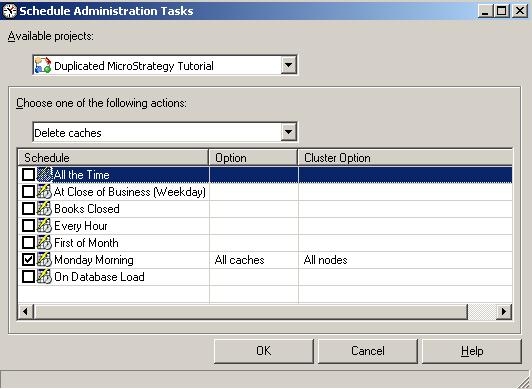
Strategy 9.x provides an additional selection criteria called "Cluster Option" to select the Intelligence Server node (in the case of a clustered environment) where the user wants to run the schedule as seen below:
Invalidate Caches
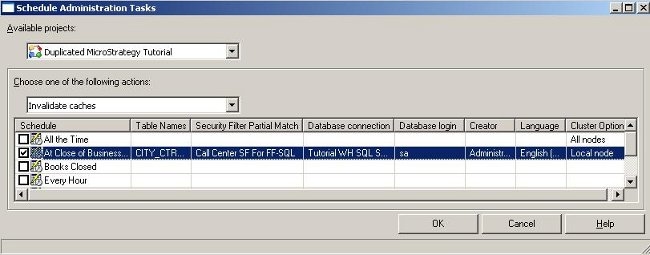
Similar to deleting caches, caches can only be invalidated for one project at a time. To invalidate caches, select a project from the Available Projects drop-down list. Then, select 'Invalidate Caches' from the Actions drop-down list, as shown below:
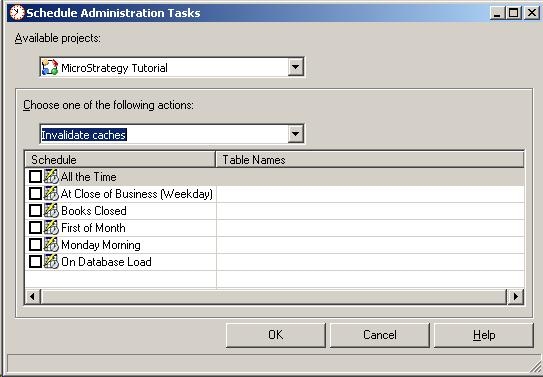
Select one of the pre-defined schedules that are available for selection. It is possible to enter Table names from the warehouse upon which users would like the scheduling to depend. A table or a list of tables can be added via the Project tables box, as shown below:
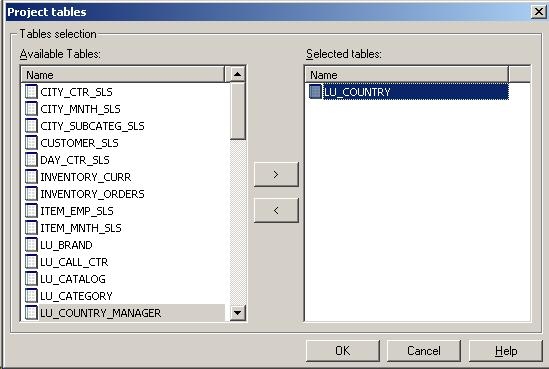
When a table or a list of tables are selected by moving them to the right, the caches of all reports that use these tables as source tables are invalidated. In the image above, the caches of all reports which use LU_COUNTRY as a source table are invalidated in the Strategy Tutorial project.
Strategy 9.x provides additional selection criteria for users to customize their scheduling process as seen below:
Note: If there is no history list message tied to the report cache, the report cache will be removed as soon as it is invalidated. However, if the report cache has a history list association with it, deleting the report cache will cause any associated history list messages to fail when the message data is retrieved.
