EducationSoftwareStrategy.com
StrategyCommunity

Knowledge Base

Product

Community

Knowledge Base

TopicsBrowse ArticlesDeveloper Zone

Product

Download SoftwareProduct DocumentationSecurity Hub

Education

Tutorial VideosSolution GalleryEducation courses

Community

GuidelinesGrandmastersEvents
x_social-icon_white.svglinkedin_social-icon_white.svg
Strategy logoCommunity

© Strategy Inc. All Rights Reserved.

LegalTerms of UsePrivacy Policy
  1. Home
  2. Topics

KB13719: How to Implement a multiple value prompt using an attribute qualification filter in MicroStrategy Developer 10.x


Stefan Zepeda

Salesforce Solutions Architect • Strategy


This article describes how to Implement a multiple value prompt using an attribute qualification filter in MicroStrategy Developer 10.x

It is possible to create a multiple value prompt to enter more than one value to filter on an attribute in Strategy Developer 10.x.
 
Follow the steps below to create an attribute qualification filter that will allow the user to enter more than one value to filter on:
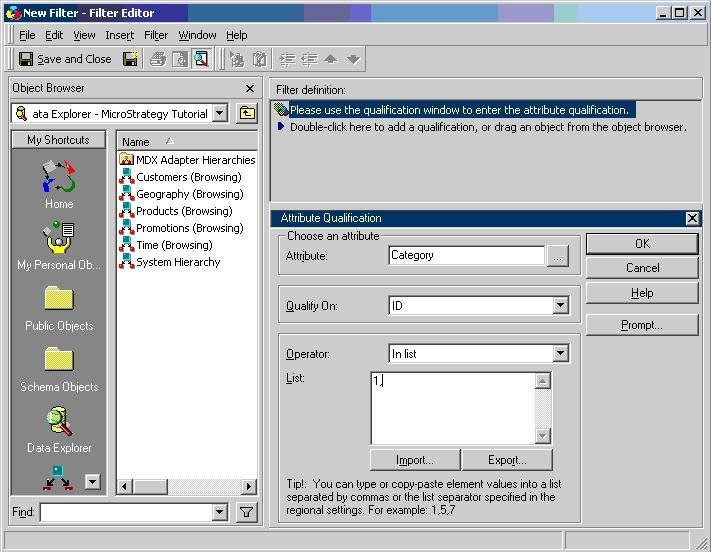
 

  • Open the filter editor.
  • Select 'Add an attribute qualification' and click OK.
  • In the Qualify On list, select ID.
  • In the Operator list, select 'In list.'
  • Type a default value on in the 'In list' items area, as shown below:
ka044000000kUGsAAM_0EM440000002FXF.jpeg
  • Click on prompt and click next until finished.
  • Save and close this filter.
  • Add the following filter to any report where the user wants to choose a set of values to qualify on the attribute.
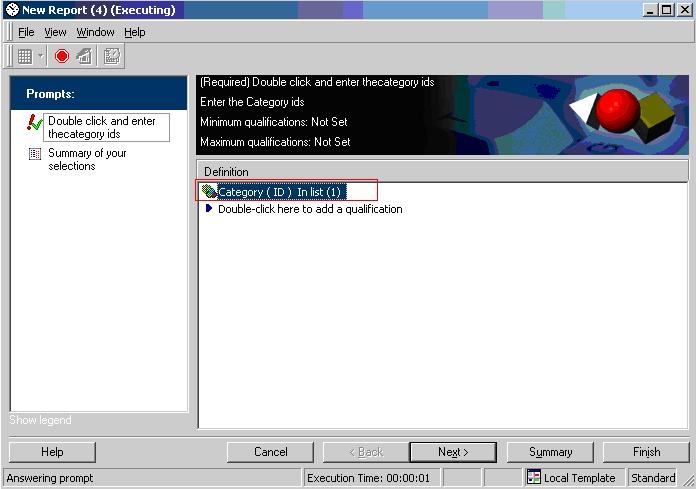
  • When user executes the report, the prompt appears as shown below:
ka044000000kUGsAAM_0EM440000002FXJ.jpeg
  • Double click on the filter.
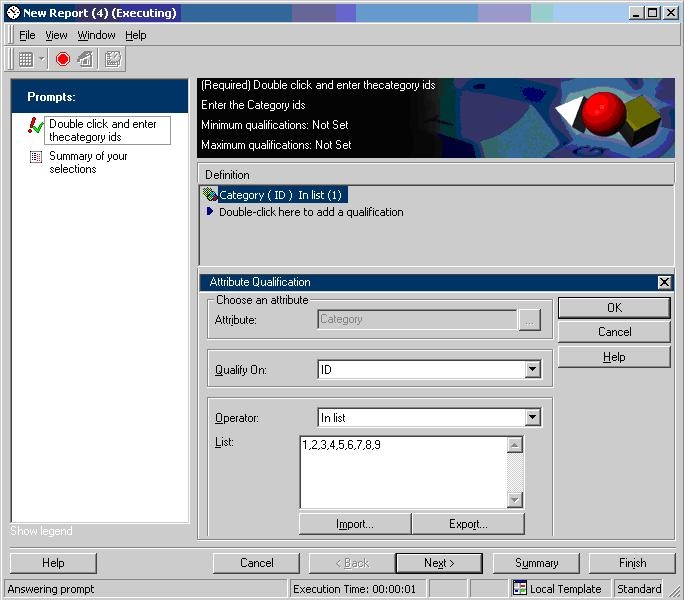
  • The user will then be prompted to enter as many values as desired or can import from files, as shown below:
ka044000000kUGsAAM_0EM440000002FXD.jpeg
  • Click on OK and finish to complete the report execution with the chosen attribute values.

13719


Comment

0 comments

Details

Knowledge Article

Published:

June 2, 2017

Last Updated:

March 28, 2019