Strategy Developer introduces a new datatype, the Big Decimal datatype, to handle numbers to a precision of up to 38 digits. The Big Decimal datatype allows for the proper display and passing of high-precision numbers.
In order to define an attribute as Big Decimal datatype, Strategy Architect users must define the 'Form Format' and 'Column Alias' as Big Decimal datatype. Otherwise, the precision will be lost.
Consider the following example:
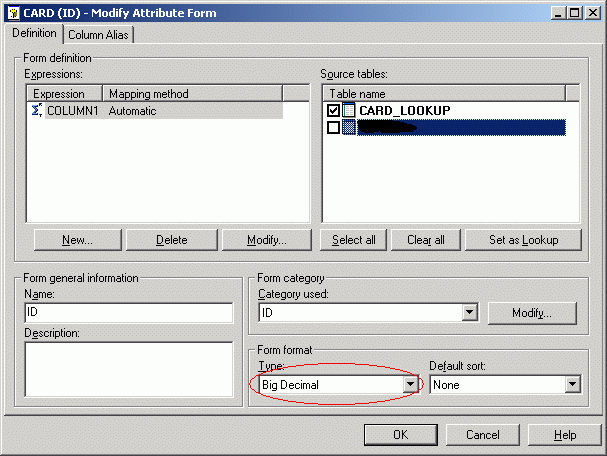
A user has an attribute called CARD pointing to an Oracle's table column defined as Numeric (20). When defining the attribute form, the default 'Form format' will be Numeric. So, the user must select the Big Decimal datatype to return all the digits, as shown below:
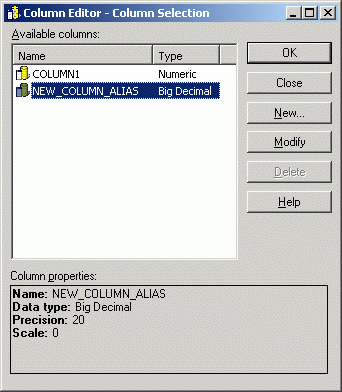
The default Column Alias datatype will be also Numeric, as this datatype is taken from the database table definition. Since users cannot change the default datatype for the column used in temporary table SQL generation, a new column alias must be defined as the Big Decimal datatype with the same precision as the one specified in the Oracle table, as shown below:
Once the user has performed these changes, it is advisable to create a simple report with this attribute and execute it in SQL View mode to confirm that the new column alias is included, as shown below:
select a11.COLUMN1 NEW_COLUMN_ALIAS
from (CARD_LOOKUP) a11
