EducationSoftwareStrategy.com
StrategyCommunity

Knowledge Base

Product

Community

Knowledge Base

TopicsBrowse ArticlesDeveloper Zone

Product

Download SoftwareProduct DocumentationSecurity Hub

Education

Tutorial VideosSolution GalleryEducation courses

Community

GuidelinesGrandmastersEvents
x_social-icon_white.svglinkedin_social-icon_white.svg
Strategy logoCommunity

© Strategy Inc. All Rights Reserved.

LegalTerms of UsePrivacy Policy
  1. Home
  2. Topics

KB13748: How to create a database in Microsoft Excel to use with a Freeform SQL report in MicroStrategy Developer 9.x-10.x


Stefan Zepeda

Salesforce Solutions Architect • Strategy


Follow the steps below to create an MS Excel database:
Follow the steps below to create an MS Excel database:
 

  • Create a new blank MS Excel spreadsheet.
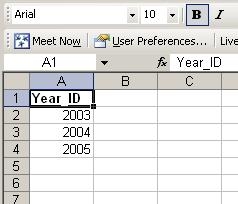
  • In any range of cells, write the column name at the top followed by the row values underneath (note that the column header cannot have blank spaces) as shown below:
ka02R000000kYcnQAE_0EM440000002FX0.jpeg
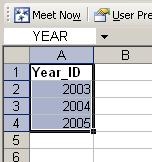
  • Select all the columns and rows for a particular table including the column headers, and enter the name of the table in the 'Name Box' and press enter, as shown below:
ka02R000000kYcnQAE_0EM440000002FWx.jpeg
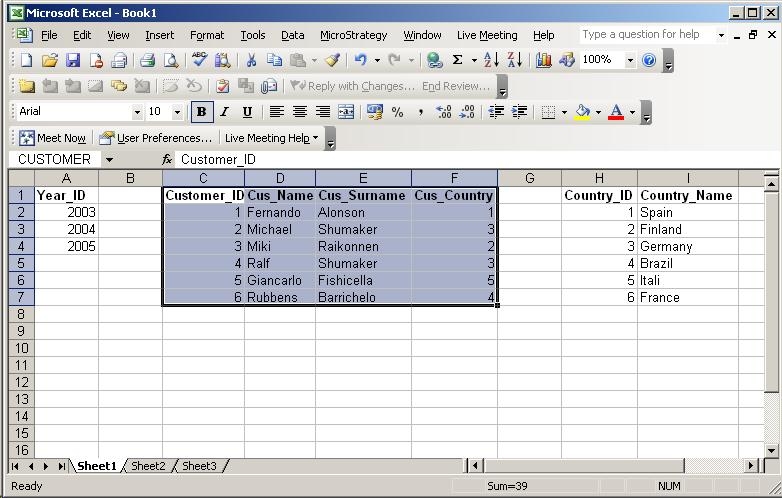
  • Repeat the first three steps to create as many tables as needed, as shown below:
ka02R000000kYcnQAE_0EM440000002FWy.jpeg
  • Save the MS Excel file, making sure it is not password protected.

To use the MS Excel database with Strategy, the user must create an ODBC connection to the file by following the steps below:
 

  • Create the ODBC connection by either using the Connectivity Wizard shipped with Strategy or the Microsoft ODCB Administrator provided by Microsoft.
  • Select the MS Excel Driver from the list of available drivers.
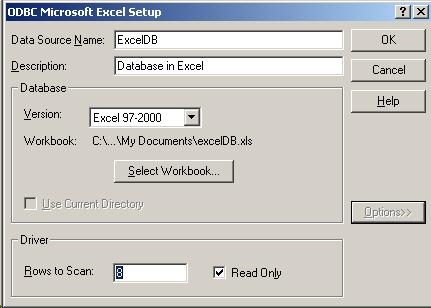
  • Give the ODBC a name and description and select the MS Excel file from the file system, as shown below:
ka02R000000kYcnQAE_0EM440000002FWz.jpeg

Next the user must create a Database Instance in Strategy to be able to use the MS Excel file by following the steps below:
 

  • Open Strategy Developer and create a new Database Instance under the Database Instance Manager.
  • Give the Database Instance a name and select the Excel 2000/2003 connection type.
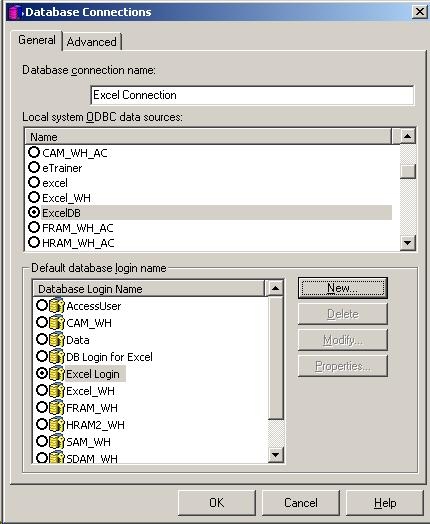
  • Create a new database connection using the ODBC created above.
  • Create a new database login; the user may use admin as the username and a blank password, as shown below:
ka02R000000kYcnQAE_0EM440000002FXA.jpeg

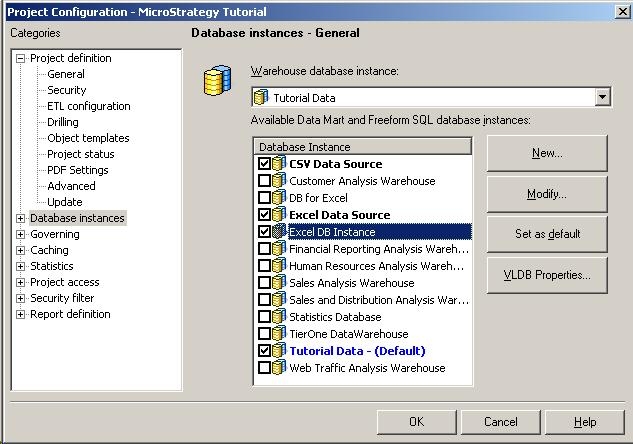
In order to be able to use the new database connection in a Freeform SQL report, the user must make it available at the project level. Edit the project configuration for the project where the Excel file is to be used as the data source.
 
In the Database Instances section of the Project Configuration, select the MS Excel Database Instance created and click OK, as shown below:
 

ka02R000000kYcnQAE_0EM440000002FWq.jpeg

 
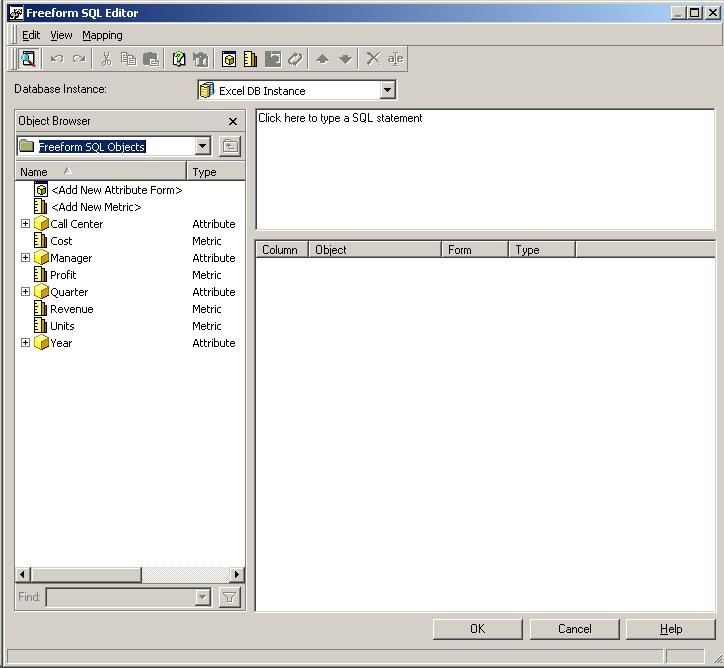
The user can now use the newly created database connection to create a new freeform SQL report. Create a new report and select Freeform SQL. On the Freeform SQL editor, select the new Database Instance pointing to the MS Excel file database, as shown below:
 

ka02R000000kYcnQAE_0EM440000002FWw.jpeg

 
Third Party Software Installation:
WARNING:
The third-party product(s) discussed in this technical note is manufactured by vendors independent of Strategy. Strategy makes no warranty, express, implied or otherwise, regarding this product, including its performance or reliability.


Comment

0 comments

Details

Knowledge Article

Published:

June 6, 2017

Last Updated:

June 6, 2017