EducationSoftwareStrategy.com
StrategyCommunity

Knowledge Base

Product

Community

Knowledge Base

TopicsBrowse ArticlesDeveloper Zone

Product

Download SoftwareProduct DocumentationSecurity Hub

Education

Tutorial VideosSolution GalleryEducation courses

Community

GuidelinesGrandmastersEvents
x_social-icon_white.svglinkedin_social-icon_white.svg
Strategy logoCommunity

© Strategy Inc. All Rights Reserved.

LegalTerms of UsePrivacy Policy
  1. Home
  2. Topics

KB13777: How to create a Last(x) custom subtotal and apply the grand total in the same report for MicroStrategy Developer


Stefan Zepeda

Salesforce Solutions Architect • Strategy


How to create a Last(x) custom subtotal and apply the grand total in the same report for MicroStrategy Developer

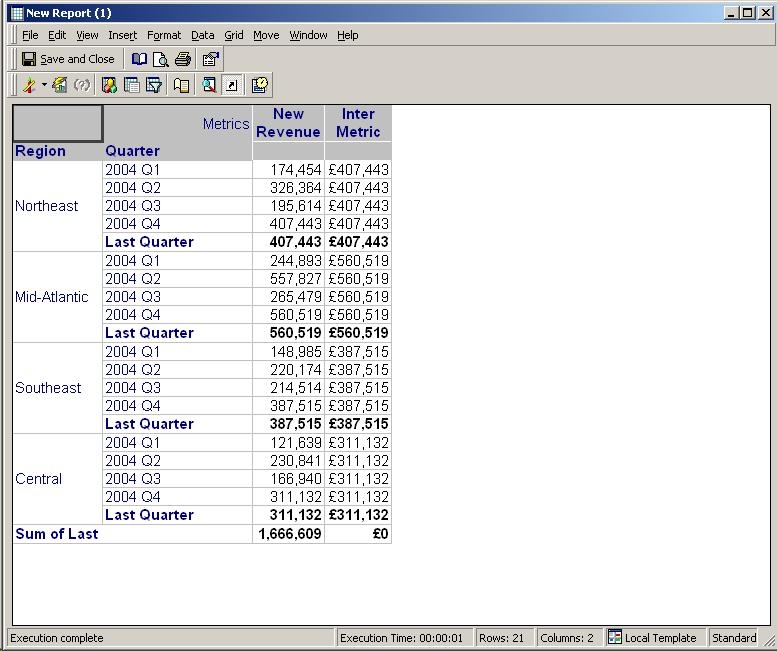
The user has created a report with with the attributes Region and Quarter and the metric Revenue. The users wants to have a subtotal for each region showing the revenue for the last quarter (Q4). At the bottom of the report, the user wants to display a grand total showing the sum of the revenue values for Q4 in each region, as shown below:
 

ka02R000000kcZvQAI_0EM440000002FWb.jpeg

 
Follow the steps below to create the Sum of Last and Last Quarter subtotals in the Strategy Tutorial project:
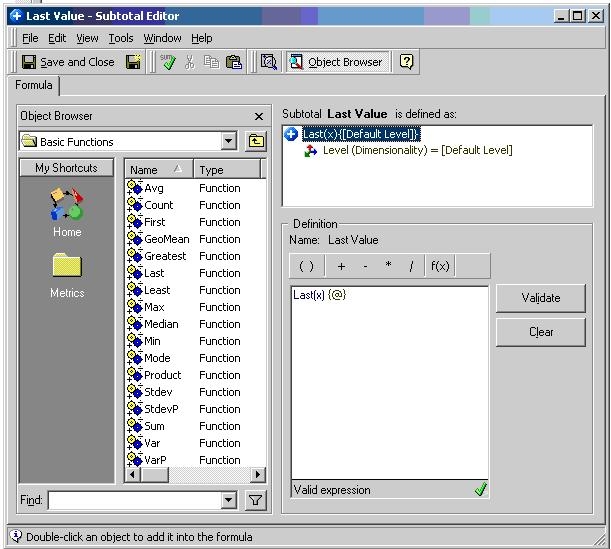
 

  • Create a custom subtotal with the formula 'Last(x) {@}' as shown below:
ka02R000000kcZvQAI_0EM440000002FWe.jpeg
  • Save this subtotal as 'Last(x).'
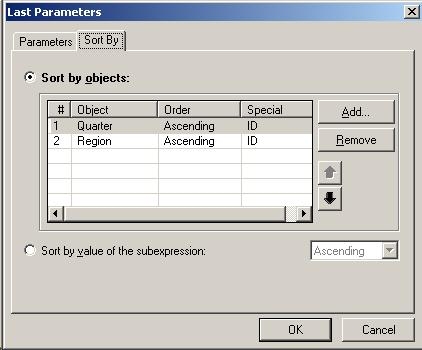
  • Right-click on the function Last to open the Last parameters. In the Sort by tab, add the Quarter ID and the Region ID to sort their values in ascending order, as shown below:
ka02R000000kcZvQAI_0EM440000002FWg.jpeg
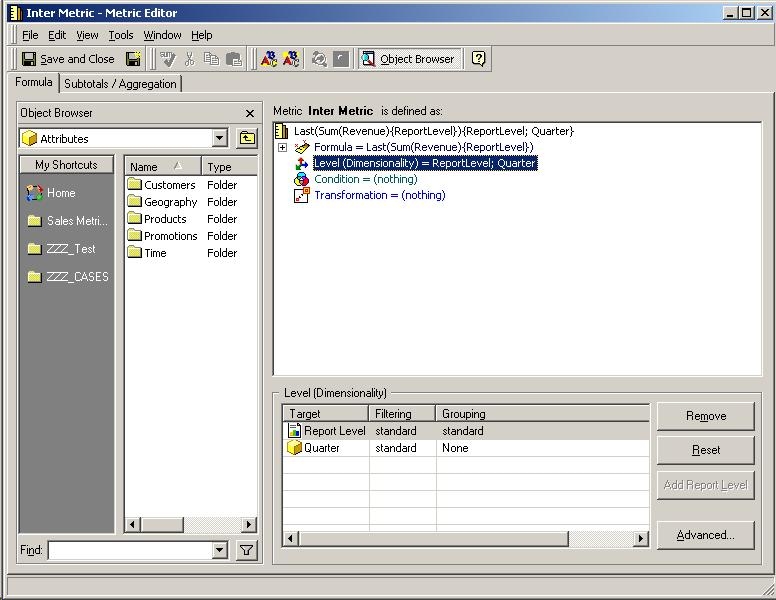
  • Create a new metric with the definition 'Last(Sum(Revenue) {~} ) {~, Quarter}.' This metric will pick up the last quarter revenue for each of the regions in the report. In the 'Level' for the metric, ensure that the grouping for the Quarter level is set to 'None', as shown below:
ka02R000000kcZvQAI_0EM440000002FWm.jpeg
  • Save this metric as 'Inter Metric.'
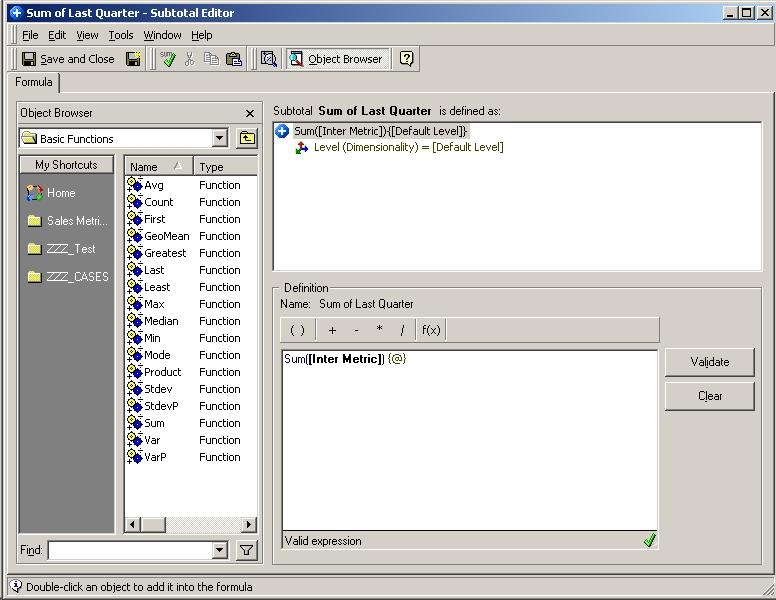
  • Next create a second custom subtotal with the formula 'Sum() {@}' where is the name of the previously created metric, as shown below:
ka02R000000kcZvQAI_0EM440000002FWZ.jpeg
  • Save this second custom subtotal as 'Sum of Last Quarter.'
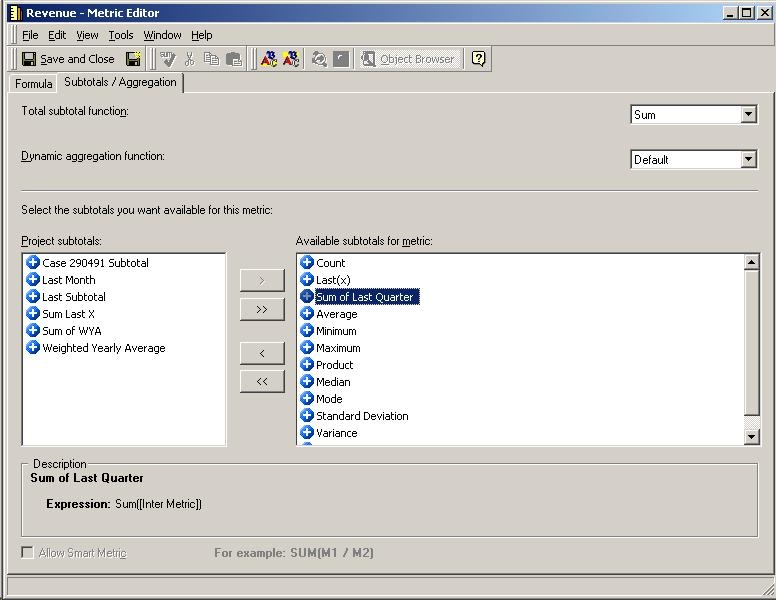
  • Add the above two custom subtotals to the 'Revenue Metric,' as shown below:
ka02R000000kcZvQAI_0EM440000002FWk.jpeg
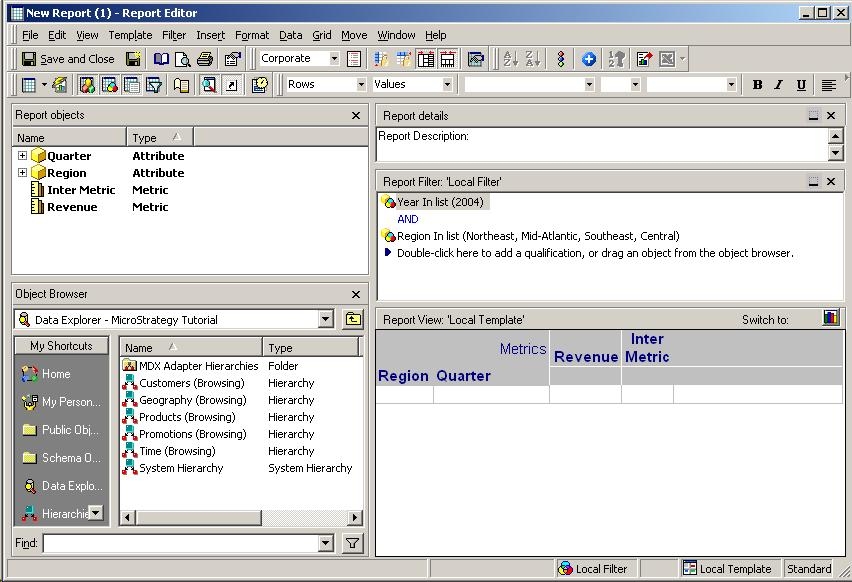
  • Create a report with Region and Quarter in the rows and the metrics Revenue and Inter Metric in the columns. For this example, the filters Year = 2004 and Region = Northeast, Mid-Atlantic, Southeast, Central have been added to restrict the data being returned, as shown below:
ka02R000000kcZvQAI_0EM440000002FWW.jpeg
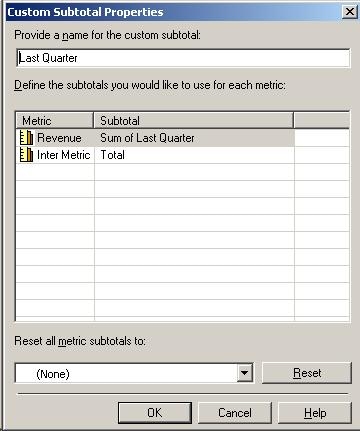
  • Open the Data menu -> Subtotals and click on Advanced. Create a new custom subtotal defined as follows:
ka02R000000kcZvQAI_0EM440000002FWi.jpeg
  • Call the new custom subtotal 'Last Quarter.'
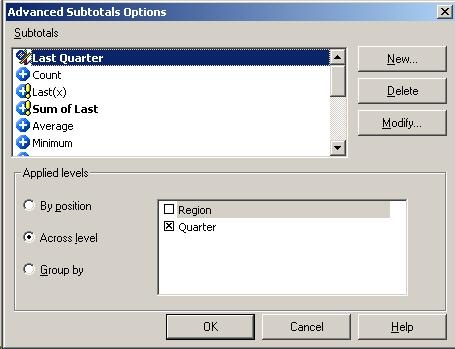
  • Apply the new custom subtotal 'Last Quarter' across level for the Quarter attribute, as shown below:
ka02R000000kcZvQAI_0EM440000002FWa.jpeg
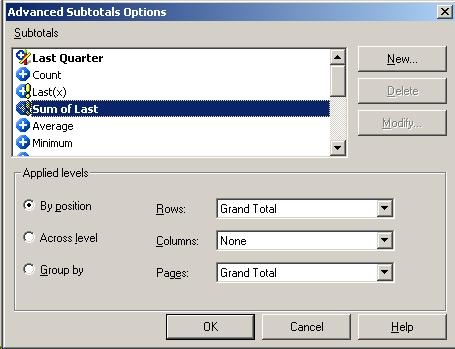
  • Apply the custom subtotal 'Sum of Last' 'By position' in rows and pages as Grand Total, as shown below;
ka02R000000kcZvQAI_0EM440000002FWc.jpeg
  • Execute the report. If it is not needed to display the 'Inter Metric,' set the column width for this attribute to 0, as shown below:
ka02R000000kcZvQAI_0EM440000002FWb.jpeg

Comment

0 comments

Details

Knowledge Article

Published:

April 11, 2017

Last Updated:

April 11, 2017