EducationSoftwareStrategy.com
StrategyCommunity

Knowledge Base

Product

Community

Knowledge Base

TopicsBrowse ArticlesDeveloper Zone

Product

Download SoftwareProduct DocumentationSecurity Hub

Education

Tutorial VideosSolution GalleryEducation courses

Community

GuidelinesGrandmastersEvents
x_social-icon_white.svglinkedin_social-icon_white.svg
Strategy logoCommunity

© Strategy Inc. All Rights Reserved.

LegalTerms of UsePrivacy Policy
  1. Home
  2. Topics

KB13782: After duplicating a project in MicroStrategy Developer 10.x, all users are able to see the project even if their access had previously been revoked


Stefan Zepeda

Salesforce Solutions Architect • Strategy


This tech note explains how to avoid that after duplicating a project into another project source via MicroStrategy Developer 10.x, all users can see the project even if they could not see the project before duplication.

SYMPTOM:
After duplicating a project into another project source via Strategy Developer 10.x, all users can see the project even if they could not see the project before duplication.
CAUSE:
The 'Everyone' group is placed into the 'Normal Users' security role for the project during duplication, even if the group had been previously removed. This occurs because on the 'Project Duplication - Process Options' page of the Project Duplication Wizard, the option 'Use properties from source and destination (add)' or 'Use properties from source and destination (existing)' was selected.
ACTION:
There are two ways to solve this issue: one post-duplication and one pre-duplication:
 

  • Post-Duplication:
    Remove the 'Everyone' group from the 'Normal Users' security role by following the steps in the following Strategy Knowledge Base technical note:
    KB4000-071-0348 - How to deny access to a Strategy project to a user or user group using Strategy Desktop 7.1.x
  • Pre-Duplication:
    NOTE: This method only works if no users or groups are duplicated when duplicating the project. Also this method will overwrite the 'Everyone' group's properties.
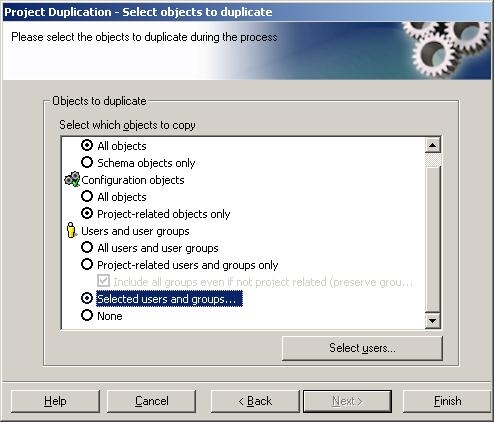
    • In the 'Project Duplication - Select objects to duplicate' window in the Project Duplication Wizard, choose the 'Selected users and groups…' option under 'Users and user groups' as shown below:
ka02R000000kXh9QAE_0EM440000002FVG.jpeg
    • Click the 'Select users' button.
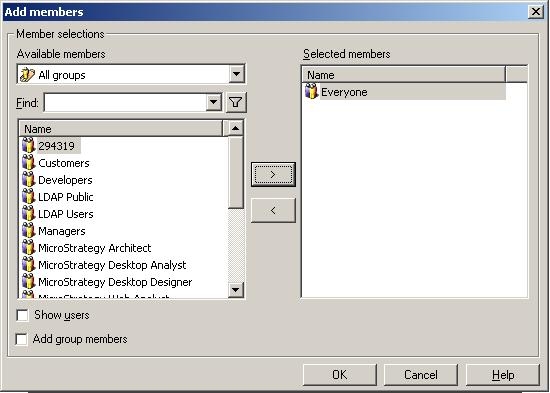
    • Select only the 'Everyone' group from the Name box on the left and add it to the 'Selected Members' box on the right with the '>' button, as shown below:
ka02R000000kXh9QAE_0EM440000002FVC.jpeg
    • Click 'OK.'
    • Click 'Next.'
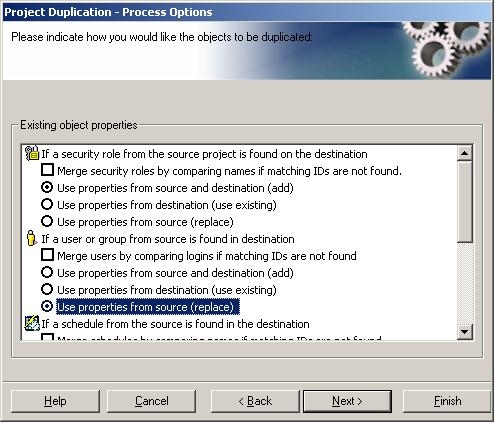
    • On the 'Project Duplication - Process Options' page under 'If a user or group from source is found in destination' select 'Use properties from source (replace)' as shown below:
ka02R000000kXh9QAE_0EM440000002FVI.jpeg
    • Finish the duplication.

Comment

0 comments

Details

Knowledge Article

Published:

April 3, 2017

Last Updated:

April 3, 2017